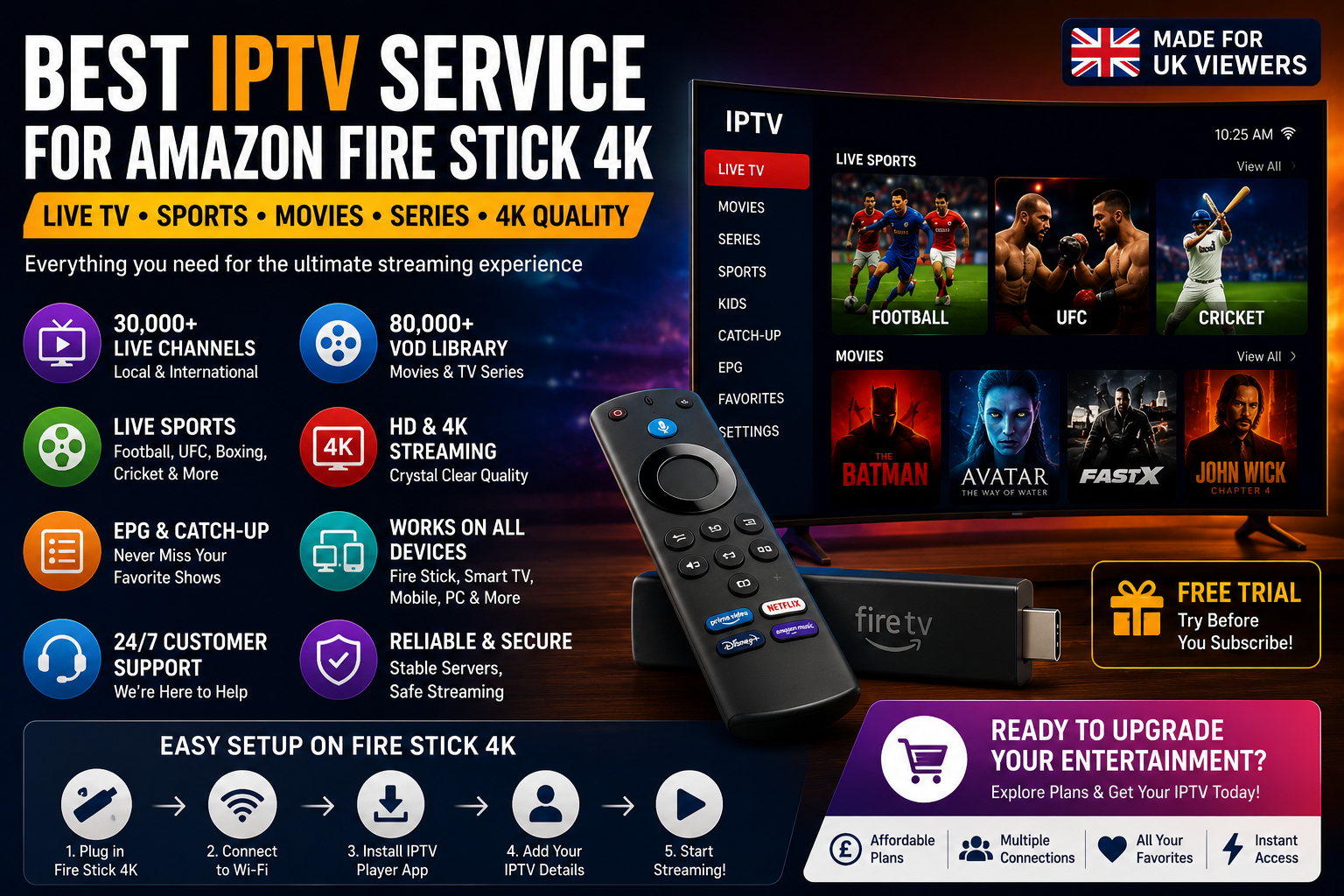
The Amazon Fire Stick 4K is one of the easiest ways to turn a compatible television into a flexible streaming setup. But the device itself doesn’t provide IPTV channels—you still need a compatible IPTV player and a subscription or playlist from a provider.
So, what is the best IPTV service for Amazon Fire Stick 4K? The answer isn’t simply the provider advertising the biggest channel number. Streaming reliability, sports coverage, movies and VOD, picture quality, device compatibility, installation, support and overall value all matter.
In this guide, we’ll explain exactly what to look for, how to set up IPTV on your Fire Stick 4K, how much internet speed you need and how to solve common problems.
What Is the Best IPTV Service for Amazon Fire Stick 4K?
The best IPTV service for Amazon Fire Stick 4K should combine reliable streaming, broad live TV and entertainment options, HD or 4K support where available, EPG functionality, easy Fire Stick compatibility, straightforward setup and responsive customer support. The Fire Stick 4K is only the streaming device—the IPTV provider supplies the service, while an IPTV player provides the interface used to access your subscription.
For UK viewers, it’s also important to choose a service transparently and use it only to access content you’re legally entitled to watch.
So what should you actually look for when comparing IPTV services for Fire Stick 4K?
Why Use IPTV on an Amazon Fire Stick 4K?
The Fire Stick 4K is popular because it provides a simple, TV-focused way to access compatible streaming applications without needing a full desktop computer or separate large set-top box.
Its compact design means you can connect it directly to a compatible television through HDMI, connect it to Wi-Fi and control your entertainment using the included remote.
For IPTV users, this makes the Fire Stick 4K particularly convenient. Instead of watching IPTV through a laptop or phone, you can create a more traditional living-room setup with your television.
There are several other advantages:
- Compact and easy to install
- 4K playback capability
- Dedicated remote control
- Wi-Fi connectivity
- Access to compatible applications
- Easy navigation on a television
- Portable between compatible TVs
- Suitable for live TV and on-demand streaming
The Fire Stick 4K can also be useful for households that have a Smart TV but don’t have a suitable IPTV player available on the television’s native platform.
However, it’s important to understand that the Fire Stick 4K doesn’t automatically make IPTV streams better. Your experience still depends on your internet connection, IPTV provider, player application, Wi-Fi quality and the quality of the actual stream.
Fire Stick 4K vs Older Fire Stick Models
Newer Fire Stick 4K hardware can provide a more capable platform for demanding streaming applications than older or entry-level devices. This can be particularly useful when you’re dealing with high-resolution video or large IPTV channel libraries.
Even so, upgrading the device isn’t always the solution to buffering.
If your broadband connection is unstable or your Wi-Fi signal is weak, a newer Fire Stick won’t eliminate those problems. Similarly, if the source stream has performance problems, changing the streaming device won’t necessarily fix them.
The best results come from combining capable hardware with a stable network, suitable player and reliable IPTV service.
What to Look for in an IPTV Service for Fire Stick 4K
Choosing the right IPTV service becomes easier when you know which features actually matter.
Fire Stick Compatibility
The first thing to check is whether the IPTV service can be used with your Fire Stick 4K through a compatible IPTV player.
Don’t assume that every IPTV application works identically on every Fire Stick model. Application availability, installation methods and operating-system compatibility can change over time.
Before purchasing a longer subscription, confirm that your preferred player and device are supported.
Reliable Streaming
Reliability is arguably more important than the number of channels advertised.
Imagine finding a channel you want to watch but having the stream repeatedly stop during an important live event. A large channel library isn’t particularly useful if the streams aren’t consistently available.
When evaluating an IPTV service, consider:
- Channel loading speed
- Stream stability
- Peak-hour performance
- Server infrastructure
- Live-event performance
- Overall responsiveness
Your own network also matters, so it’s best to test the service on the same Fire Stick and internet connection you’ll use regularly.
HD and 4K Streaming
The Fire Stick 4K is designed to support high-resolution video, making it a good choice for viewers who want to take advantage of compatible HD and 4K streams.
However, there is an important distinction between device capability and stream quality.
Your Fire Stick may support 4K, but the IPTV stream itself must also be supplied in 4K. Your television, HDMI connection, internet speed and network stability must also be capable of handling the stream.
Don’t choose a provider solely because it uses “4K” in its marketing. Look at the overall service and test the actual streams when possible.
Live Sports
Sports are one of the biggest reasons viewers look for IPTV services.
Depending on the provider and applicable content rights, sports viewers may be interested in categories covering:
- Football
- Premier League
- Champions League
- International football
- Major tournaments
- Cricket
- Boxing
- UFC
- Basketball
- American football
- Other international sports
For UK football fans, stream stability is particularly important. A few seconds of buffering during a live match can mean missing a goal or important moment.
You can learn more about setting up a suitable sports streaming experience in our Watch Premier League Live with IPTV guide.
Always make sure that the sports content you access is properly authorised for your location and subscription.
Movies and TV Series
A good IPTV service can also be useful for viewers who want on-demand entertainment alongside live television.
Depending on the service, VOD categories may include:
- Movies
- TV series
- Drama
- Comedy
- Action
- Documentaries
- Family entertainment
- Children’s programming
- International content
A large VOD library is useful, but organisation matters too. Search functions, categories and favourites can make thousands of titles much easier to navigate.
EPG and Catch-Up Features
An Electronic Programme Guide, or EPG, provides programme information directly inside the IPTV player.
Instead of opening a separate website to find out what’s currently playing, an EPG can display:
- Current programmes
- Upcoming programmes
- Channel schedules
- Programme descriptions
Some services may also offer catch-up functionality for supported content.
These features can make an IPTV setup feel much closer to the traditional television experience.
Customer Support
Customer support is often overlooked when comparing IPTV services.
If you’re new to IPTV, you may need help with:
- Installing the player
- Entering login details
- Understanding Xtream Codes
- Loading an M3U playlist
- Configuring the EPG
- Troubleshooting channels
- Checking device compatibility
A provider with clear setup instructions and responsive support can make the entire process significantly easier.
Which IPTV Player Is Best for Fire Stick 4K?
An important distinction needs to be made between an IPTV provider and an IPTV player.
The provider supplies the subscription or playlist. The player is the application that connects to those credentials and displays the available content.
IPTV Smarters Pro
IPTV Smarters Pro is one of the commonly used IPTV player options because it provides a user-friendly interface and supports common IPTV connection methods such as Xtream Codes and M3U playlists, depending on the version and platform.
Features can include:
- Live TV
- VOD
- Series
- EPG
- Favourites
- Category-based navigation
- Multiple connection options
For a detailed walkthrough, see our How to Install IPTV Smarters Pro guide.
Remember that IPTV Smarters Pro is a player. It does not automatically provide television channels or a subscription.
Other IPTV Player Options
There are other IPTV players available for Fire Stick and compatible devices. The best option depends on the applications currently available for your device, your preferred interface and the connection method supported by your IPTV provider.
When choosing a player, prioritise:
- Device compatibility
- Stable playback
- Easy navigation
- EPG support
- Playlist compatibility
- Regular maintenance or updates where applicable
How to Install IPTV on Amazon Fire Stick 4K
Setting up IPTV on a Fire Stick 4K is generally straightforward once you have a compatible player and valid subscription credentials.
The exact installation process can vary depending on the IPTV player and how it is distributed, so always follow the application’s legitimate installation instructions.
Step 1 — Connect Your Fire Stick 4K
Connect your Fire Stick 4K to an available HDMI port on your television.
Connect the supplied power adapter, switch your television to the correct HDMI input and complete the initial Fire Stick setup.
You’ll need to connect the Fire Stick to your Wi-Fi network before installing or using an IPTV player.
Step 2 — Prepare Your IPTV Credentials
Before opening the IPTV application, make sure you have your subscription credentials available.
Depending on the provider, you may receive:
- Server URL
- Username
- Password
- M3U playlist URL
Xtream Codes credentials normally require the server address, username and password, while an M3U setup generally requires a playlist URL.
Keep these details exactly as provided because even a small typing error can prevent the connection from working.
Step 3 — Install a Compatible IPTV Player
Choose a compatible IPTV player and install it using an appropriate and legitimate installation method for your Fire Stick.
IPTV Smarters Pro is one option frequently used for this type of setup.
If you’re unfamiliar with the installation process, our Installation Guide provides additional information about IPTV setup across supported devices.
Step 4 — Open the IPTV Player
Once installation is complete, open the IPTV application from your Fire Stick’s applications menu.
The first screen will usually ask you to add a user, playlist or connection.
Step 5 — Choose Your Login Method
Depending on the application, you may see options such as:
Login with Xtream Codes API
or
Load Your Playlist / M3U URL
Select the method that matches the credentials provided with your subscription.
Step 6 — Enter Your Credentials
For Xtream Codes, enter the:
- Server URL
- Username
- Password
For an M3U connection, paste the complete playlist URL into the appropriate field.
Double-check everything before submitting.
Step 7 — Allow the Channel List to Load
Once your credentials are accepted, the player will normally retrieve the available categories and channel information.
Large channel libraries can take longer to load than smaller playlists, particularly during the initial setup.
Give the application enough time to complete the process.
Step 8 — Start Watching
Once everything has loaded, you can navigate through categories such as:
- Live TV
- Sports
- Movies
- Series
- Favourites
- EPG
Select a channel to begin playback.
If you experience problems during setup, don’t immediately assume the subscription is faulty. Check your internet connection, credentials, player configuration and Fire Stick network connection first.
For a more detailed device-by-device setup process, see the Installation Guide.
What Internet Speed Do You Need for IPTV on Fire Stick 4K?
Internet speed is one of the most important factors affecting IPTV performance.
As a practical guideline, viewers can consider:
| Streaming Quality | Suggested Minimum Speed |
| SD | Around 5 Mbps |
| HD | Around 10 Mbps |
| 4K | Around 25 Mbps |
These aren’t absolute requirements because actual bandwidth requirements vary according to the video stream, compression, network conditions and device.
For 4K streaming in particular, having additional bandwidth available is useful because other devices in your home may also be using the connection.
For example, if someone is downloading a large game while another person is watching 4K IPTV, the Fire Stick may not receive the consistent bandwidth it needs.
Wi-Fi vs Ethernet
Wi-Fi is perfectly practical for many Fire Stick users, provided the signal is strong and stable.
However, network distance and interference can affect wireless performance.
Where your setup allows it, a wired Ethernet connection can provide a more consistent connection than weak or congested Wi-Fi.
The goal isn’t simply to have a high advertised broadband speed. The important thing is how much stable bandwidth reaches the Fire Stick while you’re actually streaming.
How to Improve IPTV Streaming on Fire Stick 4K
Even with a good IPTV service, a few simple changes can improve your setup.
Use a Strong Wi-Fi Connection
Place your router and Fire Stick in positions that provide a strong wireless signal.
Walls, floors, furniture and other electronic devices can affect Wi-Fi performance.
Restart Your Fire Stick and Router
A simple restart can resolve temporary network or application problems.
If IPTV suddenly stops working after previously working correctly, restart both your Fire Stick and router before changing more complicated settings.
Reduce Network Congestion
Other devices can consume substantial bandwidth.
Downloads, cloud backups, gaming and multiple simultaneous video streams can all compete with IPTV.
If you’re watching an important live event, reducing unnecessary network activity can help maintain a stable connection.
Keep Your Device Updated
Keeping your Fire Stick and compatible applications updated can help maintain compatibility and address software-related problems.
Use a Suitable IPTV Player
Different players can behave differently on the same device.
If one application repeatedly causes problems, testing another compatible player can sometimes help determine whether the issue is application-specific.
Don’t Automatically Blame the IPTV Provider
Buffering doesn’t always originate with the IPTV service.
Possible causes include:
- Weak Wi-Fi
- Broadband congestion
- Device problems
- Player issues
- Network configuration
- Provider-side infrastructure
That’s why troubleshooting should be systematic rather than immediately replacing the provider.
IPTV Not Working on Fire Stick 4K? Common Fixes
If your IPTV isn’t working correctly, start with the simplest checks before making major changes.
Channels Won’t Load
If the channel list doesn’t load, check that your:
- Username is correct
- Password is correct
- Server URL is correct
- Subscription is active
- Internet connection is working
If you’ve copied the credentials from an email, make sure you haven’t accidentally added an extra space.
IPTV Keeps Buffering
Buffering can have several causes.
Start by checking your Fire Stick’s internet connection and Wi-Fi signal. Run a speed test if possible and compare the results with the requirements of the stream you’re trying to watch.
You can also restart your router, reduce network activity and test another channel.
If the problem continues, compare different channels and content types. If only one stream is affected, the problem may not be your entire connection.
For a complete troubleshooting checklist, see IPTV Not Working? Here’s How to Fix the Most Common Problems.
The IPTV App Crashes or Freezes
Try:
- Closing and reopening the application.
- Restarting the Fire Stick.
- Checking for application updates.
- Clearing the application’s cache where supported.
- Checking available device storage.
- Testing another compatible IPTV player.
If the problem occurs only with one application, the player itself may be responsible.
4K Stream Isn’t Playing Properly
If HD streams work but 4K streams buffer, your connection may not have enough consistent bandwidth for the higher-resolution stream.
Check your internet speed, Wi-Fi signal and whether other devices are consuming bandwidth.
Also remember that the source stream must actually be supplied in 4K. A Fire Stick 4K cannot turn an ordinary HD stream into genuine native 4K quality.
EPG Isn’t Loading
If the channels work but the programme guide doesn’t appear correctly, the issue may involve the EPG configuration or data supplied by the provider.
Try refreshing the playlist or EPG within the player if that option is available.
Is Sky Glass IPTV Store Good for Fire Stick 4K?
Sky Glass IPTV Store is designed for viewers looking for a broad IPTV entertainment experience across compatible devices, including Fire Stick setups.
The service is positioned around live television, sports, movies, TV series and VOD, with features such as:
- 30,000+ advertised live channels
- 80,000+ advertised VOD titles
- Sports categories
- Movies and TV series
- HD and 4K options where available
- EPG functionality
- Catch-up features where supported
- Multi-device compatibility
- Customer support
- Free trial availability
The important point is that channel numbers alone shouldn’t determine whether a service is right for you.
Your actual experience depends on your Fire Stick, broadband connection, IPTV player and the streams available through the service.
That’s why testing the service on your own Fire Stick can be useful before choosing a longer subscription.
If you want to learn more about Sky Glass IPTV Store, visit the Sky Glass IPTV Store.
If you’re ready to check available plans, visit the Buy IPTV Subscription page.
How Much Does an IPTV Subscription for Fire Stick Cost?
The cost of IPTV isn’t determined by the Fire Stick itself.
Your Fire Stick is simply the hardware used to access the service. Subscription pricing is generally determined by the IPTV provider and can vary according to factors such as:
- Subscription length
- Number of simultaneous connections
- Available features
- Content categories
- Customer support
- Service infrastructure
Monthly subscriptions generally provide greater flexibility, while longer plans may reduce the effective monthly cost.
However, the cheapest subscription isn’t automatically the best option.
When comparing IPTV prices, look beyond the headline figure and consider whether the service provides the features, compatibility, reliability and support you actually need.
For a more detailed UK pricing discussion, see How Much Does IPTV Cost in the UK? – Full Price Guide 2026.
Do You Need a VPN for IPTV on Fire Stick 4K?
No, a VPN is not technically required simply because you’re using IPTV on a Fire Stick 4K.
A VPN can provide general online privacy by encrypting network traffic and masking your IP address. Some users choose to use one for privacy reasons or when connecting to public or shared networks.
However, a VPN can also introduce additional latency and reduce available connection speed. That means it isn’t automatically a solution for IPTV buffering.
If your IPTV stream is buffering, first investigate your internet connection, Wi-Fi, device, player and provider.
For a detailed explanation of the advantages and disadvantages, see How to Use a VPN with IPTV – Does It Help or Hurt Streaming?
As always, viewers should use IPTV services and access content in accordance with applicable laws and the rights associated with the content.
How to Compare IPTV Services for Amazon Fire Stick 4K
If you’re comparing several IPTV services, use a checklist rather than relying on advertising claims.
| Factor | What to Check |
| Fire Stick Support | Confirm compatibility |
| Streaming Quality | HD/4K availability |
| Reliability | Performance during busy periods |
| Sports | Relevant sports categories |
| VOD | Movies and TV series |
| EPG | Programme guide functionality |
| Support | Setup and troubleshooting help |
| Trial | Whether testing is available |
| Pricing | Overall value |
| Connections | Number of simultaneous streams |
This approach gives you a more realistic way to compare services.
A provider with fewer advertised channels but better organisation and reliability may be more useful than one with an enormous channel count that you rarely browse.
Why IPTV Reviews Matter Before You Subscribe
Customer reviews can provide another useful source of information when comparing IPTV services.
Reviews may reveal patterns around:
- Installation
- Customer support
- Device compatibility
- Streaming experience
- Account setup
- Overall customer satisfaction
However, reviews should not be treated as the only factor in your decision. Individual experiences can vary because customers use different devices, internet providers and home networks.
If you’re considering Sky Glass IPTV Store, you can explore the Reviews Page to see available customer feedback.
Combining reviews with a trial, setup information and your own testing gives you a more complete picture.
Best IPTV for Fire Stick 4K – Frequently Asked Questions
Is IPTV compatible with Amazon Fire Stick 4K?
Yes. Compatible IPTV services can be accessed on Fire Stick 4K through supported IPTV player applications. You’ll need a compatible player and valid credentials or a playlist from your IPTV provider.
What is the best IPTV service for Fire Stick 4K?
The best service depends on your requirements, but important factors include streaming reliability, Fire Stick compatibility, sports and entertainment content, VOD, video quality, EPG support, customer service, pricing and trial availability.
Can I watch 4K IPTV on Fire Stick 4K?
Yes. The Fire Stick 4K supports 4K playback, but the IPTV stream must also be supplied in 4K. Your television, HDMI setup, internet connection and network stability also need to support the required quality.
How much internet speed do I need for IPTV on Fire Stick 4K?
Around 10 Mbps is a practical starting point for HD streaming, while around 25 Mbps or more is commonly recommended for 4K. Actual requirements vary depending on the stream and network conditions.
Does IPTV Smarters Pro work on Fire Stick 4K?
A compatible IPTV Smarters application can be used on supported Fire Stick devices. The application is a player rather than an IPTV provider, so you’ll still need valid subscription credentials or a compatible playlist.
Why does IPTV buffer on my Fire Stick 4K?
Buffering can be caused by weak Wi-Fi, insufficient bandwidth, network congestion, device problems, player issues or provider-side infrastructure. Checking your connection and testing another channel can help identify the cause.
Do I need a VPN for IPTV on Fire Stick?
No. A VPN isn’t technically required for IPTV. Some users choose one for general privacy, but a VPN can also reduce connection speed or increase latency, so it shouldn’t automatically be considered a buffering solution.
Can I use one IPTV subscription on multiple Fire Sticks?
That depends on the subscription’s connection policy. Check how many simultaneous connections your specific plan allows before using the account on multiple devices at the same time.
Can I watch sports and movies with IPTV on Fire Stick?
Many IPTV services offer both live television and VOD categories containing sports, movies and TV series. The exact content available depends on the provider and applicable content rights.
How do I install IPTV on Fire Stick 4K?
Connect your Fire Stick to the internet, install a compatible IPTV player using an appropriate installation method, select the relevant login option and enter the credentials provided by your IPTV service. For detailed instructions, see the Installation Guide.
What Is the Best IPTV Service for Amazon Fire Stick 4K?
The best IPTV service for Amazon Fire Stick 4K isn’t necessarily the one with the biggest channel number or the cheapest subscription. A better choice is a service that provides the right balance of reliable streaming, useful content, Fire Stick compatibility, HD or 4K options, EPG functionality, straightforward setup and customer support.
If you’re ready to explore the service, visit the Sky Glass IPTV Store Home Page or check the Buy IPTV Subscription page for available options.
You can also use the Installation Guide if you’re setting up IPTV for the first time, check the Reviews Page for customer feedback, or read How to Install IPTV Smarters Pro for additional player setup information.
The right IPTV setup should be simple: a compatible Fire Stick 4K, a stable internet connection, a suitable player and a service that delivers the content and experience you’re actually looking for.