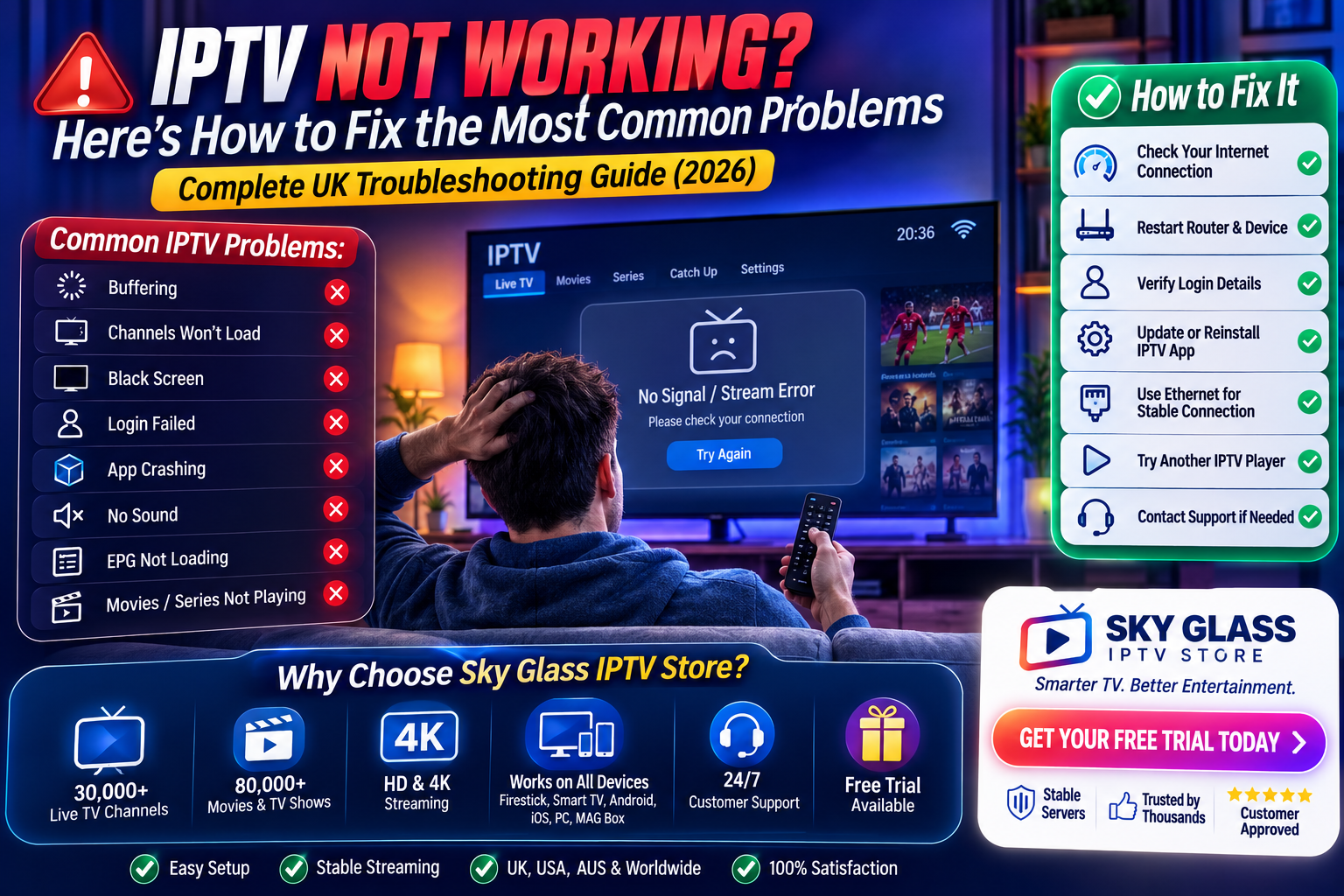
Nothing is more frustrating than sitting down to watch a live football match, your favourite TV series, or breaking news—only to find your IPTV service refusing to load, buffering every few seconds, or displaying an error message.
The good news is that most IPTV problems are surprisingly easy to fix. In our experience helping thousands of IPTV users across the UK, the majority of issues come down to internet connectivity, device settings, outdated apps, or simple login mistakes rather than the IPTV service itself.
This guide walks you through the most common IPTV problems, explains why they happen, and shows you exactly how to fix them. If you’re looking for a reliable service that prioritises stable infrastructure and responsive support, Sky Glass IPTV Store also offers a free trial so you can test performance before purchasing.
Does IPTV Stop Working? Here’s the Quick Answer
Most IPTV problems are caused by one of four things: your internet connection, incorrect login credentials, an outdated IPTV player app, or temporary server maintenance. In many cases, restarting your device, checking your connection, updating your IPTV app, or verifying your Xtream Codes or M3U details resolves the issue within minutes. If the problem persists, contact your IPTV provider’s support team before assuming the service has failed.
Now let’s go through every common IPTV issue one by one.
Why IPTV Stops Working
Unlike traditional satellite or cable television, IPTV depends on several components working together:
- Your internet connection
- Your IPTV player app
- Your streaming device
- Your IPTV subscription
- The IPTV provider’s infrastructure
If any one of these components develops a problem, your stream may stop working even though everything else is functioning normally.
The key to troubleshooting IPTV is identifying which part of the chain is causing the issue instead of randomly changing settings.
One of the biggest mistakes users make is immediately assuming their IPTV provider is at fault. Through experience supporting IPTV users throughout the UK, we’ve found that many issues actually originate on the user’s own network or device.
Before You Start Troubleshooting
Before changing settings or reinstalling apps, perform these quick checks.
Check Your Internet Connection
IPTV requires a stable internet connection.
Recommended speeds are:
| Streaming Quality | Minimum Speed |
| SD | 5 Mbps |
| HD | 10 Mbps |
| Full HD | 15 Mbps |
| 4K UHD | 25 Mbps+ |
If other websites are loading slowly or video streaming services like YouTube are also buffering, your internet connection is likely the problem—not your IPTV subscription.
Restart your router first before trying anything more complicated.
Confirm Your Subscription Is Active
One of the simplest explanations is also one of the most common.
Check whether:
- Your subscription has expired
- Payment has completed successfully
- Your trial period has ended
- Your account has been suspended after multiple failed login attempts
If you’re unsure, contact your provider before changing any settings.
Customers using Sky Glass IPTV Store can quickly confirm their subscription status through customer support.
Restart Everything
It sounds simple, but restarting your equipment fixes a surprising number of IPTV issues.
Restart:
- IPTV app
- Streaming device
- Router
- Modem (if separate)
Wait around 30 seconds before reconnecting.
This clears temporary network errors and cached application issues.
Check for Service Announcements
Occasionally providers perform scheduled maintenance.
If multiple users report the same issue at the same time, waiting a short period may be all that’s required.
Reliable providers normally notify customers about planned maintenance in advance whenever possible.
Common IPTV Problems and How to Fix Them
IPTV Keeps Buffering
Buffering is by far the most common IPTV complaint.
Fortunately, it’s also one of the easiest problems to diagnose.
Why IPTV Buffers
Buffering happens when your player isn’t receiving video data quickly enough to continue playback.
Common causes include:
- Slow broadband
- Weak Wi-Fi signal
- ISP congestion
- Overloaded device
- VPN slowing the connection
- Temporary provider congestion
- Poor quality IPTV infrastructure
Fix 1: Restart Your Router
Network devices slowly accumulate temporary connection issues.
Restart your router by:
- Turning it off.
- Waiting 30 seconds.
- Turning it back on.
- Waiting until internet reconnects.
This simple step often restores full streaming performance.
Fix 2: Use Ethernet Instead of Wi-Fi
Wireless connections are convenient but less stable than wired ones.
If you’re using:
- Windows PC
- Mac
- MAG Box
- Android TV Box
connect directly using an Ethernet cable whenever possible.
A wired connection provides:
- Lower latency
- More stable speeds
- Less interference
- Fewer buffering issues
Fix 3: Move Closer to Your Router
If Ethernet isn’t possible:
- Move closer to the router.
- Reduce walls between device and router.
- Switch to 5 GHz Wi-Fi if supported.
Many buffering complaints disappear simply by improving Wi-Fi signal strength.
Fix 4: Close Background Downloads
Large downloads, cloud backups and game updates consume bandwidth.
Pause:
- Steam downloads
- Xbox updates
- PlayStation updates
- Windows updates
- Cloud syncing
- Large file downloads
before streaming IPTV.
Fix 5: Restart Your IPTV Player
Apps occasionally develop memory issues after long sessions.
Close the application completely.
Reopen it.
Allow channels to reload.
Fix 6: Try Another Channel
If only one channel buffers while others play perfectly, the issue is usually isolated to that specific stream rather than your connection.
Test:
- Sports channel
- News channel
- Movie channel
If only one fails, report it to your provider.
Fix 7: Disable Your VPN Temporarily
If you’re using a VPN, test streaming with it turned off.
A VPN can introduce:
- Additional latency
- Reduced speeds
- Congested servers
This doesn’t mean VPNs are bad—they’re useful for privacy—but they can sometimes affect streaming performance depending on your setup.
For a full explanation, see our VPN with IPTV guide, where we explain when VPNs genuinely help and when they simply introduce unnecessary buffering.
IPTV Freezes Constantly
Freezing differs slightly from buffering.
Instead of loading repeatedly, the picture simply stops while audio may continue—or both stop completely.
Possible causes include:
- Device overheating
- Low RAM
- Old IPTV app
- Poor Wi-Fi
- Software bugs
Fixes
- Restart the device.
- Update your IPTV player.
- Close unused applications.
- Clear app cache.
- Ensure adequate ventilation around your streaming device.
Older Firesticks especially benefit from regular restarts.
IPTV App Won’t Open
Sometimes the application refuses to launch altogether.
Possible reasons include:
- Corrupted installation
- Outdated version
- Device compatibility
- Missing permissions
Try the following:
- Restart device
- Update app
- Reinstall application
- Check available storage
- Install latest version
If needed, follow the step-by-step Installation Guide, which covers setup across Firestick, Android, iPhone, Windows, Mac, Smart TVs, and MAG devices.
Login Credentials Don’t Work
Incorrect login information is another very common issue.
Double-check:
- Username
- Password
- Server URL
- M3U link
- Xtream Codes details
Pay particular attention to:
- Capital letters
- Extra spaces
- Missing characters
Avoid typing manually if possible—copy and paste directly from your welcome email.
If you’ve recently changed your password or received updated credentials, remove the old profile and create a new connection instead.
“Invalid Username or Password” Error
If you’re certain the credentials are correct, the issue may be:
- Expired subscription
- Incorrect server URL
- Disabled account
- Typing mistake
Contact your provider before repeatedly attempting to log in, as multiple failed attempts can sometimes trigger temporary security measures.
IPTV Not Working? Here’s How to Fix the Most Common Problems
Even the best IPTV services can occasionally run into issues—but the good news is that most problems are easy to diagnose and fix. In our experience supporting UK IPTV users, around 80% of reported issues are caused by internet connectivity, incorrect app settings, outdated software, or expired subscriptions rather than the IPTV service itself.
Before assuming the service is at fault, work through the troubleshooting steps below. Most fixes take only a few minutes and can get you back to watching without needing technical support.
Problem 1: IPTV Keeps Buffering
Buffering is the most common complaint among IPTV users, but it doesn’t always have the same cause. Sometimes it’s your internet connection, sometimes it’s your device, and sometimes it’s temporary server congestion.
Start by checking your broadband speed. For stable HD streaming, aim for at least 10 Mbps, while 4K streaming is much more comfortable with 25 Mbps or higher.
Next, restart your router and IPTV device. A simple reboot often clears temporary network issues.
If you’re connected over Wi-Fi, move closer to your router or switch to an Ethernet cable if your device supports it. Wired connections are significantly more stable, especially during live sports.
If you’re using a VPN, temporarily disable it and compare performance. While premium VPNs can work well, poor-quality or overloaded VPN servers sometimes introduce unnecessary latency.
Also check whether other people in your household are heavily using the internet. Large downloads, cloud backups, and multiple 4K streams can reduce available bandwidth.
If buffering only happens during one specific channel while everything else works perfectly, the issue is likely temporary rather than device-related.
For a deeper breakdown of buffering causes, see our How to Fix IPTV Buffering Issues guide.
Problem 2: Channels Won’t Load
If your channel categories appear but nothing actually plays, the problem is usually related to your login details or playlist.
First, refresh the playlist inside your IPTV player if that option is available.
If you’re using Xtream Codes, carefully verify:
- Server URL
- Username
- Password
Even an extra space or missing character can prevent authentication.
If you’re using an M3U playlist, make sure you’ve copied the complete URL exactly as provided.
Another common cause is an expired subscription. Check your subscription status or contact your provider if you’re unsure.
With Sky Glass IPTV Store, credentials are delivered immediately after activation, and support can quickly verify whether your subscription is active.
Problem 3: Black Screen While Audio Plays
A black screen with working audio usually points to a decoding issue rather than a streaming problem.
Try switching to another channel first. If only one channel has the issue, it’s often temporary.
If every channel behaves the same way:
- Restart the IPTV player.
- Update the application to the latest version.
- Try changing the built-in video decoder if your app allows it.
- Test another IPTV player such as IPTV Smarters Pro or VLC Media Player.
Older Android TV boxes and outdated Firesticks occasionally struggle with newer video codecs, making software updates especially important.
Problem 4: Login Failed
Few messages frustrate users more than “Login Failed,” but the solution is usually straightforward.
Double-check every login detail exactly as received.
Common mistakes include:
- typing http instead of https
- confusing uppercase and lowercase characters
- copying extra spaces
- entering the wrong server address
If you’re logging in using Xtream Codes, every field must match your welcome email exactly.
If everything appears correct but login still fails, try removing the account completely and adding it again from scratch.
Should the issue continue, contact customer support so they can verify your account status.
Problem 5: App Keeps Crashing
Frequent crashes are normally caused by outdated software, insufficient device storage, or corrupted app data.
Start by updating the IPTV application.
If updates don’t help:
- clear the app cache
- restart the device
- reinstall the application completely
On Firestick, Android TV, and Android phones, clearing cached data often resolves persistent crashes.
Also ensure your device has enough free storage. Running with almost no available storage can affect streaming apps far more than many people realise.
Problem 6: EPG (TV Guide) Isn’t Loading
The Electronic Programme Guide occasionally takes longer to update than live channels.
Give it several minutes after first logging in, particularly if your subscription contains tens of thousands of channels.
If the guide still doesn’t appear:
- refresh the EPG manually
- restart the app
- reconnect your playlist
An outdated IPTV player may also struggle with newer EPG formats, so updating the application is worthwhile.
Problem 7: No Sound
If video plays normally but there’s no audio:
- check your TV or PC volume first
- test another channel
- restart the application
- disable Bluetooth audio devices that may still be connected
- change the audio decoder if available
If only one channel lacks sound while everything else works, it’s typically a temporary broadcast issue rather than a problem with your setup.
Problem 8: IPTV Works on Wi-Fi but Not Mobile Data
Some mobile networks apply stricter network management policies than home broadband.
If IPTV works perfectly on Wi-Fi but refuses to load over mobile data:
- confirm mobile data is enabled for the app
- ensure data-saving mode is disabled
- verify your mobile connection is strong (4G or 5G)
- restart the application after switching networks
If your provider limits streaming performance on mobile data, switching back to Wi-Fi may offer a much smoother experience.
Problem 9: IPTV Is Slow on an Older Device
Streaming quality depends not only on your internet speed but also on your hardware.
Older Firesticks, Android boxes, and low-memory devices can struggle with modern IPTV applications.
If navigation feels slow:
- close background apps
- restart the device
- reduce unnecessary widgets
- use a lightweight IPTV player
- consider upgrading older hardware if performance continues to decline
A newer streaming device often provides a noticeable improvement in loading speed and overall responsiveness.
Problem 10: Nothing Works After Following Every Step
If you’ve checked:
- internet connection
- subscription status
- login credentials
- IPTV player
- software updates
- device restart
and the service still isn’t working, it’s time to contact your IPTV provider.
When contacting support, provide:
- your device type
- IPTV player used
- screenshots of any error messages
- a brief description of the issue
- whether the problem affects all channels or only specific ones
This information allows support teams to diagnose the issue much faster.
Sky Glass IPTV Store provides responsive customer support to help troubleshoot genuine service issues, and the Installation Guide also answers many common setup questions before you even need to ask.
When the Problem Isn’t Your IPTV Service
One of the biggest misconceptions is that every streaming issue automatically means the IPTV provider is failing.
In reality, many problems originate elsewhere:
- Weak Wi-Fi signals
- Outdated IPTV apps
- Device performance limitations
- Incorrect login credentials
- Internet congestion
- Local network configuration
Through experience assisting IPTV users across the UK, we’ve found that carefully isolating each variable saves far more time than randomly changing settings.
If possible, test the same subscription on another device. If it works perfectly there, the issue is almost certainly with the original device rather than the IPTV service itself.
Likewise, testing on another internet connection can quickly determine whether your broadband is contributing to the issue.
Using a reputable provider with reliable infrastructure also removes one of the largest variables from the troubleshooting process. Before purchasing, you can explore the Reviews page to see genuine customer feedback or request a Free Trial through the Home Page to test performance on your own setup before committing.
When to Contact Your IPTV Provider
Most IPTV issues can be fixed at home, but occasionally you’ll need help from your provider. Knowing when to stop troubleshooting yourself saves time and gets you back to streaming faster.
If you’ve already checked your internet connection, restarted your device, confirmed your subscription is active, and tested your login credentials, it’s reasonable to contact support.
When reaching out, include as much useful information as possible. This helps the support team diagnose the issue quickly rather than asking multiple follow-up questions.
Include details such as:
- Your device (Firestick, Smart TV, Android box, Windows PC, Mac, etc.)
- The IPTV player you’re using (IPTV Smarters Pro, TiviMate, VLC, etc.)
- Whether you’re using Xtream Codes or an M3U playlist
- The exact error message, if there is one
- Whether the issue affects all channels or only specific ones
- Screenshots or photos where appropriate
Sky Glass IPTV Store provides responsive customer support to help resolve genuine technical issues. Many common setup questions are also covered in the Installation Guide, making it a useful first stop before contacting support.
Preventing IPTV Problems Before They Happen
The easiest problem to fix is the one that never occurs. Following a few simple best practices can significantly improve your streaming experience and reduce future issues.
Keep Your IPTV App Updated
Developers regularly release updates that improve compatibility, fix bugs, and enhance streaming performance.
Whether you use IPTV Smarters Pro, TiviMate, VLC, or another player, check for updates regularly to ensure you’re running the latest version.
Use a Reliable Internet Connection
Stable internet is just as important as download speed.
For the best experience:
- Use Ethernet where possible.
- Place your Wi-Fi router centrally.
- Avoid streaming far from the router.
- Upgrade older networking equipment if necessary.
Even extremely fast internet can struggle if the Wi-Fi signal is weak or unstable.
Restart Devices Occasionally
Streaming devices often remain powered on for weeks at a time.
A simple restart clears temporary memory issues and refreshes network connections.
Many users notice improved performance simply by rebooting their Firestick or Android TV once every week or two.
Keep Device Storage Free
Apps need available storage to function properly.
If your device is nearly full:
- Remove unused applications.
- Delete unnecessary downloads.
- Clear cached files regularly.
This is particularly important for Firestick devices with limited internal storage.
Test New Settings One at a Time
When troubleshooting, avoid changing multiple settings simultaneously.
Instead:
- Make one adjustment.
- Test the stream.
- Observe the result.
- Continue only if necessary.
Changing several variables at once makes it much harder to identify what actually solved the problem.
Choose a Provider With Reliable Infrastructure
Many users spend hours trying to fix buffering that isn’t actually caused by their setup.
In practice, the provider’s server infrastructure has one of the biggest impacts on streaming quality. A well-maintained platform with sufficient server capacity reduces the likelihood of buffering during busy periods and provides a much smoother viewing experience.
Before committing to a subscription, consider requesting a Free Trial through the Home Page so you can test performance on your own devices and internet connection.
You can also review real customer experiences on the Reviews page before making your decision.
Quick IPTV Troubleshooting Checklist
If your IPTV suddenly stops working, work through this checklist before contacting support:
| Issue | First Thing to Check |
| Buffering | Test internet speed and restart router |
| Channels won’t load | Verify login credentials |
| Black screen | Restart app and test another channel |
| Login failed | Re-enter Xtream Codes or M3U details |
| App crashing | Update or reinstall the application |
| No EPG | Refresh playlist and restart app |
| No sound | Test another channel and check audio settings |
| Slow performance | Restart device and free up storage |
| Mobile data issues | Test on Wi-Fi |
| Everything stopped | Confirm subscription is active |
Working through these steps methodically solves the vast majority of IPTV problems without requiring technical assistance.
Frequently Asked Questions
Why has my IPTV suddenly stopped working?
The most common reasons include internet connectivity problems, incorrect login credentials, expired subscriptions, outdated IPTV apps, or temporary server issues. Restarting your device and checking your connection should always be your first step.
Why does IPTV buffer even though my internet is fast?
Fast download speeds don’t always mean a stable connection. Wi-Fi interference, network congestion, older devices, or provider infrastructure can all contribute to buffering. A wired connection often improves consistency.
Should I reinstall my IPTV app?
If restarting the app doesn’t help, reinstalling it can resolve corrupted files or outdated configurations. Remember to keep your login credentials available before uninstalling.
How do I know if my subscription has expired?
Most IPTV players display an authentication or login error when a subscription expires. If you’re unsure, contact your provider so they can verify your account status.
Can changing IPTV players fix problems?
Yes. Different IPTV players use different video engines and playback methods. If one player performs poorly, testing another compatible application can sometimes improve stability.
Does a VPN fix IPTV problems?
Not necessarily. While a VPN may help in certain situations involving ISP traffic management or public Wi-Fi, it can also introduce additional latency. For most users, choosing a reliable IPTV provider is a more effective solution than relying on a VPN.
What’s the best way to avoid IPTV issues?
Use a reputable provider, maintain a stable internet connection, keep your IPTV application updated, restart your streaming device regularly, and test your setup using a free trial before purchasing a long-term subscription.
Most IPTV Problems Are Easier to Fix Than You Think
Most IPTV issues aren’t permanent, and they rarely require advanced technical knowledge to solve. Buffering, login failures, app crashes, and missing channels are usually caused by everyday issues such as unstable internet, outdated software, incorrect login details, or temporary configuration problems.
The key is to troubleshoot methodically rather than changing multiple settings at once. Start with the basics, eliminate one possible cause at a time, and only contact support after working through the common fixes.
If you’re considering a new IPTV provider, explore the Buy IPTV Subscription page to compare plans, request a Free Trial through the Home Page, review genuine customer experiences on the Reviews page, or follow the Installation Guide to get started quickly on any supported device.