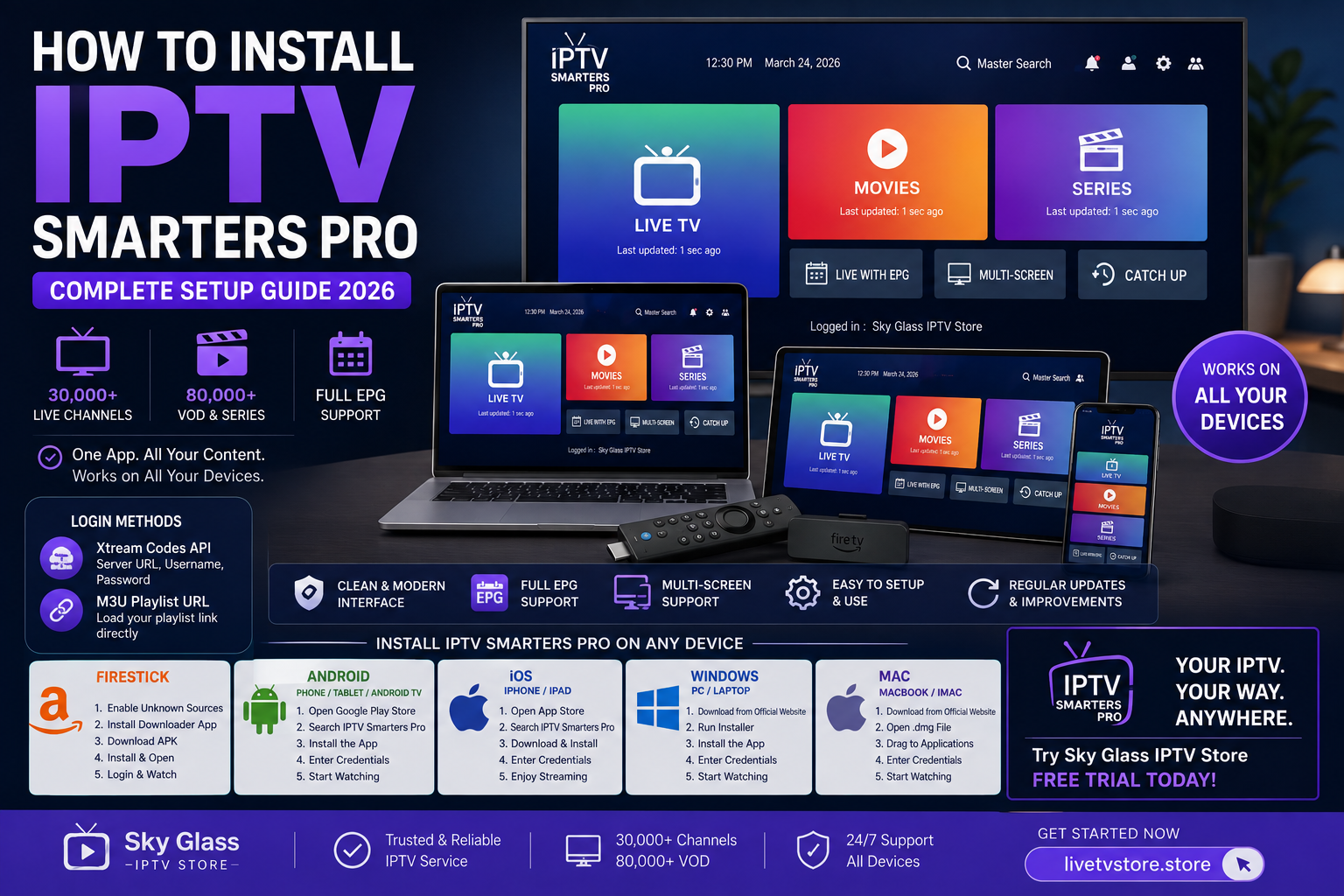
IPTV Smarters Pro is the single most widely used IPTV player app in the world — and for good reason. Clean interface, full EPG support, and it works on almost every device you own. But the install process looks slightly different depending on whether you’re on a Firestick, a phone, or a laptop, and getting it wrong is the most common reason people give up before they’ve even watched a single channel.
This guide covers the exact install steps for every major platform, how to log in with your credentials, and how to fix the most common setup errors. Get your Sky Glass IPTV Store login details ready and let’s get started.
How Do I Install IPTV Smarters Pro?
To install IPTV Smarters Pro, download the app from your device’s official app store — Google Play, Amazon Appstore, or Apple App Store — or from the official IPTV Smarters website for Windows and Mac. Open the app, select “Login with Xtream Codes API” or “Load your playlist or URL,” enter the credentials provided by your IPTV subscription, and your channel list and EPG will load automatically.
Here’s the exact process broken down for every device — Firestick, Android, iOS, Windows, and Mac.
What Is IPTV Smarters Pro and Why Is It So Popular?
IPTV Smarters Pro is a third-party IPTV player application — it isn’t tied to any single IPTV provider. It’s a “front end” app that connects to whichever provider’s credentials you enter, displaying live channels, VOD, and series through a clean, consistent interface.
It’s popular because it supports both major connection methods — Xtream Codes API and M3U playlists — has a genuinely well-designed EPG (Electronic Programme Guide), and is available across virtually every platform: Firestick, Android, iOS, Windows, and Mac.
Worth clarifying upfront: “IPTV Smarters Pro” (paid on some platforms, ad-free, more features) is different from the free “IPTV Smarters” app. This guide covers the Pro version, which is the version most IPTV providers, including Sky Glass IPTV Store, recommend for the best experience. It’s worth noting that IPTV Smarters Pro works with any legitimate Xtream Codes or M3U-based provider — Sky Glass IPTV Store credentials are used as the working example throughout this guide.
What You Need Before You Install IPTV Smarters Pro
Your IPTV Login Credentials You’ll need either Xtream Codes details (server URL, username, password) or an M3U playlist URL, sent to you after subscribing or requesting a trial. Sky Glass IPTV Store delivers these by email shortly after signup — request a free trial here.
A Stable Internet Connection A minimum of 10 Mbps is needed for HD streaming, with 25 Mbps or above recommended for 4K. A wired connection is ideal for Smart TVs and desktop devices.
Your Device Ready Know which device you’re installing on — Firestick, Android phone or tablet, iOS, Windows, or Mac — as the download source differs by platform. Each is covered individually below.
How to Install IPTV Smarters Pro on Amazon Firestick
Step 1: Enable Apps from Unknown Sources Go to Firestick Settings → My Fire TV → Developer Options, then turn on “Apps from Unknown Sources.” This is required because IPTV Smarters Pro isn’t listed on the Amazon Appstore for all Firestick models in every region.
Step 2: Download the Downloader App Search “Downloader” in the Amazon Appstore and install it — it’s free and widely used for sideloading apps onto Firestick.
Step 3: Enter the IPTV Smarters Pro Download URL Open Downloader, enter the official IPTV Smarters Pro APK URL (available from the official IPTV Smarters website), and select Go.
Step 4: Install the App Follow the on-screen prompts to install. Allow any permissions requested during installation.
Step 5: Launch and Log In Open IPTV Smarters Pro from your Firestick apps menu. Select “Login with Xtream Codes API” and enter your server URL, username, and password from Sky Glass IPTV Store — or select “Load your playlist or URL” if using an M3U link.
Step 6: Load Channels Your channel list and EPG will populate automatically. Navigate using your Firestick remote to browse Live TV, Movies, and Series categories.
For a full Firestick setup walkthrough with screenshots, see the Sky Glass IPTV Store installation guide.
How to Install IPTV Smarters Pro on Android (Phone, Tablet & Android TV)
Step 1: Open the Google Play Store On your Android phone, tablet, Android TV, or Google TV device, open the Google Play Store.
Step 2: Search and Install Search “IPTV Smarters Pro” and select Install — no sideloading or developer settings required, unlike Firestick.
Step 3: Open the App and Choose Login Method Launch the app and select either “Login with Xtream Codes API” or “Load your playlist or URL.”
Step 4: Enter Your Credentials Enter your Sky Glass IPTV Store server URL, username, and password (or M3U link), then confirm.
Step 5: Start Watching Channels and EPG load automatically — browse using touch on a phone or tablet, or your Android TV remote.
This is the most straightforward install of any platform — no extra apps or settings changes needed.
How to Install IPTV Smarters Pro on iOS (iPhone & iPad)
Step 1: Open the App Store On your iPhone or iPad, open the Apple App Store.
Step 2: Search for IPTV Smarters Pro Search “IPTV Smarters Pro.” Note there may be a small one-time purchase fee on iOS for the Pro version, separate from your IPTV subscription cost.
Step 3: Download and Install Tap Get (or the price button) and confirm with Face ID, Touch ID, or your Apple ID password.
Step 4: Open and Log In Launch the app, select your login method — Xtream Codes API or M3U URL — and enter your Sky Glass IPTV Store credentials.
Step 5: Load and Watch Your channels and EPG will populate automatically — swipe and tap to browse categories.
iOS users can also cast to an Apple TV or Smart TV using AirPlay directly from within the app.
How to Install IPTV Smarters Pro on Windows and Mac
Windows Download IPTV Smarters Pro from the Microsoft Store or directly from the official IPTV Smarters website. If downloading directly, click “More info” then “Run anyway” if a SmartScreen warning appears — this is standard for apps outside the Store. Open the app, log in with your Xtream Codes or M3U credentials, and your channels will load automatically.
Mac Download the .dmg installer directly from the official IPTV Smarters website and drag the app into your Applications folder. If macOS Gatekeeper blocks the app, go to System Settings → Privacy & Security, find the blocked app notice, and click “Open Anyway.” Launch the app and log in the same way as on other platforms.
For a full breakdown of PC and Mac IPTV setup, see our complete Windows & Mac IPTV guide.
Getting to Know the IPTV Smarters Pro Interface
Live TV, Movies & Series Tabs The main navigation splits content into three core sections — Live TV for channels, Movies for the VOD film library, and Series for full TV show catalogues with episode navigation.
EPG (Programme Guide) Access the EPG from the Live TV screen to see what’s currently airing and what’s coming up across all channels — tap any listing to jump straight to that channel.
Favourites Mark frequently watched channels as favourites for quick access — particularly useful once your channel list grows into the thousands, as it does with Sky Glass IPTV Store’s 30,000+ channel library.
Multi-Screen Mode IPTV Smarters Pro supports a multi-screen layout allowing you to view multiple channels simultaneously on a single screen — useful for tracking several live sports events at once.
Settings & Parental Controls Within the app settings, you can set a Parental Control PIN to restrict access to specific content categories, adjust buffering settings, and manage EPG refresh timing.
IPTV Smarters Pro Not Working? Common Issues and Fixes
“Connection Failed” or Login Error Usually caused by incorrectly entered credentials. Double-check your server URL, username, and password for typos — copy and paste directly from your welcome email rather than typing manually where possible.
Channels Won’t Load or EPG Is Empty This is often a temporary server sync delay — wait a few minutes and refresh. If it persists, check your internet connection stability and confirm your subscription is active.
App Crashes on Launch Usually resolved by clearing the app’s cache (Settings → Apps → IPTV Smarters Pro → Clear Cache on Android/Firestick) or reinstalling the app entirely.
Buffering During Playback Check your internet speed with a speed test. If speed is adequate, the issue is more likely provider-side infrastructure rather than the app itself — a provider with genuinely stable servers, like Sky Glass IPTV Store, shouldn’t buffer at peak hours once correctly configured.
“Max Connections Reached” Error This means you’re trying to use your subscription on more simultaneous devices than your plan allows. Log out of unused devices, or contact Sky Glass IPTV Store’s 24/7 support team to check your connection limit.
Frequently Asked Questions
Is IPTV Smarters Pro free?
There’s a free version called “IPTV Smarters” and a paid “Pro” version with additional features and no ads on some platforms. On iOS specifically, IPTV Smarters Pro typically requires a small one-time purchase; on Android and Firestick, it’s free to download.
What’s the difference between Xtream Codes and M3U login?
Xtream Codes API login uses a server URL, username, and password and typically offers richer EPG data and VOD categorisation. M3U is a simpler playlist URL format. Sky Glass IPTV Store supports both — use whichever your credentials were issued in.
Can I use IPTV Smarters Pro with any IPTV provider?
Yes — IPTV Smarters Pro is a universal player app that works with any provider offering Xtream Codes or M3U access, not just one specific service. It’s simply the “front end” you use to view your subscription’s content.
Does IPTV Smarters Pro work on Samsung or LG Smart TVs?
Not natively — Samsung and LG Smart TVs use Tizen and webOS respectively, which aren’t directly supported by IPTV Smarters Pro. For these TVs, apps like Smart IPTV (SIPTV) are recommended instead.
How do I update IPTV Smarters Pro?
Check your device’s app store (Google Play, Amazon Appstore, Apple App Store) for available updates, or re-download the latest version from the official IPTV Smarters website for Windows and Mac.
Is IPTV Smarters Pro safe to use?
Yes — it’s simply a media player app that displays content from whatever credentials you enter. It doesn’t provide content itself. Safety and legality depend entirely on the IPTV provider whose credentials you use, so choose a reputable, transparent provider.
Getting the Most Out of IPTV Smarters Pro
Across every platform — Firestick, Android, iOS, Windows, or Mac — installing IPTV Smarters Pro takes just a few minutes once you have your credentials ready.
The app is only as good as the provider behind it, though. A clean interface means little if the underlying stream buffers, so it’s worth pairing it with a provider genuinely built for reliability.
Install the app, enter your credentials, and you’re watching 30,000+ channels within minutes.
Sky Glass IPTV Store — Built to Work Seamlessly with IPTV Smarters Pro
- Compatible with Firestick, Android, iOS, Windows, and Mac
- 30,000+ live channels and 80,000+ VOD titles
- 4K quality with zero buffering at peak hours
- Free trial available, no payment required
- 24/7 customer support
Visit livetvstore.store to start your free trial
Disclaimer: IPTV Smarters Pro is a third-party application not affiliated with Sky Glass IPTV Store. App interfaces and download sources may change over time. Always ensure any IPTV service you use complies with UK broadcasting regulations and the provider’s terms and conditions.