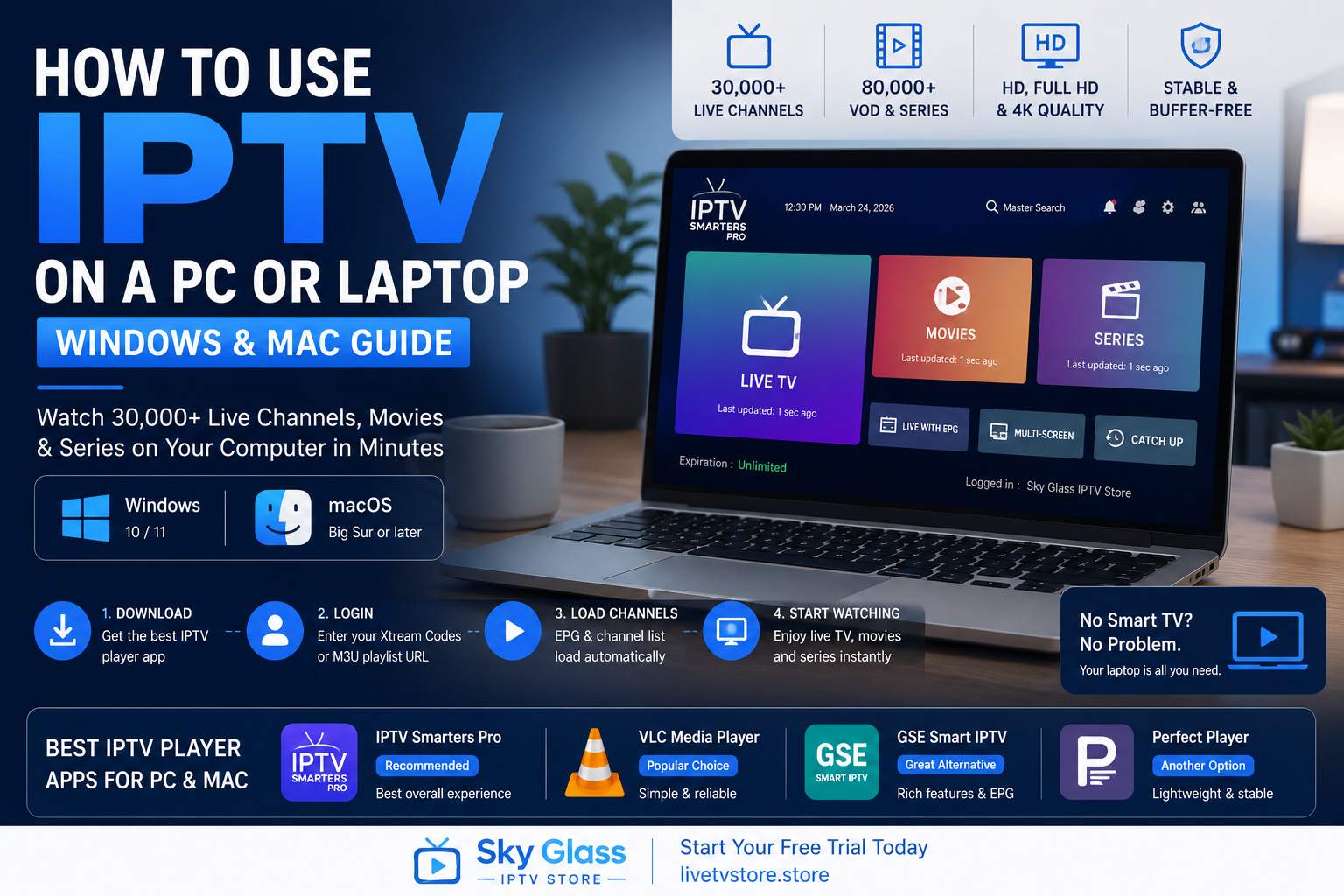
 You don’t need a Smart TV or a Firestick to watch 30,000+ live channels. If you’ve got a Windows laptop or a MacBook sitting in front of you right now, you’re one download away from watching live football, news, and movies without leaving your desk.
This guide covers the exact setup process for both Windows and Mac — the best apps, step-by-step installation, and fixes for the most common issues. Get your Sky Glass IPTV Store credentials ready and let’s get it running.
How Do I Watch IPTV on My PC or Laptop?
To watch IPTV on a PC or laptop, download a compatible IPTV player app — such as IPTV Smarters Pro, VLC Media Player, or GSE Smart IPTV — then enter your Xtream Codes login details or M3U playlist URL provided by your IPTV subscription. This works identically on both Windows and Mac, and the whole process takes under 5 minutes once you have your credentials.
Here’s the full step-by-step breakdown for both operating systems — plus the best app for each.
Why Use IPTV on a PC or Laptop Instead of a TV?
A laptop or secondary monitor is an easy way to keep live sport or news running while working — without needing a second TV in the room. For students or anyone in shared housing without access to a Smart TV or set-top box, a laptop is often the only screen available, and IPTV on PC covers that gap completely.
A PC is also often the fastest way to test an IPTV free trial. There’s no APK sideloading and no Smart TV app store hunting — just a direct download and login, making it a genuinely useful way to verify a provider’s channel quality before setting anything up permanently in the living room.
For households already using Sky Glass IPTV Store on a Smart TV or Firestick, adding a laptop as a secondary device is straightforward and gives you IPTV access anywhere in the house with Wi-Fi. If you’re testing before deciding, Sky Glass IPTV Store’s free trial is a fast way to check quality on your PC first.
What You Need to Set Up IPTV on Windows or Mac
- An Active IPTV Subscription or Free Trial You’ll need your login credentials — either Xtream Codes details (server URL, username, password) or an M3U playlist URL — sent to you after subscribing or requesting a trial. Sky Glass IPTV Store delivers these credentials via email shortly after signup. Request a free trial here →
- A Stable Broadband Connection A minimum of 10 Mbps is needed for HD streaming, with 25 Mbps or above recommended for 4K content. A wired ethernet connection to your router is ideal for desktop PCs; laptops on Wi-Fi should be within good signal range of the router for best results.
- A Compatible IPTV Player App You’ll need to choose and download one IPTV player app — covered in detail below, with dedicated recommendations for Windows and Mac.
- Basic System Requirements Windows 10 or 11 is recommended for smoothest performance, though older versions may work without guarantee. Mac users should be running macOS Big Sur (11) or later. At least 4GB of RAM is recommended for smooth playback, particularly for 4K streams.
How to Install and Set Up IPTV on Windows PC
Here’s the fastest, most reliable way to get IPTV running on a Windows PC or laptop in 2026.
Step 1: Choose Your IPTV Player App
IPTV Smarters Pro is the recommended option — free, available directly from the Microsoft Store or the official IPTV Smarters website, and purpose-built for IPTV with a clean EPG and easy Xtream Codes login.
VLC Media Player is a familiar, reliable alternative most Windows users already have installed. It works well with M3U playlists but has a more basic interface with no dedicated programme guide.
GSE Smart IPTV (Desktop) is another dedicated IPTV player with strong Xtream Codes support and a modern interface.
For most users, IPTV Smarters Pro offers the best balance of ease-of-use and features — this guide continues with that as the primary example.
Step 2: Download and Install IPTV Smarters Pro
Visit the Microsoft Store and search “IPTV Smarters Player,” or download directly from the official IPTV Smarters website. Click Install and allow the download to complete — this typically takes under a minute on a standard broadband connection.
If Windows shows a security prompt (SmartScreen warning) for a direct download outside the Microsoft Store, click “More info” then “Run anyway.” This is standard for legitimate apps not distributed through the Store and nothing to be concerned about.
Step 3: Launch the App and Choose Login Method
Open IPTV Smarters Pro after installation. You’ll be prompted to choose a login method: Xtream Codes API (recommended — enter server URL, username, password) or M3U URL (paste your playlist link directly). Sky Glass IPTV Store supports both methods, so use whichever format your credentials were provided in.
Step 4: Enter Your Credentials
For Xtream Codes, enter the server URL, your username, and your password exactly as provided in your welcome email. For M3U, paste the playlist URL into the designated field. Give your connection profile a name — “Sky Glass IPTV Store” works well — for easy reference, then click Add User / Connect.
Step 5: Load Channels and EPG
Once connected, the app will automatically fetch your full channel list and EPG data. This can take anywhere from 30 seconds to a few minutes depending on the size of the channel list — 30,000+ channels takes slightly longer to populate than a smaller list. Once loaded, channels are organised into categories (Live TV, Movies, Series) for easy browsing.
Step 6: Start Watching
Navigate to Live TV, select a category, and click any channel to start streaming. Use the built-in EPG to browse upcoming programmes and set channels as favourites for quick access. For a full walkthrough with screenshots across every device, see the Sky Glass IPTV Store installation guide.
Windows Troubleshooting Quick Tips: If the app won’t open, right-click it and select “Run as Administrator.” If channels won’t load, check that Windows Firewall isn’t blocking the app and add an exception if needed. If you’re using VLC instead, open VLC → Media → Open Network Stream, then paste your M3U URL directly into the field.
How to Install and Set Up IPTV on Mac (macOS)
The process on macOS is just as straightforward, with a couple of Mac-specific security steps to be aware of.
Step 1: Choose Your IPTV Player App for Mac
IPTV Smarters Pro for Mac is the recommended option, available via direct download from the official IPTV Smarters website (it isn’t currently on the Mac App Store, so a direct download is required). VLC Media Player is available on the Mac App Store, widely trusted, and supports M3U playlists directly. Perfect Player and GSE Smart IPTV are solid alternative dedicated IPTV apps compatible with macOS, offering EPG support and Xtream Codes login.
Step 2: Download and Install the App
Download your chosen IPTV player from its official source — for IPTV Smarters Pro, this means downloading the .dmg installer file directly from their official website. Open the downloaded file and drag the app icon into your Applications folder as prompted.
Step 3: Bypass macOS Gatekeeper Security (If Needed)
Because IPTV Smarters Pro isn’t distributed through the Mac App Store, macOS Gatekeeper may show a warning saying the app “cannot be opened because the developer cannot be verified.” To bypass this safely, go to System Settings → Privacy & Security, scroll down to find the blocked app notice, and click “Open Anyway.” Confirm the action when prompted. This is a standard, safe step for legitimate apps downloaded outside the App Store, and it only needs to be done once.
Step 4: Launch the App and Enter Login Details
Open the app from your Applications folder or Launchpad. Choose your login method — Xtream Codes API or M3U URL — matching the credentials provided with your Sky Glass IPTV Store subscription. Enter the server URL, username, and password (or paste your M3U link) and confirm.
Step 5: Load Channels and Start Watching
The app will fetch your full channel list and EPG automatically — allow a minute or two for the complete 30,000+ channel list to populate fully. Browse by category, mark favourites, and start streaming directly from the interface.
Mac Troubleshooting Quick Tips: If the app won’t open at all, check System Settings → Privacy & Security again to confirm the “Open Anyway” permission was granted. If you’re using VLC on Mac instead, open VLC → File → Open Network, then paste your M3U URL into the network address field. If streams are choppy, check Activity Monitor to ensure no other resource-heavy apps are competing for bandwidth or CPU.
Best IPTV Player Apps for PC and Mac – Quick Comparison
Here’s how the main IPTV player options compare across Windows and Mac.
| App | Windows | Mac | EPG Support | Xtream Codes | M3U Support | Best For |
| IPTV Smarters Pro | Yes | Yes | ✅ Full | Yes | Yes | Best overall — most users |
| VLC Media Player | Yes | Yes | ❌ Basic | ❌ | Yes | Quick, simple playback |
| GSE Smart IPTV | Yes | Yes | Yes | Yes | Yes | Alternative dedicated player |
| Perfect Player | Yes | Yes | Yes | Yes | Yes | Advanced customisation |
For most viewers, IPTV Smarters Pro offers the best combination of EPG quality, ease of setup, and full compatibility with Sky Glass IPTV Store credentials on both Windows and Mac.
How to Get the Best IPTV Streaming Performance on Your Computer
Use a Wired Ethernet Connection When Possible Desktop PCs connected via ethernet will always outperform Wi-Fi for consistent streaming, particularly for 4K content. If your PC is near your router, use a cable.
Close Background Apps and Browser Tabs Multiple open browser tabs, background downloads, and resource-heavy apps all compete for bandwidth and processing power. Close anything unnecessary before starting a viewing session, especially on laptops with limited RAM.
Keep Your IPTV App Updated App updates often include performance improvements and bug fixes. Check for updates regularly within the app settings or by re-downloading from the official source periodically.
Use a Second Monitor for a TV-Like Experience If you have a second monitor, running your IPTV app full-screen on it while working on your primary screen replicates a genuine second-TV experience without extra hardware.
Restart Your Router and PC Periodically A simple restart of both your router and your computer clears temporary network issues and frees up system memory — particularly useful before watching live sport or other high-demand content.
Frequently Asked Questions
Can I watch IPTV on my laptop without any extra hardware? Yes — no additional hardware is required. You only need an IPTV player app (like IPTV Smarters Pro or VLC), your subscription credentials, and a stable internet connection. The entire setup takes place in software.
Is VLC good enough for watching IPTV? VLC works well for basic IPTV playback using an M3U playlist and is a familiar, trusted option most users already have. However, it lacks a proper EPG (programme guide) and channel categorisation, making dedicated apps like IPTV Smarters Pro a better experience for browsing 30,000+ channels.
Why won’t my IPTV app open on Mac? This is usually macOS Gatekeeper blocking apps downloaded outside the Mac App Store. Go to System Settings → Privacy & Security, find the blocked app notice, and click “Open Anyway” to grant permission — this only needs to be done once per app.
Do I need Xtream Codes or M3U for IPTV on PC? Either works — most IPTV player apps support both login methods. Xtream Codes typically offers a more complete experience with better EPG data, while M3U is a simpler, more universal format. Sky Glass IPTV Store provides both options with every subscription.
What internet speed do I need to stream IPTV on a computer? A minimum of 10 Mbps is recommended for HD streaming, and 25 Mbps or above for 4K content. Most standard UK broadband connections comfortably meet these requirements.
Can I use the same IPTV subscription on my PC and my Smart TV at the same time? This depends on your subscription’s simultaneous connection allowance. Contact Sky Glass IPTV Store’s 24/7 support team to confirm your plan’s connection limit, or check the reseller panel page for multi-connection options if you need broader access.
Is it legal to watch IPTV on a PC in the UK? IPTV technology itself is legal. The legality of specific content depends on the provider’s licensing. UK viewers should use reputable, established providers and review the terms of service before subscribing.
IPTV on PC or Laptop Is Easier Than You Think
Watching IPTV on Windows or Mac takes minutes, not hours — download an app, enter your credentials, and you’re streaming 30,000+ channels directly on your computer screen.
Whether it’s a second screen at your desk, a solution for shared accommodation without a Smart TV, or a quick way to test a free trial before committing to a permanent living room setup, PC and laptop IPTV covers the gap perfectly.
Grab your credentials, pick your app, and you’ll be streaming inside five minutes.
Watch IPTV on Your PC or Laptop Today Works on Windows & Mac | 30,000+ Channels | 80K+ VODs 4K Quality | Free Trial Available | 24/7 Support
Visit livetvstore.store — Start Your Free Trial Today →