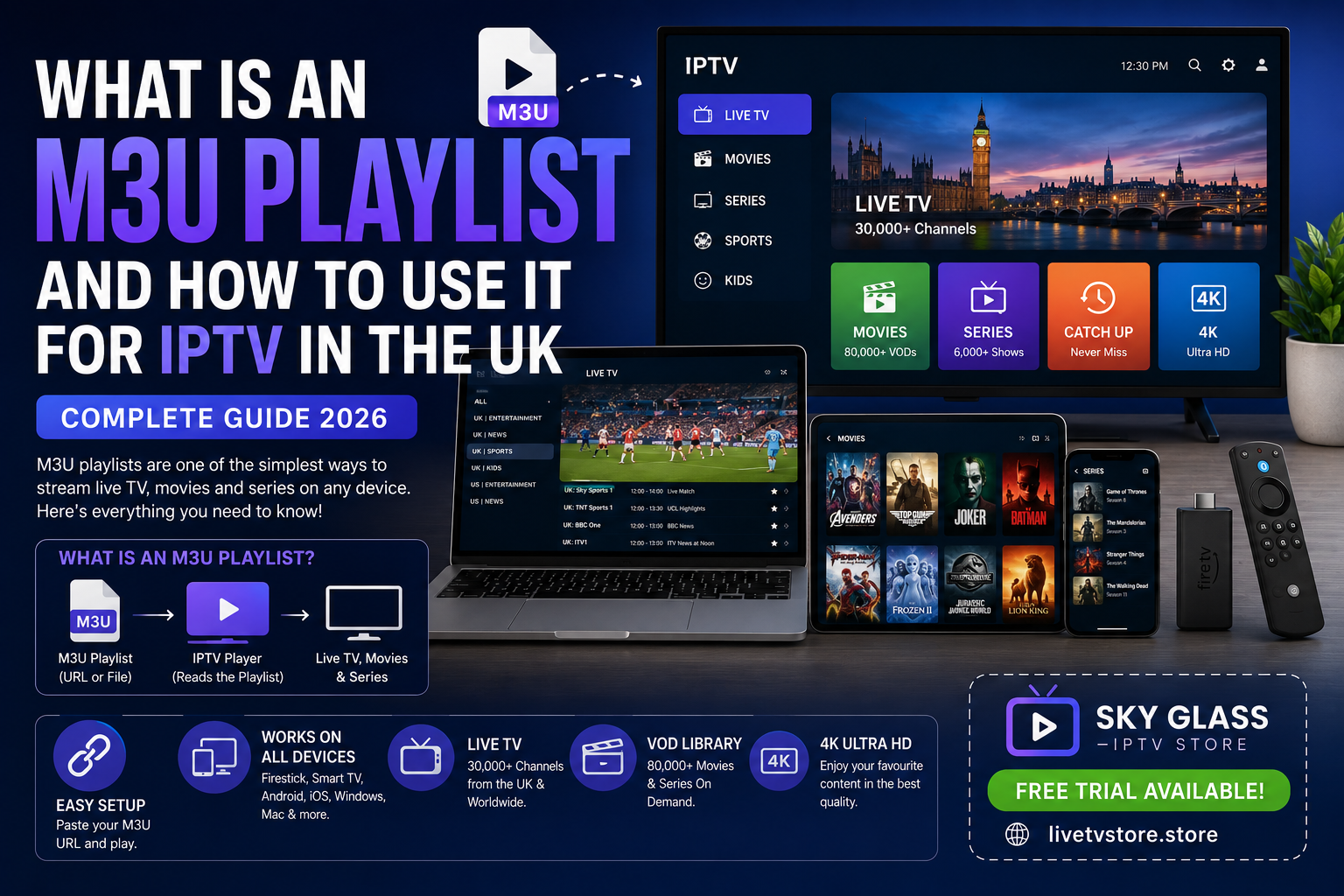
 If you’ve recently subscribed to an IPTV service, you’ve probably received something called an M3U playlist URL. For many first-time users, it looks confusing—a long web link filled with random characters. In reality, it’s one of the simplest and most widely supported ways to watch IPTV on almost any device.
This guide explains exactly what an M3U playlist is, how it works, how to use it safely on Windows, Mac, Firestick, Smart TVs, phones, and tablets, and when you should choose it instead of Xtream Codes. If you’re using Sky Glass IPTV Store, the service fully supports M3U playlists alongside Xtream Codes, giving you flexibility across virtually every device.
What Is an M3U Playlist?
An M3U playlist is a text-based playlist file or URL that tells an IPTV player where to find your live TV channels, movies, and TV series. Instead of storing the video itself, the playlist simply contains links and information that your IPTV player uses to display and stream available content.
Once you load an M3U playlist into a compatible IPTV application, the player automatically imports your available channels and organises them into categories such as:
- Live TV
- Sports
- Movies
- TV Series
- Kids
- Entertainment
- News
- International Channels
The IPTV player then connects to your provider’s servers whenever you select a channel, allowing you to stream content without manually entering every channel individually.
For UK users, an M3U playlist provides one of the easiest ways to access IPTV across multiple devices because it works with a huge range of IPTV applications.
In short:
An M3U playlist is simply the connection between your IPTV subscription and your IPTV player.
Your provider supplies the playlist, while the IPTV player uses it to display and organise your available content.
That’s why almost every reputable IPTV provider—including Sky Glass IPTV Store—offers an M3U playlist option for customers.
The next question is how that playlist actually works behind the scenes.
How Does an M3U Playlist Work?
Although the long playlist URL may appear technical, the process is surprisingly straightforward.
Think of your M3U playlist as a digital TV guide.
Instead of containing the actual video files, it contains information such as:
- Channel names
- Streaming addresses
- Channel logos
- Group categories
- TV guide (EPG) references
- Authentication details
When you paste the playlist into an IPTV player, the app downloads this information and creates a complete channel list.
Whenever you click a channel, the player:
- Read the channel information from the playlist.
- Connects to the streaming server.
- Buffers a few seconds of content.
- Starts playback.
From your perspective, it feels exactly like browsing channels on a traditional television.
Behind the scenes, the playlist is simply directing the player to the correct stream.
This is why updating your playlist is important. If your provider adds new channels, improves categories, or updates server information, refreshing the playlist allows your IPTV player to download the latest version automatically.
Most modern IPTV apps even refresh playlists automatically whenever you reopen the application.
M3U Playlist vs Xtream Codes – Which Should You Use?
Both M3U playlists and Xtream Codes allow you to watch IPTV, but they connect to your provider in different ways.
For most users, either option works perfectly. The best choice depends on your preferred IPTV application and how much convenience you want.
| Feature | M3U Playlist | Xtream Codes |
| Login Method | Paste one playlist URL | Server URL, username & password |
| Easy to Set Up | Yes | Yes |
| Automatic Channel Updates | Supported by most apps | Usually automatic |
| EPG Support | Yes | Yes |
| Device Compatibility | Excellent | Excellent |
| User Management | Basic | More advanced |
| Supported by Sky Glass IPTV Store | Yes | Yes |
M3U Playlist Advantages
The biggest strength of an M3U playlist is its universal compatibility.
Almost every IPTV player supports M3U playlists, including:
- IPTV Smarters Pro
- VLC Media Player
- TiviMate
- GSE Smart IPTV
- Perfect Player
- Kodi
- Smart IPTV
- OTT Navigator
This means if you change devices later, you usually won’t need a different subscription—simply paste the same playlist into another supported app.
Xtream Codes Advantages
Xtream Codes provides a slightly more integrated experience.
Instead of copying one long playlist URL, you simply enter:
- Server URL
- Username
- Password
The application then downloads everything automatically.
Many users prefer Xtream Codes because it often loads categories, account information, and electronic programme guides with less manual configuration.
Which Is Better?
Through experience helping IPTV users across the UK, we’ve found there isn’t a single “best” option.
Choose an M3U playlist if:
- Your IPTV app recommends it.
- You want maximum compatibility.
- You’re using VLC or another universal media player.
- You frequently switch between devices.
Choose Xtream Codes if:
- Your IPTV app supports it.
- You want a cleaner login process.
- You prefer automatic account management.
The good news is that Sky Glass IPTV Store supports both methods, allowing you to choose whichever works best for your preferred device.
Why M3U Playlists Are So Popular in the UK
M3U playlists have become one of the most common IPTV connection methods because they’re simple, flexible, and compatible with almost every modern device.
Unlike platform-specific apps, an M3U playlist isn’t locked to one operating system or brand. Whether you’re watching on a Windows laptop during work, a Firestick in the living room, or an Android phone while travelling, the same playlist can often be used across all of them.
That flexibility is particularly valuable for UK households where different family members use different devices.
Another reason for their popularity is ease of migration. If you decide to switch IPTV playersfor example, from VLC Media Player to IPTV Smarters Pro—you don’t normally need new subscription details. Simply paste the same playlist into the new application and let it import your channels.
In practice, many experienced IPTV users keep more than one compatible player installed. If one app experiences an issue after an update, they can quickly test the same playlist in another player to determine whether the problem is with the app or the connection itself.
For providers, supporting M3U playlists also means fewer compatibility issues across different platforms. That’s why reputable services such as Sky Glass IPTV Store provide M3U playlist access alongside Xtream Codes, giving customers the freedom to choose the login method that best matches their preferred IPTV player.
The popularity of M3U playlists isn’t about complexity—it’s about convenience. One playlist can support multiple devices, multiple applications, and an easy setup process without requiring advanced technical knowledge.
What You’ll Need Before Using an M3U Playlist
Before setting up IPTV with an M3U playlist, make sure you have everything ready. The process usually takes less than five minutes when these essentials are in place.
1. An Active IPTV Subscription
You’ll first need an active IPTV subscription or free trial from your provider.
After signing up, you’ll typically receive either:
- An M3U playlist URL
- Xtream Codes login details
- Or both
Sky Glass IPTV Store provides both connection methods, allowing customers to use whichever is most convenient for their chosen IPTV player.
2. A Compatible IPTV Player
An M3U playlist doesn’t work on its own—you’ll need an IPTV player that can import it.
Popular options include:
- IPTV Smarters Pro
- VLC Media Player
- TiviMate
- GSE Smart IPTV
- Perfect Player
- Smart IPTV
Each application has a slightly different interface, but the setup process is generally very similar.
3. A Reliable Internet Connection
Streaming quality depends heavily on connection stability.
As a general guide:
- HD streaming: minimum 10 Mbps
- Full HD: 15–20 Mbps
- 4K streaming: 25 Mbps or higher
For desktop PCs and Smart TVs, an Ethernet connection provides the most stable performance, while Wi-Fi users should aim for a strong signal with minimal interference.
4. Your Login Details Ready
Before opening your IPTV player, keep your playlist URL somewhere easy to copy and paste.
Many M3U URLs are long and contain authentication tokens, so typing them manually can easily lead to errors. Copying directly from your welcome email is the safest approach.
Once you have your subscription details, IPTV player, and internet connection ready, you’re prepared to set up your M3U playlist on virtually any supported device.
How to Use an M3U Playlist for IPTV (Step-by-Step Guide)
Once you have your M3U playlist URL and a compatible IPTV player, setting everything up is straightforward. Whether you’re using a Windows PC, MacBook, Firestick, Smart TV, Android phone, or iPhone, the basic process remains almost identical.
Here’s the exact setup process we recommend for first-time IPTV users.
Step 1 : Get Your M3U Playlist URL
The first thing you’ll need is your IPTV login details.
After purchasing a subscription or requesting a free trial, your IPTV provider will usually send one or more of the following:
- M3U Playlist URL
- Xtream Codes login
- Server URL
- Username
- Password
If you’re using Sky Glass IPTV Store, your welcome email includes both an M3U playlist and Xtream Codes credentials, allowing you to choose whichever login method your preferred IPTV player supports.
Before continuing, copy your M3U URL somewhere convenient. Since these URLs are often quite long, copying and pasting is much safer than typing them manually.
Step 2 : Download a Compatible IPTV Player
An M3U playlist cannot be opened directly by your web browser. You’ll need an IPTV player that understands the playlist format.
Some of the best IPTV players include:
- IPTV Smarters Pro
- VLC Media Player
- TiviMate
- GSE Smart IPTV
- Perfect Player
- Kodi
For beginners, we generally recommend IPTV Smarters Pro because it offers a clean interface, excellent Electronic Programme Guide (EPG) support, and works across nearly every major operating system.
Download your chosen app from its official source before proceeding.
Step 3 : Choose the M3U Playlist Login Option
After opening your IPTV player, you’ll normally see several login methods.
Look for options such as:
- Load Playlist
- Load M3U URL
- Add Playlist
- Login Using Playlist
- M3U Playlist
Select the playlist option rather than Xtream Codes if you’re planning to use your M3U URL.
Most IPTV applications clearly separate these login methods, making the process easy to follow. Check our installation guide page for help.
Step 4 : Paste Your Playlist URL
Now paste the complete M3U URL into the playlist field.
Many IPTV apps also ask you to give the playlist a name.
A simple name like:
- Sky Glass IPTV
- Home IPTV
- UK IPTV
makes it easier to identify later if you add multiple playlists.
Double-check that:
- The entire URL has been copied.
- There are no extra spaces.
- No characters are missing.
Even one incorrect character can prevent the playlist from loading.
Step 5 : Allow the IPTV Player to Load Your Channels
Once you confirm the playlist, your IPTV player will begin importing your content.
During this process, the application downloads:
- Live TV channels
- Movies
- TV series
- Channel logos
- Categories
- Electronic Programme Guide (EPG)
For providers with large libraries, such as Sky Glass IPTV Store, the first sync may take one to three minutes.
Don’t interrupt the process while channels are loading.
After the initial import, future launches are usually much faster.
Step 6 : Start Watching
Once everything has loaded successfully, you’ll see organised categories similar to traditional television services.
Typical sections include:
- Live TV
- Sports
- Entertainment
- News
- Kids
- Movies
- TV Series
- International Channels
Browse to any category, select a channel, and begin streaming immediately.
Most IPTV players also allow you to:
- Add favourite channels
- Search for channels
- Filter categories
- View programme schedules
- Resume recently watched content
These features make daily viewing much more convenient.
Step 7 : Keep Your Playlist Updated
One of the biggest advantages of an online M3U playlist is automatic updates.
If your IPTV provider:
- Adds new channels
- Improves stream quality
- Changes server locations
- Updates categories
- Expands the VOD library
your IPTV player can often retrieve those updates automatically the next time it refreshes the playlist.
If you’re using a downloaded M3U file instead of an online URL, you may occasionally need to replace it with the latest version provided by your IPTV service.
Fortunately, most UK IPTV providers—including Sky Glass IPTV Store—provide hosted playlist URLs, so updates happen automatically without requiring any manual downloads.
Best IPTV Players That Support M3U Playlists
One of the reasons M3U playlists remain so popular is their wide compatibility. Almost every major IPTV application supports them, making it easy to switch between devices without changing your subscription.
Here’s a comparison of some of the most popular IPTV players.
| IPTV Player | Windows | Mac | Android | Firestick | Smart TV | M3U Support |
| IPTV Smarters Pro | ✔ | ✔ | ✔ | ✔ | ✔ | Excellent |
| VLC Media Player | ✔ | ✔ | ✔ | ✔ | Limited | Good |
| TiviMate | ✘ | ✘ | ✔ | ✔ | Android TV | Excellent |
| Kodi | ✔ | ✔ | ✔ | ✔ | ✔ | Good |
| GSE Smart IPTV | ✔ | ✔ | ✔ | ✔ | ✔ | Excellent |
IPTV Smarters Pro
IPTV Smarters Pro is our recommended option for most users.
It supports:
- M3U playlists
- Xtream Codes
- EPG
- Catch-up TV
- Movies
- TV Series
- Multi-screen viewing
- Multiple playlists
Its clean interface makes it ideal for beginners while offering enough features for experienced IPTV users.
VLC Media Player
VLC is already installed on many Windows and Mac computers.
Although it lacks the polished IPTV interface found in dedicated IPTV players, it’s an excellent choice for users who simply want to open an M3U playlist quickly without installing additional IPTV software.
TiviMate
TiviMate is one of the highest-rated IPTV applications for Android TV and Firestick devices.
It offers:
- Modern interface
- Fast navigation
- Excellent EPG
- Playlist management
- Recording support
Many experienced IPTV users consider it one of the best Android TV players available.
Kodi
Kodi remains popular thanks to its flexibility.
With IPTV add-ons installed, Kodi works well with M3U playlists and allows users to customise almost every aspect of their viewing experience.
However, it requires slightly more setup than IPTV Smarters Pro.
GSE Smart IPTV
GSE Smart IPTV is another reliable choice that supports both M3U playlists and Xtream Codes.
Its cross-platform compatibility makes it attractive for users who regularly switch between phones, tablets, and desktop devices.
No matter which application you choose, the M3U setup process is largely the same. Once your playlist has been imported successfully, you’ll have access to your live channels, movies, and TV series through an organised interface.
Common M3U Playlist Problems and How to Fix Them
Most M3U playlist issues are simple to resolve. In our experience helping IPTV users across the UK, the majority of problems come down to incorrect login details, internet connectivity, or an outdated IPTV player rather than the playlist itself.
Here are the most common issues and their solutions.
Problem 1: Playlist Won’t Load
If your IPTV player displays an error immediately after adding the playlist, the URL may not have been entered correctly.
Check the following:
- Make sure you’ve copied the complete M3U URL.
- Remove any accidental spaces before or after the link.
- Confirm your subscription is still active.
- Try opening the playlist again after restarting the IPTV app.
If the issue continues, request a fresh playlist from your IPTV provider.
Problem 2: Channels Are Missing
Sometimes users notice that certain categories or channels don’t appear after importing a playlist.
Possible causes include:
- The playlist hasn’t fully finished loading.
- The IPTV player needs to refresh.
- The provider has updated the playlist.
- Categories are hidden by filters inside the app.
Most IPTV players include a Refresh Playlist or Reload Channels option, which usually resolves the issue within a few minutes.
Problem 3: EPG (TV Guide) Isn’t Showing
A missing Electronic Programme Guide doesn’t normally affect streaming—it only impacts programme listings.
Try these solutions:
- Refresh the EPG manually.
- Wait a few minutes after importing the playlist.
- Confirm your IPTV player supports EPG.
- Update the application to the latest version.
Premium IPTV apps such as IPTV Smarters Pro and TiviMate generally provide the most reliable EPG support.
Problem 4: Buffering During Playback
Buffering is one of the most common IPTV questions, but the M3U playlist itself is rarely the cause.
Instead, check:
- Your broadband speed.
- Wi-Fi signal strength.
- Whether other devices are heavily using the internet.
- Whether your IPTV player needs updating.
If your connection is stable but buffering continues consistently during peak viewing hours, contact your IPTV provider for assistance.
Reliable providers invest in robust server infrastructure to minimise interruptions during busy periods.
Problem 5: Playlist Expired
Many IPTV subscriptions have expiry dates.
If your subscription has ended, the playlist will no longer authenticate with the provider’s servers.
Simply renewing your subscription usually restores access immediately without needing to install everything again.
Problem 6: Playlist Takes Too Long to Load
Large IPTV services can include:
- 30,000+ live channels
- Tens of thousands of movies
- Thousands of TV series
The first import naturally takes longer because the application is downloading channel categories, logos, and EPG data.
After the initial setup, subsequent launches are usually much faster.
Best Practices for Using an M3U Playlist
Following a few simple habits can help you enjoy a smoother IPTV experience over the long term.
Use a Trusted IPTV Player
Well-maintained IPTV applications receive regular updates, security improvements, and better compatibility with new playlist formats.
Popular options include:
- IPTV Smarters Pro
- TiviMate
- GSE Smart IPTV
- VLC Media Player
Using outdated or unsupported software can cause unnecessary playback issues.
Keep Your Player Updated
App updates often include:
- Faster playlist loading
- Better EPG support
- Improved compatibility
- Bug fixes
- Performance improvements
Updating regularly helps maintain the best viewing experience.
Use a Stable Internet Connection
For consistent streaming:
- HD: at least 10 Mbps
- Full HD: 15–20 Mbps
- 4K: 25 Mbps or higher
Whenever possible, use Ethernet for desktop PCs and Smart TVs, or position Wi-Fi devices close to your router.
Protect Your Playlist URL
Your M3U playlist contains your subscription credentials.
Avoid:
- Posting it publicly
- Sharing it on forums
- Sending it to people you don’t trust
Treat it like a password, as anyone with access to the playlist may be able to use your subscription.
Refresh Occasionally
Most IPTV players refresh automatically, but manually refreshing your playlist every few weeks helps ensure you receive:
- Newly added channels
- Updated categories
- Improved stream links
- Latest EPG information
Frequently Asked Questions
What is an M3U playlist used for?
An M3U playlist allows an IPTV player to import and organise live TV channels, movies, and TV series from your IPTV subscription. Instead of storing video files, it contains the information needed to connect your player to the streaming service.
Is an M3U playlist better than Xtream Codes?
Neither is universally better. M3U playlists offer excellent compatibility across a wide range of IPTV players, while Xtream Codes provides a more streamlined login process. Most reputable IPTV providers, including Sky Glass IPTV Store, support both options.
Can I use the same M3U playlist on multiple devices?
In most cases, yes. However, whether you can stream on multiple devices simultaneously depends on your subscription and the number of connections included. Always check your plan details before using multiple devices at the same time.
Which IPTV players support M3U playlists?
Many popular IPTV players support M3U playlists, including IPTV Smarters Pro, VLC Media Player, TiviMate, Kodi, GSE Smart IPTV, Smart IPTV, and Perfect Player.
Do M3U playlists update automatically?
Hosted M3U playlist URLs usually update automatically whenever your IPTV player refreshes the playlist. This allows new channels, updated categories, and revised programme guides to appear without downloading a new file manually.
Can I edit an M3U playlist?
Yes. Downloaded M3U files can be edited using any text editor, although most users don’t need to do this. Hosted playlist URLs are managed by the IPTV provider and update automatically, making manual editing unnecessary for everyday use.
Is an M3U playlist safe to use?
Yes, provided you obtain it from a reputable IPTV provider and use trusted IPTV player applications downloaded from official sources. As with any login credential, keep your playlist private and avoid sharing it publicly.
Start Watching IPTV with an M3U Playlist Today
Whether you’re using a Windows PC, MacBook, Firestick, Smart TV, Android phone, or iPhone, Sky Glass IPTV Store provides everything you need to start streaming in just a few minutes.
Ready to experience reliable IPTV?
Visit livetvstore.store to request your free trial or choose the subscription plan.