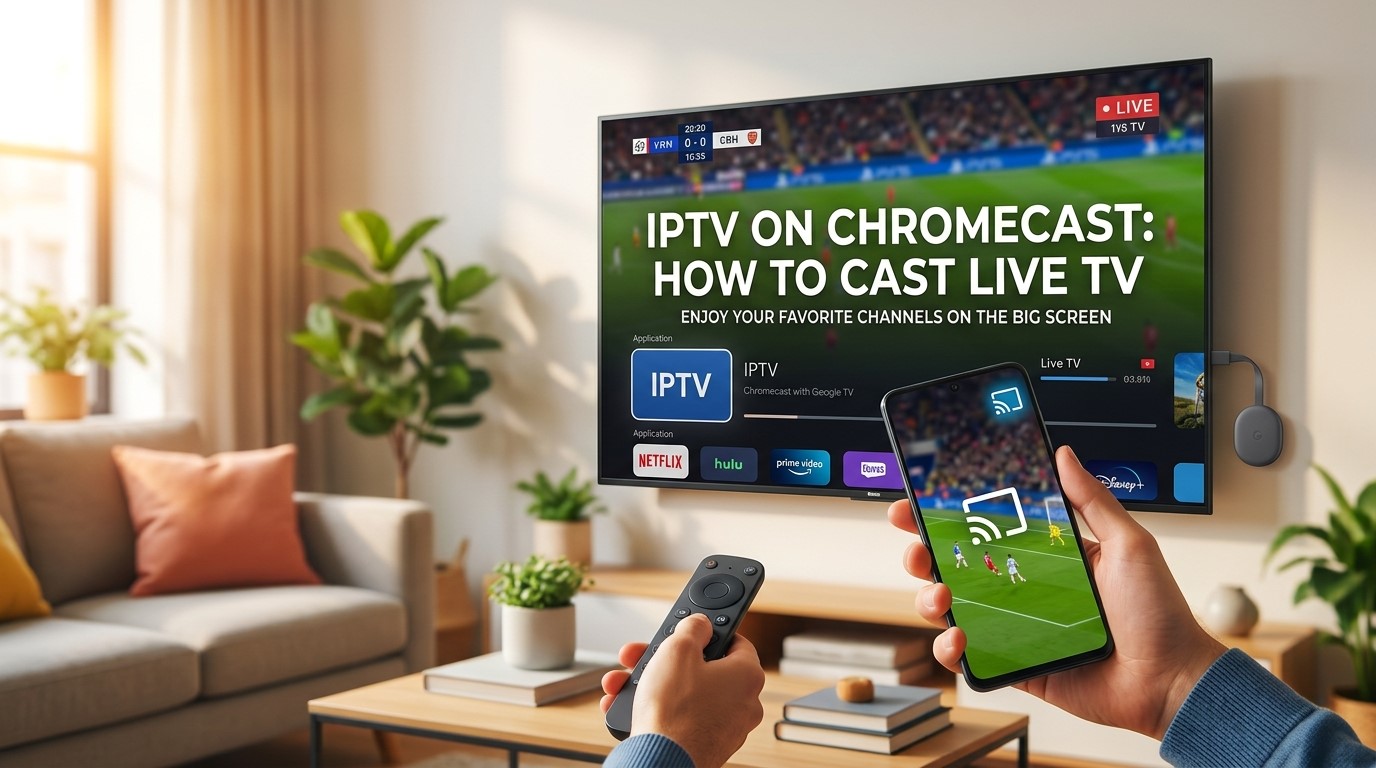
 Watching live TV on a smartphone is convenient, but it doesn’t always provide the best viewing experience. If you have a Chromecast, you can often move compatible IPTV content from your phone, tablet or computer to your television and enjoy live channels on a much larger screen.
For people searching for IPTV on Chromecast, the setup can be straightforward once you understand the difference between Chromecast as a casting device and an IPTV service that actually provides the television content.
Chromecast does not provide IPTV channels by itself. Instead, it allows compatible content to be cast to your TV. Depending on your device and Chromecast model, you can either cast IPTV from a compatible application or use a Chromecast with Google TV device to access supported applications directly.
In this guide, you’ll learn how IPTV works with Chromecast, what you need for the setup, how to cast live TV from different devices, how to troubleshoot common problems and how Chromecast compares with alternatives such as Firestick.
If you’re looking for an IPTV subscription for live TV and sports, you can also explore the available options from Sky Glass IPTV Store and check device compatibility before choosing a plan.
Important: IPTV is a technology for delivering television content over the internet. Whether a particular service can legally distribute a specific channel or program depends on its licensing and broadcasting rights. Always use authorized services and applications.
What Is IPTV and How Does Chromecast Work?
Before setting up IPTV on Chromecast, it’s useful to understand what each technology does.
What Is IPTV?
IPTV stands for Internet Protocol Television. It is a method of delivering television programming through an internet connection rather than traditional terrestrial, satellite or cable television infrastructure.
An IPTV service can provide access to live television channels through a compatible application, web player or supported streaming device.
Depending on the service, you may find different categories such as:
- Live TV
- Sports
- News
- Entertainment
- Movies
- International channels
- Kids’ programming
- Other television content
The available channels and features depend on the provider and the applicable broadcasting rights.
What Is Chromecast?
Chromecast is Google’s technology for streaming or casting compatible content to a television.
With a traditional Chromecast setup, you can use a phone, tablet or computer as the device controlling playback. The Chromecast receives compatible content and displays it on the connected TV.
Newer Chromecast devices with Google TV provide a more complete TV experience because they have their own interface and remote and can support compatible applications directly.
Can You Use IPTV With Chromecast?
Yes, IPTV can work with Chromecast, but the exact method depends on your Chromecast model and the IPTV application or service you’re using.
There are generally two approaches:
- Cast IPTV from a phone, tablet or computer using an application or player that supports Chromecast.
- Use a Chromecast with Google TV or compatible Google TV device and install a supported IPTV application directly where available.
Not every IPTV application supports Chromecast. Therefore, compatibility should always be checked before choosing a service or application.
What You Need to Watch IPTV on Chromecast
Setting up IPTV on Chromecast doesn’t require complicated equipment. Your exact requirements depend on whether you’re casting from another device or using Google TV directly.
Chromecast or Compatible Google TV Device
First, you’ll need a Chromecast device or a compatible Google TV device connected to your television.
Make sure the device is properly connected to the TV and configured according to Google’s setup instructions.
A Compatible IPTV Service
You’ll also need an IPTV service that provides a compatible viewing method.
Some services may offer an official application, while others may support compatible third-party viewing methods. Always check the provider’s current device and application support before subscribing.
If you’re considering a subscription, you can explore Sky Glass IPTV Store and check its current supported devices and service options.
Stable Internet Connection
Because IPTV relies on internet streaming, your connection needs to be reasonably stable.
A high download speed is useful, but stability is also important. Wi-Fi interference, network congestion and multiple devices using the same connection can affect live streaming.
Smartphone, Tablet or Computer
If you’re using a traditional casting setup, you’ll need a phone, tablet or computer to send compatible IPTV content to your Chromecast.
Android devices are particularly convenient for casting when the application supports Chromecast. iPhone and iPad users can also cast when the particular application provides Chromecast support.
IPTV App or Web Player
Finally, you need a compatible IPTV application or web player.
The available options depend on your provider, device and operating system. Always use official applications or trusted sources whenever possible.
How to Watch IPTV on Chromecast
There are several ways to watch IPTV on Chromecast. The simplest method for many users is casting from a smartphone.
Method 1: Cast IPTV From Your Android Phone
If your IPTV application supports Chromecast, the process is usually simple.
Step 1: Connect your Chromecast and Android phone to the same Wi-Fi network.
Step 2: Open your compatible IPTV application.
Step 3: Sign in to your authorized IPTV service if required.
Step 4: Open the live TV section and select the channel you want to watch.
Step 5: Look for the Cast icon within the application.
Step 6: Tap the Cast icon and select your Chromecast device.
Step 7: Wait for the connection to establish. The live TV content should then appear on your television.
Your phone can usually function as the controller while the content is displayed on the TV.
The exact menus and buttons can vary between IPTV applications, so don’t worry if your app looks slightly different from these steps.
Method 2: Cast IPTV From an iPhone or iPad
iPhone and iPad users can also use Chromecast when the IPTV application supports it.
Start by connecting your Apple device and Chromecast to the same Wi-Fi network.
Then:
- Open the compatible IPTV application.
- Sign in if necessary.
- Select the live TV channel.
- Look for the Chromecast/Cast icon.
- Select your Chromecast device.
- Wait for the connection.
- Continue controlling playback from the application where supported.
One important point is that AirPlay and Chromecast are different technologies. An application supporting AirPlay doesn’t automatically mean it supports Chromecast.
For iPhone users, always check that the particular IPTV application specifically supports Chromecast.
Method 3: Cast IPTV From a Computer
You can also cast supported IPTV content from a computer.
If your IPTV provider offers a compatible web player, you may be able to use Google Chrome’s casting functionality.
A typical process is:
- Connect your computer and Chromecast to the same network.
- Open the supported IPTV web player in Chrome.
- Start the live TV channel.
- Open Chrome’s Cast option.
- Select your Chromecast device.
- Choose the appropriate casting option.
- Watch the content on your TV.
Browser-based casting can be useful if you prefer watching IPTV from a laptop or desktop instead of a phone.
How to Install IPTV on Chromecast With Google TV
If you have Chromecast with Google TV, your experience can be different from a traditional casting-only Chromecast.
Because Google TV provides its own interface and remote, compatible applications can potentially be installed directly on the device.
Step 1: Connect Chromecast With Google TV
Connect the Chromecast with Google TV to an available HDMI port on your television.
Follow the on-screen setup instructions and pair the remote if required.
Step 2: Connect to Wi-Fi
Connect the device to your home Wi-Fi network.
For live TV streaming, choose a stable connection with good signal strength.
Step 3: Find a Compatible IPTV App
Use the Google TV interface to search for a compatible IPTV application.
Application availability can change, and not every IPTV service supports every application.
Step 4: Install the Official or Supported App
Install the application through a trusted and supported source.
Avoid downloading unknown APK files from suspicious websites simply because they claim to provide IPTV access.
Step 5: Enter Your IPTV Service Details
Open the application and follow the IPTV provider’s official setup instructions.
Depending on the service, you may need account credentials or another supported method of connecting your subscription.
Step 6: Open Live TV
Once the setup is complete, navigate to the live TV section.
If an EPG is supported, you may also be able to browse upcoming programs and find live sports and other channels more easily.
Chromecast vs Chromecast With Google TV for IPTV
It’s important not to treat all Chromecast devices as exactly the same.
| Feature | Traditional Chromecast/Casting | Chromecast With Google TV |
| Cast from phone | Yes | Yes |
| Dedicated remote | Model-dependent | Yes |
| Standalone apps | Limited | Supported apps can be installed |
| IPTV setup | Usually casting-based | Casting or compatible apps |
| TV interface | Limited | Full Google TV interface |
| Best suited for | Simple casting | More complete TV experience |
Which One Is Better for IPTV?
If you already have a phone with a Chromecast-compatible IPTV application, traditional casting can be a simple solution.
Chromecast with Google TV may be more convenient for users who prefer opening applications directly on their television and navigating with a remote.
Neither option is universally better. Your decision should depend on your IPTV provider’s compatibility, preferred setup and the way you normally watch television.
Best IPTV Apps for Chromecast
There isn’t one IPTV application that is automatically best for every Chromecast user.
The right app depends on your device, IPTV service and the features you need.
What to Look for in an IPTV App
When choosing an IPTV player or supported application, consider:
- Chromecast support
- Google TV compatibility
- Electronic Programme Guide
- Favorites
- Channel categories
- Playback controls
- Easy navigation
- Regular application updates
- Support for your IPTV provider’s setup method
For TV viewing, an interface designed for a large screen can make a significant difference.
Why App Compatibility Matters
An IPTV application may work well on Android phones but not necessarily provide the same experience on Google TV.
Similarly, an application available on iPhone may not offer Chromecast casting.
Before subscribing to an IPTV service, check whether the service officially supports your particular device and preferred viewing method.
How to Cast Live TV From IPTV to Chromecast
If your IPTV application supports Chromecast, casting live TV can usually be completed in a few steps.
Quick Setup
- Connect Chromecast to your television.
- Connect your phone and Chromecast to the same Wi-Fi network.
- Open your Chromecast-compatible IPTV application.
- Select a live TV channel.
- Tap the Cast icon.
- Select your Chromecast device.
- Wait for the connection.
- The live channel should appear on your TV.
Your phone can then act as the controller where supported.
What If There Is No Cast Button?
If you don’t see a Cast button, there are several possible reasons.
The IPTV application may not support Chromecast. Your phone and Chromecast may also be connected to different Wi-Fi networks.
Other possibilities include:
- Chromecast isn’t properly connected.
- The application needs an update.
- Network permissions are preventing device discovery.
- The particular content isn’t compatible with casting.
Try restarting the application and checking the network connection before troubleshooting further.
How to Watch Live Sports and Football on Chromecast
One of the main reasons people search for IPTV on Chromecast is live sports.
Watching football on a large TV is considerably more enjoyable than watching a match on a small phone screen, particularly when multiple people are watching together.
Depending on the authorized service and available broadcasting rights, live sports programming may include:
- Football
- Champions League
- Premier League
- International football
- Other sports competitions
- Sports news and analysis
However, sports availability varies by country and provider.
A service advertising sports channels doesn’t necessarily mean it has the rights to every competition. Always check the current channel lineup and applicable broadcasting rights.
For readers specifically interested in Champions League coverage, our guide to Champions League live streaming can provide additional information about choosing a suitable streaming option.
IPTV on Chromecast for Different Devices
Your casting experience can vary depending on which device you use.
Android Phone to Chromecast
Android is often a convenient option because many applications provide native Chromecast support.
Connect the phone and Chromecast to the same network, open the compatible application and select the Cast icon.
iPhone to Chromecast
iPhone users can also cast IPTV content when the application specifically supports Chromecast.
Remember that Chromecast and AirPlay are separate technologies, so check the application’s compatibility before assuming it will work.
Windows PC to Chromecast
Windows users can potentially cast compatible IPTV web content through Google Chrome.
This can be useful when the IPTV provider offers an official web player.
Mac to Chromecast
Mac users can similarly use supported Chrome-based casting methods where available.
Tablet to Chromecast
Android tablets and iPads can provide a larger portable screen while still allowing compatible content to be cast to the television.
Common IPTV Chromecast Problems and How to Fix Them
Even when everything is configured correctly, you may occasionally encounter problems.
Chromecast Is Not Showing in the IPTV App
If your Chromecast doesn’t appear, check the following:
- Make sure both devices use the same Wi-Fi network.
- Restart the IPTV application.
- Restart Chromecast.
- Restart your phone or tablet.
- Check for application updates.
- Make sure the application supports Chromecast.
If the issue continues, check the application’s official support information.
IPTV Keeps Buffering
Buffering can be caused by several factors.
Common causes include:
- Weak Wi-Fi
- Network congestion
- Too many connected devices
- Router problems
- Provider-side issues
- High streaming quality
Try reducing network activity, moving closer to your router or using a stronger connection.
IPTV Works on Phone but Not on TV
This often indicates a compatibility issue.
Your IPTV app may work perfectly on your phone but lack Chromecast support.
Check whether:
- The app supports Chromecast.
- Your Chromecast model is supported.
- The IPTV service provides another compatible viewing method.
- Your Google TV device supports the relevant application.
No Sound on Chromecast
If video appears but there is no audio, check your television volume and audio output settings.
You can also try stopping and restarting the cast session.
If the issue occurs only with one application, check that application’s support documentation.
Video Quality Is Poor
Poor picture quality can be caused by your connection, device or the source itself.
Check:
- Internet stability
- Available stream quality
- TV resolution
- Chromecast settings
- Network congestion
Remember that Chromecast cannot create higher-quality video than the original stream provides.
Chromecast Disconnects During Playback
Frequent disconnections may be related to Wi-Fi stability or network congestion.
Restart the Chromecast and router, check your network and make sure the streaming device is receiving a strong signal.
How Much Internet Speed Do You Need for IPTV on Chromecast?
There isn’t one universal internet-speed requirement for IPTV because different services use different video compression and streaming bitrates.
In general, higher-quality video requires more bandwidth than lower-quality video.
For example, 4K streaming normally requires substantially more bandwidth than standard-definition video.
Your actual experience also depends on:
- Wi-Fi signal strength
- Router quality
- Distance from the router
- Number of connected devices
- Network congestion
- Video resolution
- Streaming provider
A stable connection is particularly important for live TV. Even a fast internet connection can perform poorly if the Wi-Fi signal is inconsistent.
For the best experience, use a reliable broadband connection and reduce unnecessary network traffic while watching important live events.
Is IPTV on Chromecast Legal?
Chromecast is a legitimate streaming technology, and IPTV is a legitimate method of delivering television content over the internet.
The important question is whether a particular service has the necessary authorization to distribute the content it provides.
For example, a provider may offer a technology that streams television channels, but it needs appropriate rights to distribute copyrighted broadcasts.
When choosing an IPTV service:
- Check the provider’s terms.
- Verify its available channels.
- Check broadcasting rights in your country.
- Use official applications where possible.
- Avoid services that clearly advertise unauthorized access to copyrighted content.
The legality of specific broadcasts can vary by country, so viewers should make sure their chosen service is authorized for the content they want to watch.
IPTV on Chromecast vs Firestick
Chromecast and Firestick are both popular ways to expand the streaming capabilities of a television.
| Feature | Chromecast | Firestick |
| Casting from phone | Strong | Supported depending on app/device |
| Dedicated remote | Model-dependent | Yes |
| App ecosystem | Google TV/Android TV models | Fire TV |
| IPTV setup | Casting or compatible apps | Compatible apps |
| Best for | Casting and Google ecosystem | Dedicated app-based TV experience |
Which Is Better for IPTV?
Chromecast can be particularly convenient if you frequently cast content from your smartphone.
A Firestick may be more appealing if you prefer a dedicated Fire TV interface and remote-controlled application experience.
Neither device is automatically the best choice for everyone.
The most important factor is whether your IPTV provider officially supports the device and application you want to use.
If you’re interested in using IPTV on a Firestick instead, check the provider’s Firestick compatibility and setup instructions before purchasing a subscription.
Why Choose Sky Glass IPTV Store for Live TV Streaming?
If you’re looking for an IPTV subscription for live TV and sports, Sky Glass IPTV Store is one option you can investigate.
The important step is to check the service’s current channel lineup, supported devices and available subscription options before ordering.
Depending on the current service offering, users may be interested in features such as:
- Live television channels
- Sports programming
- Entertainment channels
- Device compatibility
- Subscription options
- Customer support
- Available trial options
If you plan to use Chromecast specifically, confirm the current Chromecast or Google TV compatibility before subscribing.
The best IPTV service isn’t necessarily the one advertising the largest number of channels. It should be a service that provides the content you actually want, works with your preferred device and offers clear information about its service. Also has a review page like ours.
For readers ready to compare available options, explore the IPTV subscription plans offered by Sky Glass IPTV Store and select a package that matches your viewing needs and for installation help please visit our Installation Guide page.
Frequently Asked Questions
Can I use IPTV on Chromecast?
Yes. You can use IPTV with Chromecast when your IPTV application or viewing method supports Chromecast casting. Chromecast with Google TV can also support compatible applications directly.
How do I cast IPTV from my phone to my TV?
Connect your phone and Chromecast to the same Wi-Fi network, open a Chromecast-compatible IPTV application, select a live TV channel, tap the Cast icon and choose your Chromecast device.
Can I install IPTV directly on Chromecast?
It depends on the Chromecast model. Traditional Chromecast devices are primarily designed for casting from another device. Chromecast with Google TV provides a TV interface where compatible applications can be installed.
Can I watch IPTV on Chromecast from an iPhone?
Yes, provided that the IPTV application supports Chromecast. Not every iPhone IPTV application has Chromecast functionality.
Can I watch IPTV on Chromecast from Android?
Yes. Android phones can cast compatible IPTV content to Chromecast when the application supports the Cast feature.
Why isn’t Chromecast showing in my IPTV app?
Check that your phone and Chromecast are connected to the same Wi-Fi network. You should also check application compatibility, update the app and restart both devices.
Can I watch live football on Chromecast?
Yes, compatible live sports services can be cast to Chromecast. However, football availability depends on the provider and the broadcasting rights in your region.
Is Chromecast good for IPTV?
Chromecast can be a convenient IPTV option, especially if you prefer controlling television content from your smartphone. Chromecast with Google TV can provide additional flexibility through its TV interface and supported applications.
Which is better for IPTV: Chromecast or Firestick?
It depends on your preferred setup. Chromecast is particularly convenient for casting from mobile devices, while Firestick offers a dedicated Fire TV interface and remote. Always check your IPTV provider’s supported devices before choosing.