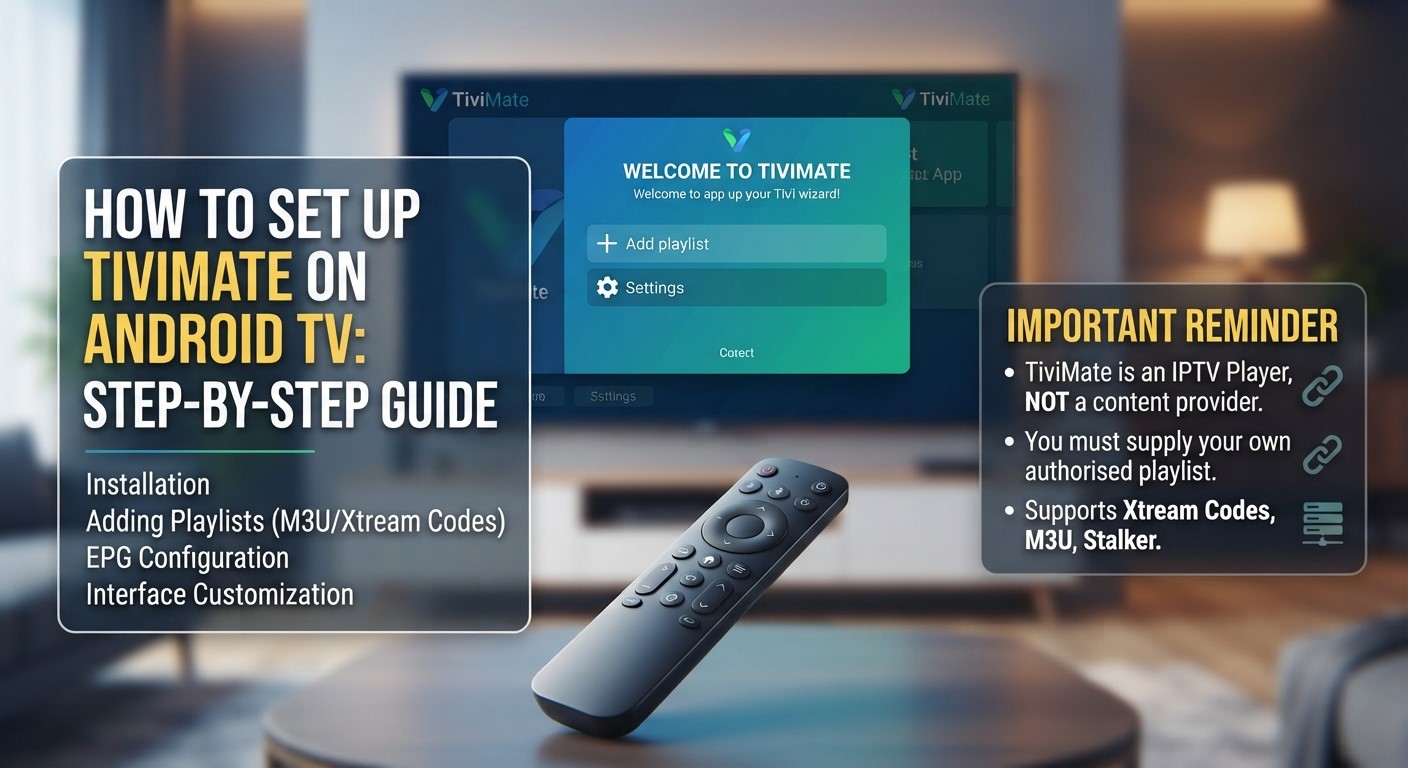
If you want a clean and easy way to watch your authorised IPTV playlists on an Android TV or Google TV device, TiviMate IPTV Player is one of the most popular options available.
TiviMate is designed specifically for large screens and remote control navigation. It supports common playlist formats such as M3U, Xtream Codes and Stalker Portal, along with features such as an Electronic Programme Guide (EPG), favourites, search, catch-up, recording and multiview.
However, there is one important thing to understand before starting:
TiviMate is an IPTV player, not an IPTV subscription service.
It does not provide TV channels, movies or live streams by itself. You need your own authorised IPTV playlist or compatible subscription from a legitimate content provider. TiviMate’s Google Play listing explicitly states that the app is a media player and does not provide content.
This guide explains how to set up TiviMate on Android TV step by step, including installation, adding an IPTV playlist, configuring the EPG, organising channels, adjusting settings and troubleshooting common problems.
What Is TiviMate?
TiviMate is an IPTV player designed primarily for Android TV and large-screen devices.
Instead of using a traditional TV channel interface, TiviMate lets you connect an IPTV playlist and organise the available channels into a TV-style interface.
The current Google Play listing highlights features including:
- M3U playlist support
- Xtream Codes support
- Stalker Portal support
- Electronic Programme Guide (EPG)
- Multiple playlists
- Favourite channels
- Catch-up
- Recording
- Search
- Parental controls
- Multiview
- Large-screen interface
- Remote-control navigation
The app is designed for Android TV rather than touch-focused mobile use.
TiviMate does not provide channels
This is important for beginners.
Installing TiviMate alone will not give you access to live television.
The basic setup looks like this:
Authorised IPTV/content provider → Playlist or login details → TiviMate → Android TV → Television
Your provider supplies the content source, while TiviMate acts as the player and interface.
What You Need Before Setting Up TiviMate
Before installing TiviMate, prepare the following:
1. Android TV or Google TV device
You can use a compatible Android TV television or streaming device.
Examples include compatible:
- Sony Android TV/Google TV televisions
- TCL Google TV devices
- NVIDIA Shield TV
- Google TV Streamer
- Chromecast with Google TV
- Other certified Android TV devices
The exact interface may differ slightly depending on the manufacturer.
2. Internet connection
You need an internet connection capable of handling your video streams.
For live TV, connection stability is particularly important.
If your device supports Ethernet, a wired connection can be useful for reducing Wi-Fi-related problems.
3. TiviMate IPTV Player
You can install TiviMate through the Google Play Store on supported Android TV devices. The current Google Play listing identifies the application as TiviMate IPTV Player by Armobsoft FZE.
4. An authorised IPTV playlist or subscription
Your legitimate provider may give you:
- Xtream Codes credentials
- M3U URL
- Stalker Portal details
- Another supported playlist format
If your provider gives you Xtream Codes, you’ll normally need:
- Server/portal URL
- Username
- Password
If you receive an M3U playlist, you’ll usually receive a single URL.
How to Install TiviMate on Android TV
Installing TiviMate on Android TV is usually straightforward because compatible devices can access the Google Play Store.
Step 1: Turn on Your Android TV
Turn on your television or Android TV device and make sure it is connected to the internet.
From the home screen, navigate to the Apps section.
Step 2: Open Google Play Store
Open the Google Play Store.
You can normally find it from the Apps section or your Android TV home screen.
Step 3: Search for TiviMate
Select the search option and enter:
TiviMate IPTV Player
Look for the TiviMate application from the listed developer.
The current Google Play listing identifies the developer as Armobsoft FZE.
Step 4: Install TiviMate
Select the application and choose Install.
Wait for the installation to finish.
Step 5: Open TiviMate
Select Open after installation.
You can also launch it later from your Android TV Apps section.
At this point, TiviMate itself is installed, but your channels will not appear until you add a compatible playlist.
How to Add an IPTV Playlist to TiviMate
After opening TiviMate for the first time, you’ll need to add a playlist.
TiviMate supports multiple playlist formats, including M3U, Xtream Codes and Stalker Portal.
The exact option you should use depends on the information provided by your authorised IPTV service.
The two formats many users encounter are:
- Xtream Codes
- M3U URL
Method 1: Set Up TiviMate With Xtream Codes
If your IPTV provider gives you a server URL, username and password, Xtream Codes is usually the easiest option.
Step 1: Open TiviMate
Launch TiviMate.
On a new installation, you should see an option to add a playlist.
Select:
Add Playlist
Step 2: Select Xtream Codes
Choose the option for:
Xtream Codes API
The exact wording can vary slightly depending on the app version.
Step 3: Enter Your Server URL
Your provider should give you a server or portal URL.
Enter it exactly as provided.
Do not add extra spaces or change the URL unnecessarily.
Step 4: Enter Username
Enter the username supplied by your provider.
Check uppercase and lowercase characters if your credentials are case-sensitive.
Step 5: Enter Password
Enter the password supplied by your provider.
Be careful when typing using the TV remote because passwords can be difficult to enter accurately on a television.
Step 6: Add the Playlist
After entering the required information, select Next, Add or the equivalent confirmation option.
TiviMate will attempt to connect to the server and load your available content.
If the credentials are correct and the service is available, your channel groups and other supported content should load.
Method 2: Set Up TiviMate With an M3U URL
If your provider gives you an M3U playlist URL, you can add it directly.
An M3U playlist is essentially a playlist containing information about available streams.
Step 1: Open Add Playlist
Open TiviMate and select:
Add Playlist
If you have already configured TiviMate, you can generally manage playlists through the playlist settings.
Step 2: Select M3U Playlist
Choose:
M3U Playlist
or the equivalent M3U URL option.
Step 3: Enter Your M3U URL
Paste or enter the M3U URL supplied by your authorised provider.
The URL may be quite long.
For this reason, carefully copying the URL is preferable to manually typing it with a remote.
Step 4: Confirm
Select the option to continue or add the playlist.
TiviMate will attempt to retrieve the playlist.
If the URL is valid and accessible, the available channel information should begin loading.
Which Is Better: Xtream Codes or M3U?
If your provider supports both options, either can work.
However, the setup experience can differ.
| Feature | Xtream Codes | M3U |
|---|---|---|
| Setup | Server + username + password | One playlist URL |
| Ease of entry | Usually easier | Long URL can be difficult |
| Channel organisation | Provider-dependent | Provider-dependent |
| EPG | May be supplied automatically by service | May require separate configuration |
| Best for | Users with login credentials | Users with an M3U URL |
The most important thing is to use the format supplied by your authorised provider.
Don’t try to convert credentials unnecessarily if the provider already gives you a supported format.
How to Set Up the EPG in TiviMate
One of TiviMate’s useful features is its Electronic Programme Guide, commonly called an EPG.
An EPG displays programme information in a TV-guide style layout.
Instead of simply seeing a list of channels, you can see information about what’s currently playing and what’s scheduled next.
TiviMate’s current Google Play listing confirms EPG support.
What Is an EPG?
EPG stands for Electronic Programme Guide.
It can show:
- Programme titles
- Current programmes
- Upcoming programmes
- Start times
- End times
- Programme descriptions
For live TV users, this makes browsing much easier.
How to Add an EPG
If your IPTV provider supplies an EPG URL, follow the provider’s instructions for adding it.
Depending on your TiviMate version and playlist setup, EPG settings can generally be managed from the playlist or EPG settings area.
If your provider automatically supplies EPG data through your playlist, you may not need to enter a separate URL.
If the EPG isn’t working
Check:
- The EPG URL is correct.
- Your playlist is active.
- Your device is connected to the internet.
- Your provider’s EPG server is available.
- The correct timezone is configured.
- You have refreshed the guide.
If the provider’s EPG data is incorrect or unavailable, the issue may be on the provider side rather than inside TiviMate.
How to Organise Channels in TiviMate
Once your playlist loads, you may have a large number of channels.
Instead of scrolling through everything, TiviMate provides features that can help organise your viewing experience.
The current app listing includes favourites, search, multiple playlists and other channel-management features.
Add Channels to Favourites
If you regularly watch certain channels, adding them to your favourites can make access much faster.
For example, you might create a favourite list containing:
- News channels
- Sports channels
- Entertainment channels
- Children’s channels
- Frequently watched local channels
The exact menu interaction can vary depending on the current app version.
Use Search
TiviMate includes search functionality, which is particularly useful when your playlist contains a large number of channels.
Instead of scrolling through hundreds of entries, search for the channel or programme you want.
Organise Channel Groups
If your provider supplies properly categorised channel groups, TiviMate can display them in a more organised structure.
Typical groups may include:
- UK
- News
- Sports
- Movies
- Entertainment
- Kids
- Documentary
The available categories depend entirely on your content provider.
How to Change the Video Player in TiviMate
TiviMate includes playback settings that allow users to configure how streams are played.
For most users, the default player settings are a good starting point.
Don’t change advanced playback settings simply because someone recommends a particular configuration online.
If your streams are working correctly, there may be no reason to change them.
If you’re experiencing playback problems, test one setting at a time so you can identify whether a change actually helps.
Best TiviMate Settings for Android TV
There isn’t one universal configuration that is “best” for every Android TV device.
Your ideal settings depend on:
- Android TV hardware
- Internet connection
- Stream quality
- Provider infrastructure
- TV resolution
- Audio equipment
- Network configuration
However, there are several sensible starting points.
1. Keep the app updated
Use the current version available through the appropriate app store.
Updates can include:
- Bug fixes
- Performance improvements
- Compatibility changes
- Security updates
- New features
The current Google Play listing shows TiviMate being actively updated.
2. Use a wired connection when practical
If your Android TV device supports Ethernet and your router is nearby, a wired connection can reduce some Wi-Fi-related instability.
3. Avoid unnecessary advanced changes
Don’t change multiple decoder, buffer or playback settings at once.
If your system works correctly, leave the defaults alone.
4. Keep your Android TV device updated
Your streaming device’s operating system can also affect application performance.
Check for available system updates periodically.
How to Refresh Your TiviMate Playlist
Sometimes your provider adds, removes or changes channels.
If your playlist doesn’t automatically update, you may need to refresh it.
A typical process is:
- Open TiviMate.
- Open Settings.
- Go to Playlists.
- Select the relevant playlist.
- Choose the refresh/update option.
The exact menu names can vary between app versions.
If a channel has permanently disappeared from the provider’s service, refreshing TiviMate will not bring it back.
How to Set Up Multiple Playlists
TiviMate supports multiple playlists, which can be useful for users who have more than one authorised content source. The current Google Play listing specifically includes multiple-playlist support.
For example, you might have:
- Main TV playlist
- Secondary playlist
- Family playlist
However, you should only add playlists from legitimate and authorised sources.
Adding more playlists can also increase the amount of data TiviMate needs to process, particularly when large EPG databases are involved.
TiviMate Free vs Premium
TiviMate offers a free version and premium features.
The important distinction is:
TiviMate Premium unlocks app features. It does not provide TV channels or an IPTV subscription.
The Google Play listing explicitly states that any paid subscription or premium upgrade unlocks application features and does not include channels, streams or media content.
Depending on the current version and licensing terms, premium features can include advanced functionality such as:
- Multiple playlists
- Recording
- Multiview
- Additional customisation
- Other advanced playback and organisation features
Before purchasing Premium, check the current feature list shown in the app or official store listing because features and pricing can change.
Do You Need TiviMate Premium?
Not necessarily.
If you simply want to test whether your authorised playlist works, the free version may be enough to get started.
Premium becomes more relevant if you want additional features or more advanced playlist and viewing capabilities.
For a basic setup:
Install TiviMate → Add your authorised playlist → Test live TV → Decide whether Premium features are useful to you.
This is a better approach than paying for Premium before you’ve confirmed that your content source works properly.
How to Fix TiviMate When Channels Are Not Loading
If your channels don’t appear after adding a playlist, don’t immediately reinstall the app.
Check the basics first.
1. Check your login details
If using Xtream Codes, verify:
- Server URL
- Username
- Password
One incorrect character can prevent the connection.
2. Check the M3U URL
If using M3U, make sure the complete URL was copied correctly.
Long URLs are easy to mistype.
3. Check your internet
Open another streaming application on your Android TV.
If other services also have problems, your internet connection may be the issue.
4. Check the provider
If your internet works but TiviMate cannot connect to your playlist, the content provider’s server may be unavailable.
5. Refresh the playlist
Try updating the playlist from the TiviMate settings.
6. Restart TiviMate
Close the application and open it again.
7. Restart your Android TV
A complete device restart can sometimes resolve temporary application or network issues.
TiviMate Buffering: How to Troubleshoot It
Buffering can be caused by several different factors.
Possible causes include:
- Weak Wi-Fi
- Network congestion
- Router problems
- Device limitations
- Provider-side congestion
- Poor-quality stream source
- High-resolution streams
- Temporary server issues
Try these steps:
Use Ethernet
If possible, connect the Android TV device directly to your router.
Try 5 GHz Wi-Fi
If Ethernet isn’t available and your router supports dual-band Wi-Fi, a strong 5 GHz connection may help when the device is relatively close to the router.
Reduce other network activity
Pause large downloads or other bandwidth-intensive activities.
Test another channel
If one channel buffers but others work normally, the problem may be specific to that stream.
Test another application
If several streaming apps buffer, investigate your network before changing TiviMate settings.
What to Do If TiviMate Says “Invalid URL”
An invalid URL error generally means TiviMate cannot properly process the address you entered.
Check:
- Spelling
httpvshttps- Port number
- Missing characters
- Extra spaces
- Username/password parameters
- Whether the URL is still active
If you copied the URL from an email or message, copy it again carefully.
If the problem continues, ask your authorised provider to confirm the correct playlist URL.
What to Do If the EPG Is Empty
If your channels work but the EPG doesn’t show programme information, check:
- Whether your provider actually supplies EPG data.
- Whether the EPG URL is correct.
- Whether the playlist is correctly linked to the EPG source.
- Whether your device has the correct date and time.
- Whether the guide needs to be refreshed.
- Whether the provider’s EPG service is currently available.
An IPTV playlist can work correctly even when its EPG data is temporarily unavailable.
Can You Install TiviMate on Google TV?
Yes.
Google TV devices use the Android TV platform underneath the Google TV interface, so compatible applications designed for Android TV can be available on Google TV devices.
The installation process is generally the same:
Google TV Home → Apps → Google Play Store → Search TiviMate → Install → Open
Always check the current device compatibility and app-store availability for your specific model.
Can You Use TiviMate on Android TV Without an IPTV Subscription?
Yes, you can install the application without having an IPTV subscription.
However, you won’t have premium live TV content simply by installing TiviMate.
TiviMate is a player.
You need a compatible playlist or content source to actually watch channels.
The official Google Play listing makes this distinction clear: TiviMate does not provide content itself.
Is TiviMate Legal?
TiviMate itself is an IPTV media player.
The app does not provide its own channels or content and states that it does not endorse illegal content sources.
The important issue is the source of the content you add to the player.
Using TiviMate with an authorised IPTV service or legitimate playlist is different from using it to access copyrighted premium content through an unauthorised source.
Always make sure your IPTV provider has the necessary rights to distribute the channels and content it offers.
How to Get the Best TiviMate Experience on Android TV
A good TiviMate setup isn’t only about installing the app.
Your complete setup matters.
Use a capable Android TV device
A modern certified device generally provides a better experience than a very low-cost generic box with limited hardware or poor software support.
Keep your device updated
Install available Android TV system updates.
Use stable internet
For live streaming, connection stability matters.
Prefer Ethernet when practical
Especially for a fixed TV setup.
Use an authorised content provider
Your content source has a major effect on reliability and channel availability.
Don’t overcomplicate the settings
If everything works correctly, the default settings are often a sensible starting point.
TiviMate Setup Checklist
Before you finish configuring TiviMate, check the following:
- Android TV is connected to the internet
- TiviMate installed from Google Play Store
- Authorised IPTV playlist available
- Xtream Codes or M3U details entered correctly
- Channels successfully loaded
- EPG configured if available
- Favourite channels organised
- Video playback tested
- Internet connection stable
- Android TV software updated
- TiviMate updated
- Premium purchased only if needed
Once everything works, you’re ready to use TiviMate as your IPTV player.
Frequently Asked Questions
Is TiviMate free?
TiviMate has a free version, while premium features are available through an optional paid upgrade. The Premium upgrade is for app functionality and does not provide TV channels or an IPTV subscription.
Does TiviMate come with channels?
No. TiviMate is a media player and does not provide its own channels or streaming content. You need to add your own compatible playlist from an authorised content provider.
Can I install TiviMate directly on Android TV?
Yes. On compatible Android TV devices, TiviMate is available through Google Play Store.
What do I need to use TiviMate?
You generally need a compatible Android TV device, an internet connection and an authorised IPTV playlist or subscription that provides a supported format such as M3U or Xtream Codes.
Is Xtream Codes better than M3U?
Neither is universally better. Xtream Codes can be easier to enter because it uses a server URL, username and password, while M3U uses a playlist URL. Use whichever format your authorised provider supplies.
Why are my channels not showing in TiviMate?
Check your playlist credentials, internet connection and provider status. If the information is correct but the playlist still doesn’t load, contact your content provider to verify that the account and server are active.
Why is my TiviMate EPG not working?
The EPG may not be configured correctly, the URL may be incorrect, the playlist may not be mapped properly, or the provider’s EPG service may be temporarily unavailable.
Can TiviMate record live TV?
TiviMate supports recording as one of its listed features, although recording functionality can depend on the app version, device storage and the stream/source being used.
Can TiviMate show multiple channels at once?
Yes. Multiview is listed among TiviMate’s supported features, allowing compatible users to view multiple channels simultaneously.
Can I use TiviMate on my phone?
TiviMate is primarily designed for Android TV and remote-control navigation. The current Google Play listing specifically says it is not optimised for touch devices such as phones or tablets.
Does TiviMate work on Google TV?
Yes, compatible Google TV devices can run Android TV applications such as TiviMate.
Do I need a VPN for TiviMate?
A VPN is not inherently required to use TiviMate. Whether you use one is a separate privacy or network decision. More importantly, make sure the content source you use is authorised for your location.
Why does TiviMate keep buffering?
Possible causes include Wi-Fi problems, network congestion, device performance, provider-side issues or problems with the individual stream. Try Ethernet, reduce network congestion and test other channels before changing advanced settings.
Final Thoughts
Setting up TiviMate on Android TV is relatively simple once you understand how the app works.
The basic process is:
Install TiviMate → Add your authorised playlist → Configure EPG → Organise channels → Test playback → Customise the interface
The most important thing to remember is that TiviMate is a player, not an IPTV provider.
It provides the interface and playback features, while your authorised content provider supplies the actual channels and streams.
For most users, the easiest starting point is to install TiviMate from the Google Play Store, add the Xtream Codes or M3U details supplied by your legitimate provider, allow the playlist to load, and then configure the EPG and favourites.
If you are having IPTV setup problems, you can also check our IPTV Installation Guide for additional setup information.
For troubleshooting, see our guide on common IPTV problems and how to fix them.
If you’re looking for an IPTV subscription compatible with your Android TV setup, visit our IPTV Subscription page and verify the current device and channel availability before purchasing.
Ultimately, a smooth TiviMate experience depends on three things: a capable Android TV device, a stable internet connection and an authorised, reliable content source.