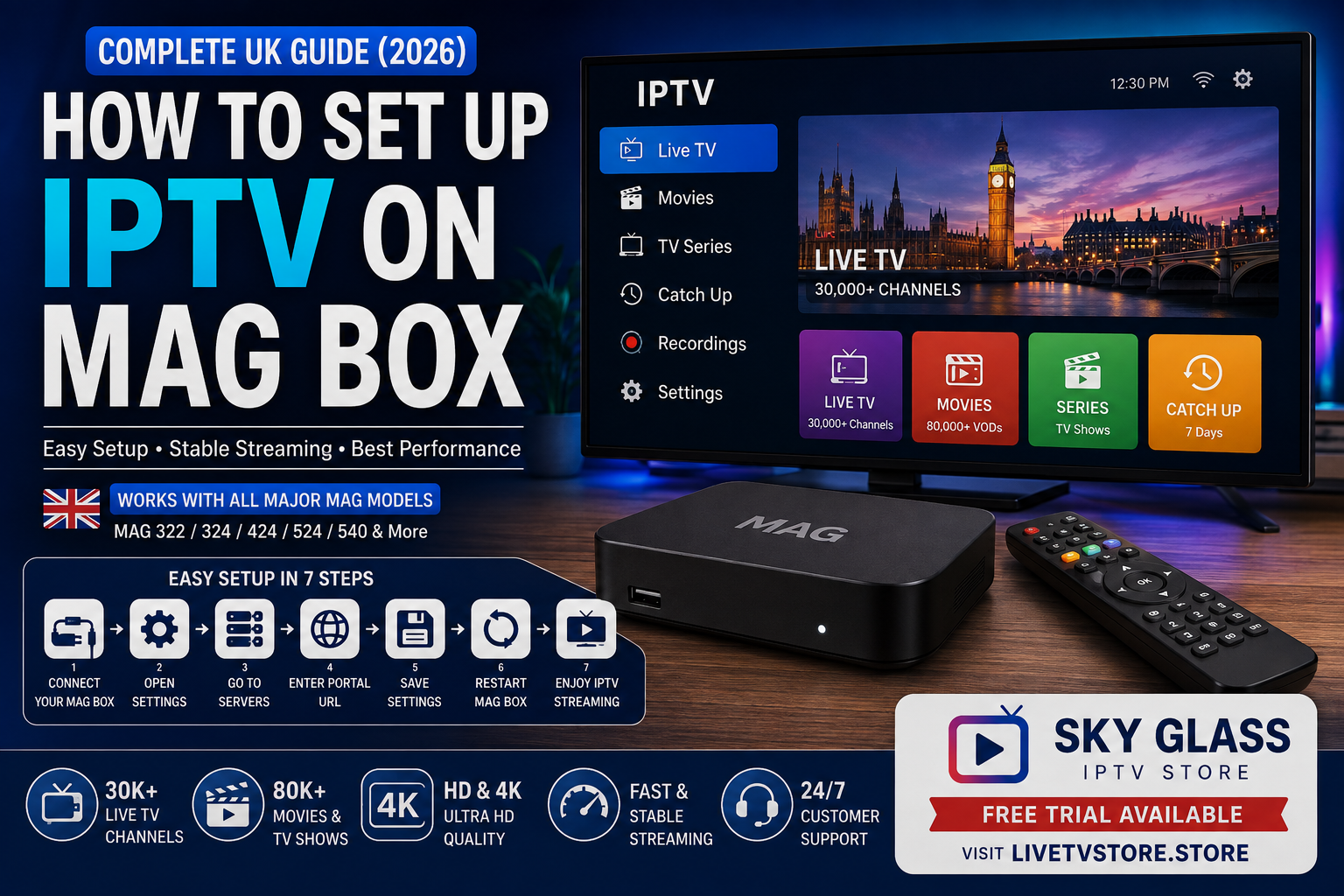
MAG Boxes have remained one of the most trusted IPTV devices in the UK because they’re designed specifically for IPTV streaming. Unlike Android TV boxes that require installing apps, a MAG Box connects directly to your IPTV provider using a portal URL, making setup quick, reliable, and easy for beginners. In most cases, you’ll be watching live TV in less than 10 minutes.
In this complete guide, you’ll learn exactly how to configure IPTV on every major MAG Box model, activate your subscription, troubleshoot common setup issues, and optimise your device for the best streaming experience. If you haven’t subscribed yet, visit our Buy IPTV Subscription page to get started, or explore the Homepage to learn more about Sky Glass IPTV Store.
What Is a MAG Box and How Do You Set Up IPTV?
A MAG Box is a dedicated IPTV streaming device developed by Infomir. To set up IPTV, simply connect the device to your internet, open the Portal settings, enter the Portal URL provided by your IPTV provider, save the settings, restart the device, and allow the portal to load your channels automatically. Most UK users can complete the entire process in under ten minutes once their subscription has been activated.
Now let’s go through the complete installation process step by step so you can get your MAG Box streaming smoothly.
Understanding MAG Boxes Before You Begin
If you’re new to IPTV, understanding what a MAG Box actually does will make the setup process much easier.
Unlike Android TV boxes, Firesticks, or Smart TVs that require downloading IPTV player applications, a MAG Box is built specifically for IPTV streaming. The operating system is designed around portal-based IPTV services, allowing you to connect directly to your provider without installing any third-party apps.
This simplicity is one of the main reasons MAG devices remain popular among UK IPTV users in 2026.
Once your IPTV provider activates your device’s MAC address and supplies your Portal URL, your MAG Box connects directly to the provider’s streaming servers. After the portal loads, everything—from Live TV and Movies to Series and Electronic Programme Guide (EPG)—appears automatically.
Because the software is purpose-built, navigation is fast, channel switching is responsive, and the overall experience is generally more stable than using generic Android devices.
Another major advantage is reliability. Since there are fewer background applications running, MAG Boxes typically require less maintenance and suffer fewer software conflicts than devices that rely on multiple installed apps.
Popular MAG Box Models
Sky Glass IPTV Store supports all major Infomir MAG devices, including:
- MAG 322
- MAG 324
- MAG 420
- MAG 424
- MAG 520
- MAG 524
- MAG 540
Whether you’re using an older MAG 322 or one of the latest 4K-capable models, the setup process remains almost identical.
If you’re purchasing IPTV specifically for your MAG device, simply mention your model during activation so your account can be configured correctly.
Why Many UK Users Still Choose MAG Boxes
Despite the popularity of Android TV and Firestick devices, MAG Boxes continue to have a loyal following throughout the UK.
Here are some of the biggest reasons:
Purpose-Built for IPTV
MAG devices aren’t trying to do everything.
They’re designed specifically for IPTV, which means fewer distractions, simpler menus, and excellent stability.
Faster Channel Loading
Because the portal communicates directly with your IPTV provider, channel loading is usually extremely quick.
Users often notice faster switching between live channels compared to some Android IPTV apps.
Simple Maintenance
There are:
- no APK installations
- no app compatibility issues
- no multiple IPTV players to manage
Once configured correctly, many users simply turn on the device and start watching.
Excellent Remote Navigation
The MAG remote interface is straightforward and designed specifically for television viewing, making it ideal for users who prefer a traditional TV experience.
Stable Long-Term Performance
When configured with a quality IPTV provider and a reliable internet connection, MAG Boxes are known for consistent performance over many years.
This is one reason why many experienced IPTV users still recommend them today.
What You’ll Need Before You Start
Before beginning the setup process, make sure you have everything ready. Having these items prepared beforehand makes the installation much smoother.
An Active IPTV Subscription
Before your MAG Box can access channels, you’ll need an active IPTV subscription.
Unlike Android devices that often use Xtream Codes or M3U playlists, MAG Boxes primarily authenticate using:
- your device’s MAC Address
- your provider’s Portal URL
After subscribing, your IPTV provider activates your MAG Box remotely using your MAC address.
If you haven’t signed up yet, visit the Buy IPTV Subscription page to choose a plan that supports MAG Box devices.
A Compatible MAG Box
Make sure your device is one of the supported Infomir MAG models.
Popular options include:
- MAG 322
- MAG 324
- MAG 420
- MAG 424
- MAG 520
- MAG 524
- MAG 540
Older models may still function, but newer devices generally provide better performance, faster processors, and improved support for HD and 4K streaming.
A Stable Internet Connection
A reliable internet connection is just as important as choosing the right IPTV provider.
For the best streaming experience, we recommend:
- Minimum 10 Mbps for HD channels
- 25 Mbps or higher for 4K streaming
- Unlimited broadband connection
- Low network congestion during peak hours
Whenever possible, connect your MAG Box using an Ethernet cable rather than Wi-Fi.
A wired connection offers:
- lower latency
- fewer disconnects
- more consistent speeds
- smoother live sports streaming
Wi-Fi works well for many households, but Ethernet remains the preferred option if your router is nearby.
Your Device’s MAC Address
Every MAG Box has a unique MAC address that your IPTV provider uses to activate your subscription.
It usually looks something like:
00:1A:79:XX:XX:XX
You’ll need to send this address to your IPTV provider before your account can be activated.
We’ll show exactly where to find it in the next section.
The Correct Portal URL
The Portal URL is what connects your MAG Box to your IPTV provider’s servers.
Your provider will send this address after activating your subscription.
It is extremely important that you enter the Portal URL exactly as provided.
Even a small typo—such as a missing slash, incorrect letter, or extra space—can prevent the portal from loading.
Never attempt to guess or modify the Portal URL yourself. Always use the one supplied by your IPTV provider.
If you’re using Sky Glass IPTV Store, you’ll receive the correct Portal URL together with your activation instructions.
With everything prepared, you’re now ready to configure your MAG Box.
How to Set Up IPTV on MAG Box – Complete UK Guide
A MAG Box remains one of the most reliable dedicated IPTV devices available. Unlike Smart TVs or streaming sticks that require installing third-party apps, a MAG Box is purpose-built for IPTV, offering fast channel switching, stable playback, and an easy-to-use interface.
If you’ve recently purchased a MAG device—or you’re planning to buy one—this guide will walk you through the complete setup process, explain the different portal options, solve common issues, and show you how to get the best streaming experience in the UK.
Whether you’re using a MAG 322, MAG 424, MAG 524, MAG 540, or another supported model, the setup process is almost identical.
If you haven’t purchased a subscription yet, the Buy IPTV Subscription page on Sky Glass IPTV Store is the best place to start before configuring your MAG Box.
What Is a MAG Box and How Does It Work?
A MAG Box is a dedicated IPTV set-top box developed specifically for streaming IPTV services. Instead of downloading multiple apps, the device connects directly to an IPTV portal supplied by your provider.
After entering the correct Portal URL, your MAG Box automatically loads:
- Live TV channels
- Movies
- TV series
- Electronic Programme Guide (EPG)
- Catch-up TV (where available)
Unlike Android TV boxes, MAG devices use their own operating system that is optimised for IPTV. This makes them extremely stable and simple to operate, especially for users who want a traditional TV-like experience.
For UK households that primarily watch live television, football, movies, and international channels, MAG Boxes continue to be one of the most dependable IPTV solutions available.
Why Choose a MAG Box for IPTV?
Many users wonder whether they should choose a Firestick, Android TV, or MAG Box.
Each has advantages, but MAG devices excel in stability and ease of use.
Designed Specifically for IPTV
Unlike Android devices that run hundreds of different apps, MAG Boxes are built solely for IPTV.
That means:
- Faster navigation
- Better stream stability
- Quicker channel loading
- Lower risk of software conflicts
If your main goal is watching live television without unnecessary features, a MAG Box is difficult to beat.
Excellent Remote-Control Experience
The interface feels similar to traditional cable or satellite television.
Users can easily:
- Browse channel categories
- Open the programme guide
- Switch channels instantly
- Access favourites
- Resume watching quickly
This makes MAG Boxes particularly popular among families and older users who prefer a simple remote-controlled experience.
Stable Performance During Peak Hours
Through experience helping UK IPTV customers, we’ve found that dedicated IPTV hardware often provides a more consistent experience than general-purpose streaming devices.
When paired with reliable infrastructure like Sky Glass IPTV Store, MAG Boxes deliver smooth playback for:
- Premier League
- Champions League
- Formula 1
- UFC
- Movies
- International TV
Performance ultimately depends on your internet connection and IPTV provider, but dedicated IPTV hardware removes many of the variables introduced by other platforms.
Long-Term Reliability
MAG Boxes receive firmware updates from Infomir and are designed to operate for years with minimal maintenance.
Unlike cheaper Android boxes that can slow down over time, a properly configured MAG Box typically continues performing consistently with very little intervention.
What You’ll Need Before Setting Up Your MAG Box
Before beginning the installation process, make sure you have everything ready.
1. An Active IPTV Subscription
You’ll need IPTV credentials supplied by your provider.
For MAG Boxes this usually includes:
- Portal URL
- MAC Address activation
- Account activation confirmation
If you’re using Sky Glass IPTV Store, these details are provided after purchasing a subscription or requesting a free trial.
If you haven’t subscribed yet, visit the Buy IPTV Subscription page to choose the plan that best suits your needs.
2. A Supported MAG Device
Most modern MAG models work with IPTV portals, including:
- MAG 322
- MAG 324
- MAG 420
- MAG 424
- MAG 520
- MAG 524
- MAG 540
Older models may still function, although newer devices generally offer faster processors and improved responsiveness.
3. Internet Connection
For smooth streaming, we recommend:
| Streaming Quality | Recommended Speed |
| HD | 10 Mbps+ |
| Full HD | 15 Mbps+ |
| 4K UHD | 25 Mbps+ |
Whenever possible, use an Ethernet cable instead of Wi-Fi for maximum stability.
4. Your MAC Address
Every MAG Box has a unique MAC Address.
You can find it by navigating to:
Settings → System Information → Network
or on the sticker underneath the device.
Your IPTV provider may ask for this address to activate your subscription.
How to Set Up IPTV on a MAG Box – Step-by-Step Guide
The installation process is straightforward once your subscription has been activated.
Step 1: Connect Your MAG Box
Connect:
- HDMI cable
- Power adapter
- Ethernet cable (recommended)
If Ethernet isn’t available, connect the device to your Wi-Fi network through the Network Settings menu.
Allow the MAG Box to complete its startup process.
Step 2: Open System Settings
From the home screen navigate to:
Settings
Then select:
System Settings
This menu contains the portal configuration required for IPTV.
Step 3: Open Servers
Inside System Settings select:
Servers
You’ll now see several options including:
- Portals
- Time Servers
- CAS
- NTP
Choose Portals.
Step 4: Enter Your IPTV Portal
You’ll see fields similar to:
Portal 1 Name
Enter something memorable such as:
Sky Glass IPTV
Next, enter the Portal URL exactly as supplied by your IPTV provider.
Be careful to:
- Include https:// if provided
- Avoid extra spaces
- Use uppercase and lowercase correctly if required
Even a small typing mistake can prevent the portal from loading.
Step 5: Save the Configuration
After entering your portal details:
Press OK
Then choose:
Save
Your settings will now be stored.
Step 6: Restart the MAG Box
Restart the device to allow it to connect to the IPTV server.
When it restarts, it should automatically contact the portal.
If your MAC Address has already been activated, your channels will begin loading automatically.
Step 7: Enjoy Your IPTV Service
Once connected, you’ll have access to:
- Live TV
- Sports
- Movies
- TV Series
- Catch-up TV (where available)
- Electronic Programme Guide
Frequently Asked Questions
Is a MAG box better than a Firestick for IPTV?
Both devices work well, but they serve different types of users.
A MAG box is designed specifically for IPTV, so the setup process is simple, the interface is stable, and performance is generally consistent over long periods of use. It also requires very little maintenance once configured.
A Firestick offers more flexibility because you can install many different apps, but it also requires more setup and occasional updates.
If you want a dedicated IPTV device that simply works every day, a MAG box is an excellent choice.
Which MAG boxes support IPTV in 2026?
Most modern MAG devices continue to work well with IPTV services.
Popular models include:
- MAG 524
- MAG 540
- MAG 555
- MAG 420 (still widely used)
Older models may still function but often have slower hardware and may not support newer firmware features. For the best experience, using a newer MAG model is recommended.
Do I need an M3U playlist for a MAG box?
Not usually.
Most IPTV providers configure MAG boxes using the Portal URL and your device’s MAC address. This allows the box to load channels automatically without manually importing playlists.
Some providers may also offer M3U playlists for use on other devices, but the portal method is the standard approach for MAG boxes.
How long does MAG box activation take?
Activation is usually very fast.
Once your provider receives your MAC address and activates your account, most users are online within a few minutes.
Occasionally, activation can take a little longer during busy periods, but it’s generally a straightforward process.
Can I move my IPTV subscription to another MAG box?
Yes, but you’ll usually need to contact your provider.
Since IPTV access is linked to the MAG box’s MAC address, changing devices requires updating the registered MAC address on your account.
If you’re upgrading your hardware, simply provide the new MAC address to support before connecting the replacement device.
Why are my channels not loading?
If your channel list doesn’t appear, check the following:
- Verify the Portal URL has been entered exactly.
- Restart the MAG box.
- Confirm your internet connection is working.
- Ensure your subscription is active.
- Contact support to confirm your MAC address has been activated.
Most loading problems are caused by small typing mistakes or incomplete activation rather than hardware issues.
Can I use a VPN with a MAG box?
Yes, although it’s optional.
A VPN can improve privacy when using public Wi-Fi or if you simply prefer encrypted internet traffic.
However, a VPN is not required for reputable IPTV services. If you choose to use one, select a fast UK server and a premium VPN provider to minimise any impact on streaming performance.
For a more detailed explanation, see our guide on VPN with IPTV – Does It Help or Hurt Streaming?
Can I become an IPTV reseller if I already use a MAG box?
Absolutely.
Many successful IPTV resellers first became regular customers before deciding to build their own business.
If you’ve had a positive experience with the service, you can apply for the IPTV Reseller Panel, purchase reseller credits, and begin selling subscriptions to your own customers. The reseller dashboard handles account creation, subscription management, renewals, and trial lines, making it easy to scale your business.
Is a MAG Box Still Worth It for IPTV in 2026?
Yes—especially if your priority is reliability, simplicity, and a dedicated IPTV experience.
Unlike general-purpose streaming devices, MAG boxes are built specifically for IPTV. Once your Portal URL and MAC address are configured, the device handles everything through a clean, straightforward interface with very little ongoing maintenance. For many UK households, that simplicity is exactly what makes a MAG box so appealing.
To get the best experience, pair your device with a dependable IPTV provider, use a stable internet connection, keep your firmware updated, and follow the correct setup process. Most installation issues are easy to resolve when these basics are in place.
If you’re new to IPTV, start with a Buy IPTV Subscription or request a free trial through the Sky Glass IPTV Store homepage. Existing customers can follow the Installation Guide for device-specific setup instructions, while those interested in starting their own IPTV business can explore the IPTV Reseller Panel. Before making your decision, you can also browse the Reviews page to see feedback from other users.
Start Watching IPTV on Your MAG Box Today
Visit the Sky Glass IPTV Store homepage to get started, request your free trial, and enjoy reliable IPTV streaming on your MAG box today.
For a complete visual walkthrough covering every supported device—not just MAG Boxes—see the Installation Guide on the Sky Glass IPTV Store website.