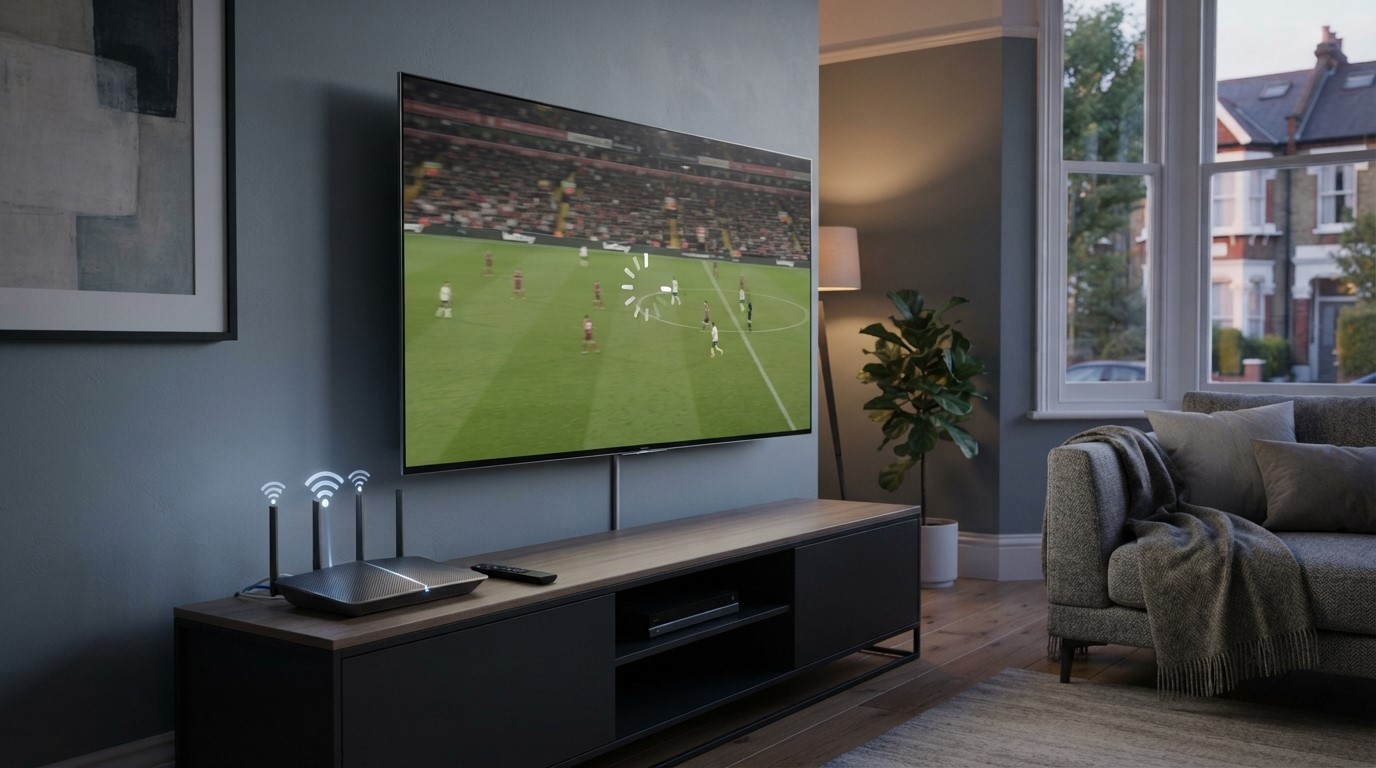
IPTV buffering is one of the most frustrating problems when watching live TV, football, movies, or other streaming content. One moment everything is playing smoothly, and the next the video freezes, loads repeatedly, or drops to a lower quality.
If you are watching IPTV in the UK and experiencing buffering, the problem is not necessarily your IPTV app or subscription. Buffering can be caused by your broadband connection, Wi-Fi signal, router, streaming device, app settings, network congestion, or the IPTV server itself.
The good news is that most buffering problems can be diagnosed without replacing your entire setup.
In this guide, we explain how to fix IPTV buffering with 10 practical solutions. You will learn how to check your internet speed, improve Wi-Fi, use Ethernet, reduce network congestion, restart your equipment, adjust streaming quality, troubleshoot your IPTV app, and determine whether the problem is coming from your home network or the streaming service.
If you are setting up IPTV for the first time, you can also follow our IPTV Installation Guide for help getting your device and app configured correctly.
Why Does IPTV Keep Buffering?
Buffering happens when your device cannot receive video data quickly or consistently enough to continue playback.
An IPTV stream needs a continuous flow of data. If the connection temporarily slows down, loses packets, experiences high latency, or the streaming source becomes overloaded, your player may run out of data and pause while it loads more.
Several factors can cause this.
Common causes of IPTV buffering
The most common causes include:
- Slow or unstable broadband
- Weak Wi-Fi signal
- Too many devices using the network
- Network congestion during busy periods
- An overloaded or poorly performing router
- Outdated IPTV apps or device software
- Incorrect video or player settings
- Limited device resources
- Problems with a particular IPTV stream or server
- Temporary problems with your broadband provider
It is important to identify the cause before changing settings randomly.
For example, if Netflix, YouTube and other streaming services also buffer on the same device, your home network or device is more likely to be responsible. If everything else works normally but one IPTV channel constantly buffers, the issue may be specific to that stream or service.
Ofcom also notes that broadband speed is not the only factor affecting live services. Delay or latency can affect real-time services, while Wi-Fi performance can be influenced by distance, walls, interference, router position and the number of connected devices.
1. Check Your Internet Speed First
Before changing your IPTV settings, test your internet connection.
This is the fastest way to determine whether your broadband is providing enough bandwidth for the quality you are trying to watch.
A speed test should ideally be performed on the same device where IPTV is buffering. Testing your phone while your Smart TV is connected through weak Wi-Fi may give you a misleading result.
Netflix, for example, recommends at least 3 Mbps for 720p HD, 5 Mbps for 1080p Full HD and 15 Mbps for 4K UHD. These figures are useful as a general streaming reference, although IPTV services can have different requirements depending on compression, bitrate and stream quality.
What should you check?
Run a speed test and look at:
- Download speed
- Upload speed
- Ping or latency
- Connection stability
Don’t only run the test once.
Ofcom recommends testing at different times because broadband performance can vary throughout the day.
For example, test your connection:
- In the afternoon
- During the evening
- When IPTV is buffering
- When nobody else is using the network
If your speed drops significantly during peak viewing hours, the problem may be related to network congestion or your broadband connection.
A useful test
If possible, temporarily connect your IPTV device directly to your router with an Ethernet cable.
If buffering disappears when using Ethernet, your broadband connection may be fine and your Wi-Fi is probably the weak point.
2. Switch From Wi-Fi to Ethernet
One of the simplest ways to improve IPTV stability is to use a wired Ethernet connection.
Wi-Fi is convenient, but it can be affected by:
- Walls
- Distance
- Interference
- Other wireless networks
- Connected devices
- Router placement
- Household appliances
An Ethernet cable provides a direct connection between your router and your streaming device.
Ofcom specifically notes that Ethernet can often provide a better connection than Wi-Fi and recommends using a cable when practical.
Ethernet is particularly useful for:
- Android TV boxes
- Smart TVs
- Desktop PCs
- IPTV boxes
- Streaming devices with Ethernet ports
If your router is close enough to your television, Ethernet is often worth trying before buying a new router or upgrading your broadband package.
What if Ethernet isn’t practical?
If running a cable across the room is inconvenient, move your router closer to the streaming device or improve your home’s Wi-Fi coverage.
A mesh Wi-Fi system can also help in larger homes where the TV is far away from the main router. Ofcom notes that mesh systems can improve coverage in areas with weak Wi-Fi signals, although placement and configuration matter.
3. Restart Your Router and IPTV Device
It sounds simple, but restarting your equipment can resolve temporary network and software problems.
A router may have been running for weeks while handling multiple devices, downloads, updates and streaming sessions. Restarting it can clear temporary connection problems.
Try this sequence
- Close your IPTV app.
- Turn off your TV or streaming device.
- Unplug your router.
- Wait around 30 seconds.
- Plug the router back in.
- Wait until the internet connection is fully restored.
- Restart your IPTV device.
- Open your IPTV app again.
- Test the same channel.
Ofcom recommends rebooting routers, Wi-Fi boosters, mesh devices and connected equipment when troubleshooting broadband problems.
If the buffering disappears after restarting everything but returns later, continue troubleshooting rather than repeatedly restarting the equipment.
4. Reduce Other Devices Using Your Internet
Your IPTV stream is sharing your internet connection with everything else in your home.
Someone downloading a large game, watching 4K video, uploading files to cloud storage, running a security camera or performing a large software update can consume significant bandwidth.
Ofcom recommends checking whether other people or devices are using the Wi-Fi for data-heavy activities when diagnosing broadband problems.
Try a simple test
Before watching IPTV, temporarily stop:
- Large downloads
- Cloud backups
- Game updates
- Torrent transfers
- 4K streaming on another TV
- Unnecessary video calls
- Large file uploads
- Devices you are not currently using
Then test the IPTV stream again.
If the buffering disappears, your internet connection may simply be dealing with too much simultaneous traffic.
Check your router’s connected devices
Modern routers usually allow you to see which devices are connected.
You may find several phones, tablets, TVs, computers, consoles and smart-home devices using your network at the same time.
Reducing unnecessary connections can improve available bandwidth for the device you are using for IPTV.
5. Improve Your Wi-Fi Signal
If you cannot use Ethernet, focus on improving Wi-Fi quality.
The location of your router can have a surprisingly large impact on performance.
Avoid placing your router:
- Inside a cabinet
- Behind the television
- On the floor
- Behind large furniture
- Near thick walls
- Directly beside other electronic equipment
Instead, place it in an open and elevated position where possible.
Ofcom explains that Wi-Fi signals can weaken as they pass through objects and materials, while router placement and interference can affect performance.
2.4 GHz vs 5 GHz Wi-Fi
Many modern routers provide both 2.4 GHz and 5 GHz networks.
2.4 GHz generally provides better range but can be more congested.
5 GHz can provide faster speeds at shorter distances but may struggle more through walls.
If your IPTV device is relatively close to the router, try the 5 GHz network.
If the TV is several rooms away, 2.4 GHz may sometimes provide a more stable connection.
The best option depends on your home layout, router and device.
6. Lower the Streaming Quality Temporarily
If IPTV works at lower quality but constantly buffers at 1080p or 4K, your connection or device may be struggling with the higher bitrate.
Try switching to:
- SD
- 720p
- 1080p instead of 4K
If the lower-quality stream plays smoothly, you have identified an important clue.
It does not necessarily mean your broadband package is inadequate. Your Wi-Fi connection, router, device, stream source or network conditions may be limiting the available throughput.
Streaming services commonly adapt video quality according to connection conditions. Netflix, for example, explains that unstable or slower connections can result in lower video quality.
For live sports
Live sports can be particularly sensitive to buffering because you cannot simply wait for the programme to finish downloading before watching.
If a 4K sports stream keeps buffering, test the HD version if your provider offers one.
A stable HD stream is generally more useful than a 4K stream that constantly pauses.
7. Clear Your IPTV App Cache
Sometimes the problem is not your internet connection at all.
The IPTV application itself can develop temporary issues caused by cached data, outdated information or software problems.
On Android TV and Android TV boxes, clearing the app cache can be a useful troubleshooting step.
General Android TV method
The exact menu names vary by device, but you can usually find something similar to:
Settings → Apps → Your IPTV App → Storage → Clear Cache
Then reopen the app and test the stream.
Avoid selecting Clear Data unless you are prepared to log in or configure the app again, because this may remove stored settings or account information.
If your IPTV application is outdated, check for an update through the appropriate app store.
You should also keep your Android TV, Fire TV, Smart TV or streaming device software reasonably up to date.
8. Test Another IPTV Channel or Stream
This is one of the most important diagnostic steps.
Suppose you are watching a particular football channel and it keeps buffering.
Don’t immediately assume your internet connection is the problem.
Switch to several other channels.
For example:
- Test a UK entertainment channel
- Test a news channel
- Test another sports channel
- Test an HD channel
- Test an SD channel
- Test a VOD title if your service provides VOD
What the results can tell you
If every channel buffers, investigate your:
- Internet connection
- Wi-Fi
- Router
- Device
- IPTV application
If only one or two channels buffer, the issue may be specific to those streams.
If live TV works but VOD buffers, the problem may be related to the particular content source or server.
If VOD works but live sports buffers, peak-time demand or the particular live stream may be a factor.
This simple comparison can save you a lot of unnecessary troubleshooting.
9. Check Your IPTV Player and Device
The IPTV player you use can also affect the viewing experience.
An IPTV player is generally an application that loads and plays content supplied through your IPTV source. The player itself does not automatically determine the quality or availability of the underlying stream.
If you are using an Android TV device, make sure:
- The IPTV app is updated
- Your device software is updated
- You have enough available storage
- Unnecessary background apps are closed
- The device is not overheating
- Your device has a stable internet connection
If your device is several years old, it may also struggle with high-resolution video even when your internet connection is fast enough.
Try another compatible player
If possible, test the same IPTV source using another compatible player.
If one player buffers while another plays smoothly, the issue may be related to the original application’s configuration or compatibility.
If both players buffer in exactly the same way, investigate the network and stream source instead.
If you need help setting up an IPTV application, our IPTV Installation Guide covers the general setup process for compatible devices.
10. Check Whether the Problem Is With the IPTV Service
After testing your internet, Wi-Fi, router, device and application, you may discover that everything on your side is working correctly.
At this point, consider the possibility that the specific IPTV service or stream is experiencing a temporary problem.
This is particularly likely if:
- YouTube works normally
- Netflix works normally
- Other streaming services work normally
- Your IPTV device has a strong connection
- Other IPTV channels work
- Only particular channels are buffering
- The problem occurs across multiple devices
Test at different times
Try the same channel at different times of the day.
If it works well in the afternoon but repeatedly buffers during busy evening viewing hours, network congestion or increased demand may be contributing to the problem.
Also check whether the provider has announced maintenance or technical issues.
If you are a Sky Glass IPTV Store customer and need help with your subscription or setup, you can also visit the Buy IPTV Subscription page for service information.
How to Tell Whether Your Internet or IPTV Service Is Causing the Buffering
One of the biggest mistakes people make is blaming their IPTV provider immediately.
Use this simple diagnostic table.
| What You Experience | Most Likely Area to Investigate |
|---|---|
| Netflix, YouTube and IPTV all buffer | Broadband/Wi-Fi/device |
| IPTV buffers on Wi-Fi but works on Ethernet | Wi-Fi |
| Only one IPTV channel buffers | Specific stream/source |
| All IPTV channels buffer on one device | Device/app/network |
| IPTV buffers on multiple devices | Network or IPTV service |
| Lower quality works but 4K buffers | Bandwidth, Wi-Fi, device or stream bitrate |
| Buffering happens mainly in the evening | Network congestion or peak demand |
| Restart fixes it temporarily | Router/network/device issue |
| App buffers but browser/player works | App configuration or compatibility |
This process is much more reliable than changing several settings at once.
Should You Use a VPN to Fix IPTV Buffering?
A VPN is sometimes mentioned as a solution to streaming problems, but it should not be treated as a universal buffering fix.
A VPN adds another network layer and can sometimes reduce performance rather than improve it.
If your normal connection is already fast and stable, adding a VPN may not solve anything.
If you are experiencing buffering, first troubleshoot:
- Internet speed
- Wi-Fi quality
- Ethernet connection
- Router
- Other connected devices
- IPTV application
- Streaming device
- Specific IPTV channels
A VPN should not be used to bypass geographic restrictions or access content without the appropriate rights.
Why IPTV May Buffer More During UK Peak Hours
UK viewers often watch live television and sports during the evening, which means household internet usage can increase at the same time.
Ofcom notes that broadband performance can vary according to factors such as time of day and the number of people using the connection simultaneously.
Your own home network can also become congested.
For example, imagine a household where:
- One person is watching IPTV in 4K
- Another person is streaming Netflix
- Someone is downloading a PlayStation game
- Another device is uploading photos
- Several phones are connected
- Smart cameras are uploading video
Your broadband package may have a high advertised speed, but all of those devices are sharing the connection.
This is why testing IPTV while other devices are inactive can be extremely useful.
What Internet Speed Do You Need for IPTV?
There is no single speed requirement that applies to every IPTV service.
The required bandwidth depends on factors including:
- Resolution
- Video bitrate
- Compression
- Number of simultaneous streams
- Device
- Network stability
- Service infrastructure
As a general streaming reference, Netflix recommends 3 Mbps for 720p, 5 Mbps for 1080p and 15 Mbps for 4K.
However, simply having a fast broadband package does not guarantee smooth IPTV.
For example, a household might have a 500 Mbps fibre connection but experience buffering because the television is connected through weak Wi-Fi.
Conversely, another household with a slower connection may have a stable stream because the streaming device uses Ethernet and there is little competing traffic.
Stability matters as much as advertised speed.
Does Fibre Broadband Prevent IPTV Buffering?
Fibre broadband can provide higher speeds and may offer better performance than older broadband technologies, but it does not automatically eliminate buffering.
Ofcom reports that full-fibre availability continues to expand across the UK and describes full-fibre broadband as generally faster and more reliable than older copper-based services.
However, even fibre users can experience buffering because of:
- Poor Wi-Fi
- Router problems
- Device limitations
- Network congestion
- IPTV application issues
- Problems with an individual stream
Therefore, upgrading broadband should not be the first step unless testing shows that your existing connection is actually the problem.
Quick IPTV Buffering Fix Checklist
Before contacting your broadband provider or IPTV provider, work through this checklist.
Internet connection
- Run a speed test.
- Test at different times.
- Check for unusually high latency.
- Compare performance on another device.
Wi-Fi
- Move the router to a better location.
- Reduce the distance between the router and TV.
- Try the 5 GHz network if appropriate.
- Remove unnecessary connected devices.
- Test using Ethernet.
Router
- Restart the router.
- Check for firmware updates.
- Make sure cables are properly connected.
- Check whether other devices are consuming bandwidth.
IPTV device
- Restart the device.
- Close unnecessary applications.
- Check available storage.
- Install software updates.
- Check for overheating.
IPTV application
- Update the application.
- Clear its cache.
- Recheck playlist or account settings.
- Test another compatible player.
IPTV stream
- Test another channel.
- Try a lower resolution.
- Compare live TV and VOD.
- Test at another time of day.
IPTV service
If all other streaming services work correctly and only a particular IPTV source continues to buffer across multiple devices, contact the relevant provider for assistance.
For general IPTV troubleshooting, you can also read our guide on how to fix common IPTV problems.
When Should You Contact Your Broadband Provider?
Contact your broadband provider when you have evidence that the underlying connection is causing the problem.
For example:
- Your speed is consistently much lower than expected.
- Multiple devices have slow internet.
- Streaming services are buffering across the home.
- Ethernet and Wi-Fi both perform poorly.
- The connection repeatedly disconnects.
- Problems occur across multiple devices.
- Your broadband performance is significantly worse at certain times.
Before contacting your ISP, record a few speed tests at different times.
Also note whether the test was performed through:
- Ethernet
- 5 GHz Wi-Fi
- 2.4 GHz Wi-Fi
This information can help your provider understand whether the issue is with the broadband connection or your local Wi-Fi.
When Should You Contact Your IPTV Provider?
Contact your IPTV provider when the evidence points toward the streaming service rather than your home network.
For example, contact them if:
- Other streaming platforms work normally.
- Your internet speed is stable.
- Ethernet does not solve the issue.
- Multiple IPTV channels from the same service have problems.
- The issue happens on multiple compatible devices.
- Only particular streams consistently fail.
- The service appears to be experiencing an outage.
Give the provider useful information rather than simply saying “IPTV is buffering.”
Tell them:
- Which channel is affected
- Approximate time of the problem
- Device being used
- IPTV application
- Whether other channels work
- Whether Ethernet was tested
- Whether other streaming platforms work
This makes technical troubleshooting much easier.
Is IPTV Buffering Always a Sign of a Bad IPTV Service?
No.
Buffering does not automatically mean that the IPTV provider is unreliable.
The problem can originate anywhere between the content source and your screen.
Think of the streaming path as:
Content Source → Internet Network → Router → Wi-Fi/Ethernet → IPTV Device → IPTV App → TV
A problem at any point can affect playback.
That is why diagnosing the problem systematically is more useful than immediately switching providers.
At the same time, if a particular service consistently buffers while your internet, device and other streaming platforms perform normally, it is reasonable to investigate the service itself.
How to Prevent IPTV Buffering in the Future
Once you have fixed the immediate problem, a few habits can help reduce future buffering.
Use Ethernet where possible
For a fixed Smart TV or Android TV box, Ethernet is often the simplest way to create a stable connection.
Keep your device updated
Install relevant operating-system and application updates.
Avoid unnecessary background downloads
Pause large downloads and game updates while watching live sports or high-resolution streams.
Keep your router in a good location
Place it somewhere open and elevated rather than inside furniture or behind the TV.
Monitor your broadband
Run occasional speed tests, especially if you notice performance changing.
Don’t automatically choose the highest quality
If your connection or device struggles with 4K, a stable HD stream may provide a much better viewing experience.
Maintain your IPTV setup
Keep your IPTV application organised and remove outdated playlists or configurations that you no longer use.
If you are setting up a new device, use a structured IPTV installation and setup guide rather than changing multiple settings without knowing what they do.
IPTV Buffering FAQs
Why does my IPTV keep buffering but Netflix works fine?
If Netflix works normally while IPTV repeatedly buffers, your internet connection may not be the only factor. Test several IPTV channels, try another player or device, and determine whether the problem affects one stream or the entire IPTV service.
Why does IPTV buffer only at night?
Evening buffering can be related to increased household internet usage, network congestion or higher demand on a particular streaming service. Test the same channel during the afternoon and evening to compare performance.
Will faster internet stop IPTV buffering?
Not necessarily. Faster broadband can help when insufficient bandwidth is the problem, but buffering can also be caused by weak Wi-Fi, latency, device limitations, application problems or the streaming source.
Is Ethernet better than Wi-Fi for IPTV?
In many situations, yes. Ethernet provides a direct wired connection and avoids many of the interference and signal-strength issues associated with Wi-Fi. Ofcom also notes that Ethernet can provide a better connection than Wi-Fi.
Why does my IPTV buffer on one channel but not another?
The individual stream may have a problem, or the channel may be delivered differently from other streams. Test several channels before changing your internet setup.
Why does 4K IPTV buffer but HD works?
4K generally requires more data than HD. If your connection is unstable, your Wi-Fi is weak, or your device has limited performance, the higher-bitrate stream may buffer while HD plays normally.
Should I restart my router when IPTV buffers?
Yes. Restarting your router can resolve temporary network problems and is one of the basic troubleshooting steps recommended by Ofcom.
Can clearing the IPTV app cache fix buffering?
It can help if temporary application data is causing problems, particularly on Android-based devices. However, clearing the cache will not fix a slow internet connection or a problem with the underlying stream.
Does a VPN always fix IPTV buffering?
No. A VPN is not a guaranteed solution and can sometimes reduce connection performance. Troubleshoot your normal internet connection first.
How can I tell whether IPTV or my Wi-Fi is causing buffering?
Connect your IPTV device directly to the router using Ethernet. If the buffering disappears, Wi-Fi is a strong suspect. If buffering continues, test other channels, devices and streaming services to narrow down the cause.
Final Thoughts: How to Fix IPTV Buffering
Learning how to fix IPTV buffering starts with identifying where the problem is actually happening.
Don’t immediately assume that you need faster broadband or a new IPTV subscription.
Start with the basics:
- Test your internet speed.
- Restart your router and device.
- Test Ethernet instead of Wi-Fi.
- Reduce other network activity.
- Improve your Wi-Fi signal.
- Lower video quality temporarily.
- Clear your IPTV app cache.
- Test multiple channels.
- Check your IPTV player and device.
- Investigate the IPTV service if everything else works normally.
The most important point is to change one thing at a time and test the result. This makes it much easier to identify the actual cause.
For UK viewers, a stable broadband connection, well-positioned router, reliable streaming device and properly configured IPTV application can make a significant difference to everyday streaming.
If you are still having problems after working through these steps, our IPTV troubleshooting guide provides additional solutions for common IPTV issues.
And if you are looking for information about available IPTV subscription options and setup, you can visit the Sky Glass IPTV Store or view the IPTV Subscription page.
Always make sure that the channels and content you access are provided with the appropriate rights and permissions for your location.