How to Setup IPTV – Easy IPTV Installation on All Supported Devices
Getting started is quick and easy. Our IPTV service works on Firestick, Android TV, Smart TVs, Android, iPhone, Windows, Mac, and more.
For the best experience, use the official IPTV app on Firestick, Android Boxes, and Smart TVs.
Quick Installation
On Android Boxes, Smart TVs, and Firestick, we recommend using the official Sky Glass IPTV app.
You can download the app using the provided link in any browser or Downloader. If the link does not work, follow these steps:
Install AFTVnews Downloader from the Play Store or Firestick App Store
Open Downloader and enter the code 7490979
The app will start downloading automatically
After installation, you will need a username and password to access live channels and movies.
Need Login Details?
Contact us for a free IPTV trial or visit our Buy IPTV page to choose a subscription plan and receive your activation details.
Sky Glass IPTV on iOS and Apple Devices
To use Sky Glass IPTV on iPhone, iPad, MacBook, and Apple TV, we recommend Smarters Player Lite or IBO Player.
Download any one of the apps from the App Store, get your login details via WhatsApp, and enjoy using Sky Glass IPTV
To use Sky Glass IPTV on Samsung and LG Smart TVs, we currently do not have an official app available for the WebOS platform. Therefore, we recommend using the IBO Player app.
To download IBO Player, go to your TV’s App Store, search for “IBO Player,” and install the app.
After opening the app, note down the MAC address and device key displayed on the screen.
Send these details to our WhatsApp Support, and our team will add the playlist to your IBO Player.
Please check our subscription plans and choose a package to continue using the service.
To use Sky Glass IPTV on Samsung and LG Smart TVs, we currently do not have an official app available for the WebOS platform. Therefore, we recommend using the IBO Player app.
To download IBO Player, go to your TV’s App Store, search for “IBO Player,” and install the app.
After opening the app, note down the MAC address and device key displayed on the screen.
Send these details to our WhatsApp Support, and our team will add the playlist to your IBO Player.
Please check our subscription plans and choose a package to continue using the service.
To use IPTV on Roku TVs we recommend use of IPTV Player which can be searched and downloaded from Roku app Store.
Sky Glass IPTV Subscription Plans – UK Live TV, Movies & Series
Sky Glass IPTV UK provides a premium streaming service and installation guide at affordable prices, allowing every viewer to enjoy smooth, uninterrupted access to live TV, movies, series, and entertainment channels. Check out the installation guide page and enjoy discounted subscription plans below.
12 Months
£50
- 30K+ Live TV Channels
- 40K+ Movies
- 6K+ Series
- 4K / HD Quality
- No Buffering / No Freezing
- 24/7 Support
6 Months
£35
- 30K+ Live TV Channels
- 40K+ Movies
- 6K+ Series
- 4K / HD Quality
- No Buffering / No Freezing
- 24/7 Support
3 Months
£25
- 30K+ Live TV Channels
- 40K+ Movies
- 6K+ Series
- 4K / HD Quality
- No Buffering / No Freezing
- 24/7 Support
1 Months
£15
- 30K+ Live TV Channels
- 40K+ Movies
- 6K+ Series
- 4K / HD Quality
- No Buffering / No Freezing
- 24/7 Support
What You Need Before Installing IPTV
Before starting the installation process, make sure you have the following:
- An active IPTV subscription
- Stable internet connection
- Compatible device
- IPTV application installed
- IPTV login credentials received after activation
Recommended Internet Speeds:
- HD Streaming: 15 Mbps+
- Full HD Streaming: 25 Mbps+
- 4K Streaming: 50 Mbps+
A reliable internet connection helps ensure smooth playback and minimizes buffering during live events and sports streaming.
Devices Supported by Sky Glass IPTV Store
Our IPTV service is compatible with a wide range of devices and operating systems.
Supported Devices
- Amazon Fire Stick
- Amazon Fire Stick 4K
- Android TV
- Google TV
- Samsung Smart TV
- LG Smart TV
- Android Smartphones
- Android Tablets
- iPhone
- iPad
- Windows PC
- MacBook
- MAG Box
- Formuler Box
- Smart STB
- Roku (where supported)
No additional hardware or satellite equipment is required.
How to Install IPTV on Amazon Fire Stick & Fire Stick 4K
Amazon Fire Stick remains one of the most popular IPTV streaming devices due to its affordability and ease of use.
Step 1: Install IPTV App
Download and install your preferred IPTV player.
Popular IPTV Players:
- IPTV Smarters Pro
- TiviMate
- XCIPTV Player
Step 2: Open the IPTV Application
Launch the application after installation.
Step 3: Enter IPTV Credentials
Input the information provided after subscription activation:
- Username
- Password
- Server URL
Step 4: Load Channels & VOD Content
Allow the app to sync your channel list and VOD library.
Step 5: Start Streaming
Once synchronization is complete, you can begin watching live TV, sports, movies, and TV shows.
How to Install IPTV on Samsung Smart TV
Samsung Smart TVs offer an excellent IPTV viewing experience with support for HD and 4K streaming.
Setup Process
- Open the Samsung App Store.
- Install a compatible IPTV player.
- Launch the application.
- Enter your IPTV login credentials.
- Sync channels and VOD content.
- Start watching.
Samsung Smart TVs support a smooth IPTV experience without additional streaming devices.
How to Install IPTV on LG Smart TV
LG Smart TVs support IPTV applications through the LG Content Store.
Installation Steps
- Open LG Content Store.
- Download a compatible IPTV player.
- Launch the application.
- Enter IPTV credentials.
- Complete setup.
- Start streaming.
LG televisions provide excellent support for live channels, movies, and sports content.
How to Install IPTV on Android TV & Google TV
Android TV and Google TV devices offer flexible IPTV app compatibility.
Installation Guide
- Open Google Play Store.
- Search for IPTV player applications.
- Install your preferred app.
- Open the application.
- Enter IPTV subscription details.
- Sync content and begin streaming.
Popular Android TV devices include Nvidia Shield, Chromecast with Google TV, and Android TV boxes.
How to Install IPTV on Android Phones & Tablets
Android mobile devices allow IPTV streaming from virtually anywhere.
Quick Setup
- Download IPTV player from Google Play Store.
- Open the application.
- Enter account credentials.
- Load playlists.
- Start streaming.
This setup is ideal for users who travel frequently and want access to their favorite content on the go.
How to Install IPTV on iPhone & iPad
Apple devices support IPTV streaming through compatible IPTV applications available in the App Store.
Setup Steps
- Install IPTV player.
- Open the application.
- Add IPTV login information.
- Sync channels and content.
- Start watching.
Users can stream live TV, movies, and series directly on iOS devices.
How to Install IPTV on Windows PC & Mac
Desktop users can enjoy IPTV using IPTV player software.
Installation Process
- Download IPTV player software.
- Install the application.
- Open the software.
- Enter IPTV credentials.
- Load channels and VOD content.
- Begin streaming.
This option is ideal for users who prefer watching content on larger monitors.

Sky Glass IPTV FAQs
Have a Question or Issue? Contact Us Directly for Help and Answers.
Have questions about our IPTV subscription plans, free trial, reseller panel, or device setup? Our support team is available 24/7 to assist you. Contact us anytime for fast responses, technical support, subscription assistance, and general inquiries. We’re here to help you.
IPTV Troubleshooting Guide
IPTV Buffering Issues
If buffering occurs:
- Restart your device.
- Restart your router.
- Use a wired connection if possible.
- Close background applications.
- Test internet speed.
IPTV Login Not Working
Check:
- Username spelling.
- Password accuracy.
- Server URL.
- Internet connection.
Channels Not Loading
Try:
- Refreshing playlist.
- Restarting IPTV application.
- Clearing app cache.
- Contacting support if needed.
VOD Content Not Showing
- Refresh content library.
- Update IPTV application.
- Re-login to account.
Why Choose Sky Glass IPTV Store?
Sky Glass IPTV Store provides a reliable IPTV experience designed for users who want access to live TV, sports, entertainment, movies, and series across multiple devices.
Key Benefits
- Support for all major devices
- Large live TV channel selection
- Extensive VOD library
- HD & 4K streaming support
- Catch-Up TV features
- EPG support
- Fast activation process
- Regular content updates
- Professional customer support
Our goal is to provide a simple setup experience and smooth streaming across all supported platforms.

Frequently Asked Questions
Yes, we offer a short demo for device testing. Contact us on WhatsApp.
You choose a plan → Tell us your device → We activate your access → You start watching instantly.
Contact us through our provided whatsapp number for free trial
Our service works perfectly on all Fire Stick models.
One subscription works on one device at a time. Multi-room option is available.
Yes, our service includes full EPG and Catch-Up where available.
Yes, all updates are completely free.
Yes, we provide WhatsApp support 24/7.
Yes. Full reseller dashboard with monthly, 6-month, and yearly credits.
24/7 Customer Support
Dedicated IPTV Support Whenever You Need It
Our experienced support team is available 24/7 to assist customers with:
- Account Setup
- IPTV Activation
- Device Installation
- Firestick Configuration
- Smart TV Setup
- Subscription Renewals
- Technical Troubleshooting
- IPTV Reseller Assistance
Whether you’re a new customer or an existing subscriber, our support team is ready to help ensure a smooth IPTV experience.
Supported Devices
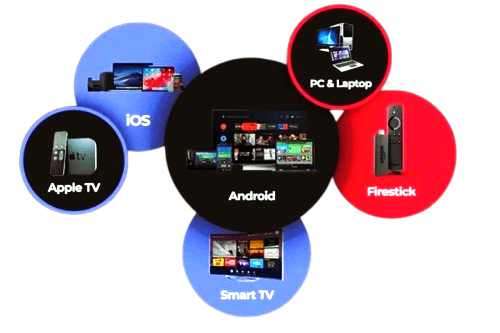
Compatible with All Devices
Sky Glass IPTV Vs Live TV Store supports all devices and installation guide like Android Smart TVs, Fire TV Stick, LG Smart TV, Samsung Smart TV, Mag Box, iOS Devices, Android Devices, MacBook, Roku, Xbox, Formula Box, Smart STB and Windows.
If you encounter any issues with payment gateways or entering login details on your device, please reach out to us via WhatsApp for prompt assistance..
Telegram
If you have got any issues with payment methods or entering login details on your device, please contact us via Telegram for prompt assistance.
Our dedicated support team is available around the clock. Please feel free to contact us at your convenience for prompt issue resolution and a seamless experience.