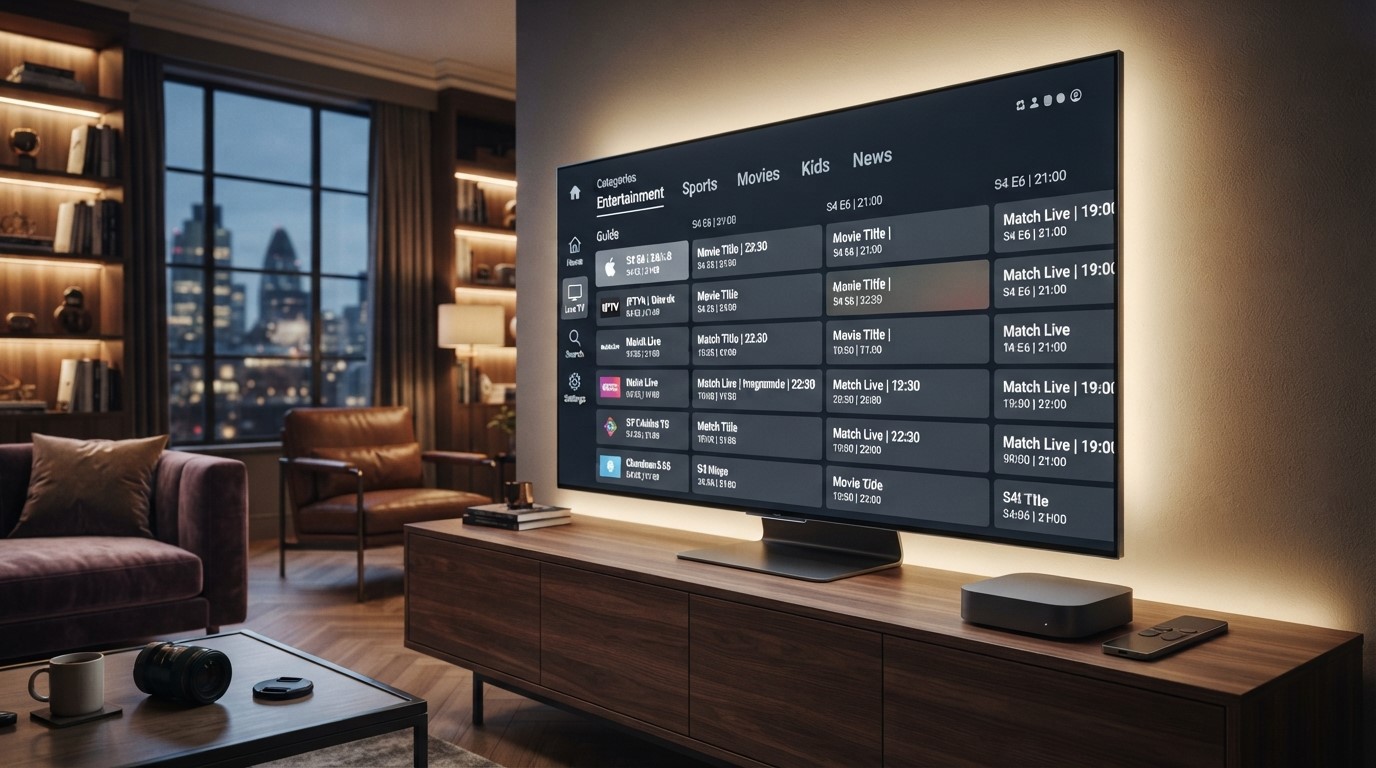
 Apple TV is one of the most convenient streaming devices for watching television, movies and live content on a big screen. With its smooth interface, Siri Remote, powerful hardware and access to the tvOS App Store, it offers a simple way to enjoy internet-based television at home.
For UK viewers interested in IPTV, Apple TV offers several compatible applications that can play content from supported and authorised IPTV services. However, choosing the best IPTV for Apple TV UK requires understanding the difference between an IPTV player and an IPTV provider.
Some applications focus on a clean television guide, others offer advanced playlist management, and some are designed to work across multiple Apple devices. Meanwhile, the IPTV service supplying the content determines which channels, programmes and features you can access.
In this guide, we’ll explore the best IPTV apps for Apple TV, how to set up IPTV on Apple TV step by step, what to look for in a UK IPTV provider, troubleshooting tips and important things to know before subscribing.
What Is IPTV on Apple TV?
IPTV stands for Internet Protocol Television. It is a technology that delivers television content through an internet connection rather than relying exclusively on traditional satellite, cable or terrestrial broadcasting.
Apple TV is a streaming device that runs tvOS, Apple’s operating system designed for television screens. You can install compatible streaming applications from the tvOS App Store and use them to access supported television and video services.
When using IPTV on Apple TV, there are generally two components:
- IPTV player: An application that organises and plays content from a compatible source.
- IPTV provider: A service that supplies the television content, subject to its subscription and distribution rights.
Popular IPTV player applications include IPTVX, iPlayTV, UHF and compatible Smarters player applications.
These applications do not automatically provide television channels. You need a compatible content source, such as an authorised television service or supported playlist.
Click Here to check package
What Do You Need to Watch IPTV on Apple TV in the UK?
Before setting up IPTV, make sure you have the necessary equipment and information.
1. Apple TV Device
You need a compatible Apple TV device running a supported version of tvOS.
Apple TV HD and Apple TV 4K models may support various IPTV applications, although compatibility can depend on the application and tvOS version.
For the best experience, check the app’s requirements before installation.
2. Internet Connection
IPTV streaming requires an internet connection.
A stable broadband connection helps reduce interruptions and makes it easier to stream higher-resolution content.
For live television, sports and 4K streaming, a reliable connection is particularly important.
3. Compatible IPTV Player
Apple TV does not come with a dedicated IPTV player preinstalled.
You can download compatible applications from the tvOS App Store, depending on availability in your region.
4. Authorised IPTV Subscription or Content Source
You need a compatible source to access the content.
Depending on the player, this may involve an M3U playlist, Xtream Codes credentials or another supported connection method supplied by an authorised provider.
5. HDMI-Compatible Television
Apple TV connects to your television through HDMI.
If you want to watch 4K content, your television, Apple TV model, HDMI connection and video source must all support the relevant resolution and format.
Best IPTV Apps for Apple TV in 2026
Choosing the right IPTV player can make a significant difference to your viewing experience.
Some players offer a simple interface, while others include features such as EPG support, playlist management, favourites, catch-up compatibility and synchronisation across Apple devices.
Here are some popular IPTV player applications to consider for Apple TV.
1. IPTVX – Best for a Modern Apple TV Interface
IPTVX is an IPTV player designed for Apple devices and is a popular option among users looking for a polished interface.
It offers a modern design intended to fit well with the Apple ecosystem. Depending on the version and available features, it may support different playlist sources and media formats.
Key Features
- Apple-style interface.
- Playlist management.
- Compatible content-source support.
- Programme guide functionality, where supported.
- Multi-device support, depending on the version.
- Additional features through paid plans or upgrades.
Why Choose IPTVX?
IPTVX may be suitable for viewers who prefer a visually appealing interface and want an IPTV player that feels familiar on Apple devices.
Its design can make browsing channels and organising content more convenient.
However, its available features and subscription options can change. Check the App Store listing before purchasing.
2. iPlayTV – Best for a Traditional TV Guide
iPlayTV is another popular IPTV player for Apple TV.
It is designed specifically for Apple TV and offers a straightforward way to organise compatible playlists and television content.
Key Features
- Multi-playlist support.
- Xtream Codes compatibility.
- Channel favourites.
- Electronic Programme Guide support.
- Search functionality.
- Channel organisation.
- Catch-up compatibility where supported by the source.
- Support for various video formats.
Why Choose iPlayTV?
iPlayTV may be a good choice for viewers who prefer a television-style interface and want to browse channels through an organised programme guide.
It can be particularly useful for people who regularly watch live television and want a simple way to navigate their playlists.
Its features depend on the application version and the content source being used.
3. UHF – Best for a Modern Streaming Experience
UHF is another Apple TV-compatible IPTV player worth considering.
It focuses on a modern interface and supports compatible media and playlist sources, depending on the application version and available features.
Key Features
- Apple TV-compatible interface.
- Supported playlist integrations.
- Channel and media organisation.
- Modern navigation.
- Additional features depending on the version and plan.
Why Choose UHF?
UHF may appeal to Apple TV users who prefer a modern interface and want to explore a player that supports multiple types of media sources.
Check the App Store listing to confirm supported playlist formats, features and pricing before installing.
4. Smarters Player Lite – Best for a Familiar Interface
Smarters Player Lite is another player option that may be available for compatible Apple devices.
It offers a familiar interface for users who have previously used Smarters applications on other platforms.
Key Features
- Compatible media-source support.
- Playlist-based playback.
- Organised content interface.
- Features depending on the app version.
- Apple device compatibility where listed.
Why Choose Smarters Player Lite?
It may be suitable for viewers who prefer a familiar interface and want to use a player that they have already experienced on other devices.
However, make sure you download the correct Apple TV-compatible application. Similar app names may belong to different developers, so check the developer and App Store listing carefully.
IPTV Apps for Apple TV Compared
Here is a quick comparison of the applications discussed above.
| IPTV App | Best For | Main Features |
|---|---|---|
| IPTVX | Modern interface | Apple-style design and playlist organisation |
| iPlayTV | TV guide | EPG, favourites and playlist management |
| UHF | Modern streaming experience | Media and playlist integrations |
| Smarters Player Lite | Familiar interface | Compatible content-source playback |
These applications are IPTV players, not television providers. They do not automatically include UK channels, premium sports or movie subscriptions.
App availability, pricing, features and compatibility may change, so check the official tvOS App Store listing before installing.
How to Set Up IPTV on Apple TV UK
Setting up IPTV on Apple TV is generally straightforward when you have a compatible player and an authorised content source.
The following steps explain the general setup process.
Step 1: Connect Your Apple TV
Connect your Apple TV to your television using an HDMI cable.
Make sure your television is switched to the correct HDMI input.
Connect Apple TV to your Wi-Fi network or Ethernet connection if your model supports wired networking.
Complete any initial device setup required by Apple.
Step 2: Open the App Store
From the Apple TV home screen:
- Open the App Store.
- Navigate to the Search section.
- Search for your preferred IPTV player.
- Check the application name and developer.
- Select the application.
- Install it using the available App Store option.
Only install applications from sources you trust.
Step 3: Open Your IPTV Player
After installation, open the IPTV player.
The application may display an initial setup screen asking you to add a playlist or connect a supported content source.
The exact interface depends on the application.
Step 4: Choose Your Connection Method
Many IPTV players support one or more of the following methods.
M3U Playlist
An M3U playlist is a file or URL that contains references to media streams.
If your authorised provider supports M3U, follow the provider’s instructions to connect the playlist to your IPTV player.
Xtream Codes Login
Some IPTV applications support Xtream Codes-style login details.
Depending on the provider and player, the required information may include:
- Server address.
- Username.
- Password.
Enter the details supplied by your authorised provider using the application’s supported setup method.
Step 5: Load Your Content
After adding your supported source, the application may load the available content.
Depending on the source, you may see:
- Live television.
- Channel categories.
- Movies.
- Series.
- Programme information.
- Favourites.
The available sections depend on the content source and the IPTV player.
Step 6: Configure Your Electronic Programme Guide
If your source supplies EPG information, you may be able to configure the programme guide.
The EPG displays television schedules and information about current and upcoming programmes.
This makes it easier to browse live television.
You can learn more from our guide to setting up IPTV EPG.
Step 7: Organise Your Channels
Once the content loads, explore the application settings.
Depending on the player, you may be able to:
- Add channels to favourites.
- Organise playlists.
- Search for channels.
- Browse categories.
- Customise the programme guide.
These features can make everyday viewing more convenient.
For a more detailed general setup guide, visit our IPTV installation guide.
Best IPTV Provider for Apple TV UK – What to Look For
Choosing the best IPTV provider for Apple TV requires more than checking whether the service works with a particular application.
A good provider should offer clear subscription information, compatible content sources, transparent distribution rights and reliable support.
Here are the main factors to consider.
1. Apple TV Compatibility
Confirm that the provider supports a content-source format compatible with your chosen IPTV player.
Some players may support M3U playlists, Xtream Codes or other connection methods.
Compatibility should be confirmed before purchasing.
2. UK Channel Availability
If you are in the UK, check whether the provider offers the content you want through authorised distribution arrangements.
Depending on the service, your viewing needs may include:
- British entertainment.
- News.
- Documentaries.
- Children’s programmes.
- Sports.
- Movies.
- Regional television.
Do not assume that every advertised channel is available or authorised.
3. Streaming Quality
Look for information about the available streaming quality.
Depending on the content source and device, you may be able to watch content in SD, HD, Full HD or 4K.
The actual picture quality depends on the source, video encoding, connection and device.
4. Stability and Reliability
A reliable viewing experience depends on the provider’s infrastructure as well as your home internet connection.
Consider whether the provider offers clear information about service features and support.
No IPTV provider can guarantee uninterrupted streaming under every network condition.
5. Customer Support
Before purchasing, look for accessible customer support.
A provider should be able to help with subscription questions, supported devices, account issues and general setup information.
6. Subscription Terms
Check the subscription details before paying.
Consider:
- Subscription duration.
- Total cost.
- Renewal terms.
- Refund policy.
- Supported devices.
- Simultaneous connection limits.
- Customer support.
Avoid choosing a service solely because it advertises an unusually large channel list.
7. Content Rights and Transparency
Choose a provider that can explain its identity and its rights to distribute the television content it offers.
A compatible IPTV player does not make an unauthorised content source legitimate.
The UK government explains that IPTV technology and streaming devices can be used legally, but accessing copyrighted content without permission is illicit streaming.
Can You Watch 4K IPTV on Apple TV?
Yes, compatible Apple TV devices can output 4K video when the device, television, video source and connection support it.
However, using an Apple TV 4K does not automatically mean that every IPTV channel or programme will be available in Ultra HD.
Several factors affect 4K playback:
- Apple TV hardware.
- Television resolution.
- Video source quality.
- Application compatibility.
- HDMI connection.
- Internet speed.
- Content availability.
A 4K television can also upscale lower-resolution video, but upscaling is not the same as receiving native 4K content.
If 4K matters to you, confirm that the content source actually provides UHD streams.
Our guide to the best IPTV service with 4K streaming explains what to look for when comparing UHD streaming options.
How Much Internet Speed Do You Need for IPTV on Apple TV?
Internet speed can affect streaming quality, especially when watching higher-resolution content.
The amount of bandwidth you need depends on the content, video encoding, network conditions and other connected devices.
Here is a general planning guide.
| Streaming quality | Approximate suggested speed |
|---|---|
| SD | 3–5 Mbps |
| HD | 5–10 Mbps |
| Full HD | 10–15 Mbps |
| 4K UHD | 25 Mbps or higher |
These are approximate planning figures, not universal requirements.
For a smoother experience:
- Use Ethernet if your Apple TV model supports it.
- Use a reliable Wi-Fi connection.
- Avoid unnecessary network congestion.
- Restart your router when troubleshooting.
- Keep your Apple TV software updated.
If you experience buffering, read our guide on how to fix IPTV buffering in the UK.
How to Improve IPTV Streaming on Apple TV
A few practical adjustments can improve your viewing experience.
1. Use Ethernet When Possible
A wired connection can reduce Wi-Fi-related interruptions.
If your Apple TV model supports Ethernet, consider connecting it directly to your router.
2. Keep tvOS Updated
Software updates may include improvements, bug fixes and security enhancements.
Check your Apple TV settings periodically for available updates.
3. Restart Your Apple TV
If an application becomes unresponsive or playback problems occur, restart your Apple TV.
A restart can sometimes resolve temporary software issues.
4. Restart Your Router
If several streaming services are experiencing connection problems, restarting the router may help.
5. Close and Reopen the IPTV Application
If the application freezes or becomes unresponsive, close it and reopen it.
If the problem continues, check whether an application update is available.
6. Check the Content Source
If one stream is not working but other internet services work normally, the problem may be related to the content source.
Check the provider’s support information or contact its support team.
7. Check Your Display Settings
If you are watching 4K content, confirm that your Apple TV and television are configured for a compatible display mode.
The available settings depend on your Apple TV model and television.
Common IPTV Problems on Apple TV and Their Solutions
Even when everything is configured correctly, occasional problems can occur.
IPTV Keeps Buffering
Possible causes include:
- Weak Wi-Fi.
- Network congestion.
- Slow connection.
- Provider-side issues.
- Application problems.
Try restarting your router, checking the connection and using Ethernet if possible.
IPTV App Is Not Working
If an application fails to open:
- Restart Apple TV.
- Close and reopen the application.
- Check for application updates.
- Check for tvOS updates.
- Confirm that the content source is working.
Channels Are Not Loading
Check the connection details supplied by your authorised provider.
If your playlist or login information is incorrect or has expired, the application may fail to load the content.
Contact the provider if you cannot resolve the problem.
EPG Is Missing
If programme information is not displayed, check whether your provider supplies an EPG.
You may also need to refresh or configure the programme guide within the IPTV player.
IPTV Freezes During Playback
Try another stream from the same authorised content source.
If only one stream freezes, the problem may be related to that particular content source.
If several streams are affected, check your network and application.
Is IPTV on Apple TV Legal in the UK?
IPTV is a legitimate technology for delivering television over the internet.
Apple TV applications can be used for authorised television services, streaming platforms and legitimate content sources.
However, the legality of a particular IPTV subscription depends on whether the provider has the necessary rights to distribute the content.
Before subscribing, consider the following:
- Check the provider’s identity.
- Review its subscription terms.
- Ask about content distribution rights.
- Avoid suspiciously cheap premium-content offers.
- Use trusted applications and legitimate sources.
A television player or streaming device does not automatically make every content source lawful.
Why Explore Sky Glass IPTV Store?
Choosing an IPTV service is easier when you understand how IPTV players work, which devices they support and what to check before subscribing.
At Sky Glass IPTV Store, visitors can explore IPTV subscription information and helpful guides covering IPTV installation, applications, streaming devices and troubleshooting.
If you are considering an IPTV subscription, review the available service information and confirm the current package details, content availability, supported devices and distribution rights before purchasing.
Visit the Sky Glass IPTV Store homepage to explore the website or check the IPTV subscription page for available subscription information.
If you are new to IPTV, our installation guide can help you understand the general setup process.
Frequently Asked Questions About IPTV on Apple TV
1. What is the best IPTV app for Apple TV in the UK?
IPTVX, iPlayTV, UHF and compatible Smarters player applications are among the options Apple TV users may consider. The best choice depends on the interface, playlist compatibility, features and current App Store availability.
2. Can I install TiviMate on Apple TV?
TiviMate is designed for Android TV rather than tvOS. Apple TV users should choose an IPTV player that is compatible with Apple TV and available through the tvOS App Store.
3. Does Apple TV have a built-in IPTV app?
Apple TV does not have a dedicated IPTV player preinstalled. You can download compatible applications from the App Store.
4. Can I watch IPTV on Apple TV 4K?
Yes, Apple TV 4K can run compatible IPTV applications. Actual streaming quality depends on the content source, application, internet connection and television.
5. Is IPTVX available on Apple TV?
IPTVX has offered Apple TV-compatible versions. However, availability, features and pricing can change, so check its current App Store listing.
6. Does iPlayTV support M3U playlists?
The Apple TV version of iPlayTV supports compatible playlist methods, including M3U and Xtream Codes-related options as listed by its developer. Check the current App Store listing for the latest supported features.
7. Can I use IPTV Smarters on Apple TV?
Some Smarters player applications are available for Apple devices, but app availability and features vary. Check the exact application and developer in the Apple TV App Store before installing.
8. Do IPTV apps provide channels?
No. IPTV player applications generally organise and play content from a compatible source. They do not automatically provide television channels or subscriptions.
9. Can I watch live sports on Apple TV through IPTV?
Apple TV can run compatible applications that play authorised live sports content. However, availability depends on the content source and broadcasting rights.
10. Does Apple TV support 4K IPTV?
Compatible Apple TV 4K models can output 4K video when the content source and television support the required resolution and format.
11. How do I fix IPTV buffering on Apple TV?
Check your internet connection, restart your router and Apple TV, use Ethernet if possible, update your applications and check whether the content source is working properly.
12. Is IPTV legal in the UK?
IPTV technology is legal. However, a provider must have the appropriate rights to distribute the content it offers. Always choose authorised content sources.
Final Thoughts
Apple TV offers a convenient platform for IPTV streaming because of its user-friendly interface, compatible applications and straightforward setup process.
For UK viewers, choosing the best IPTV for Apple TV means selecting a compatible player, finding an authorised content source, checking the available channels and ensuring that your internet connection is suitable for streaming.
IPTVX, iPlayTV, UHF and compatible Smarters player applications are options worth exploring, depending on your preferences.
Before purchasing an IPTV subscription, compare the features, content rights, device compatibility, subscription conditions and support available.
With the right setup and authorised content source, Apple TV can become a convenient way to enjoy internet-based television at home.