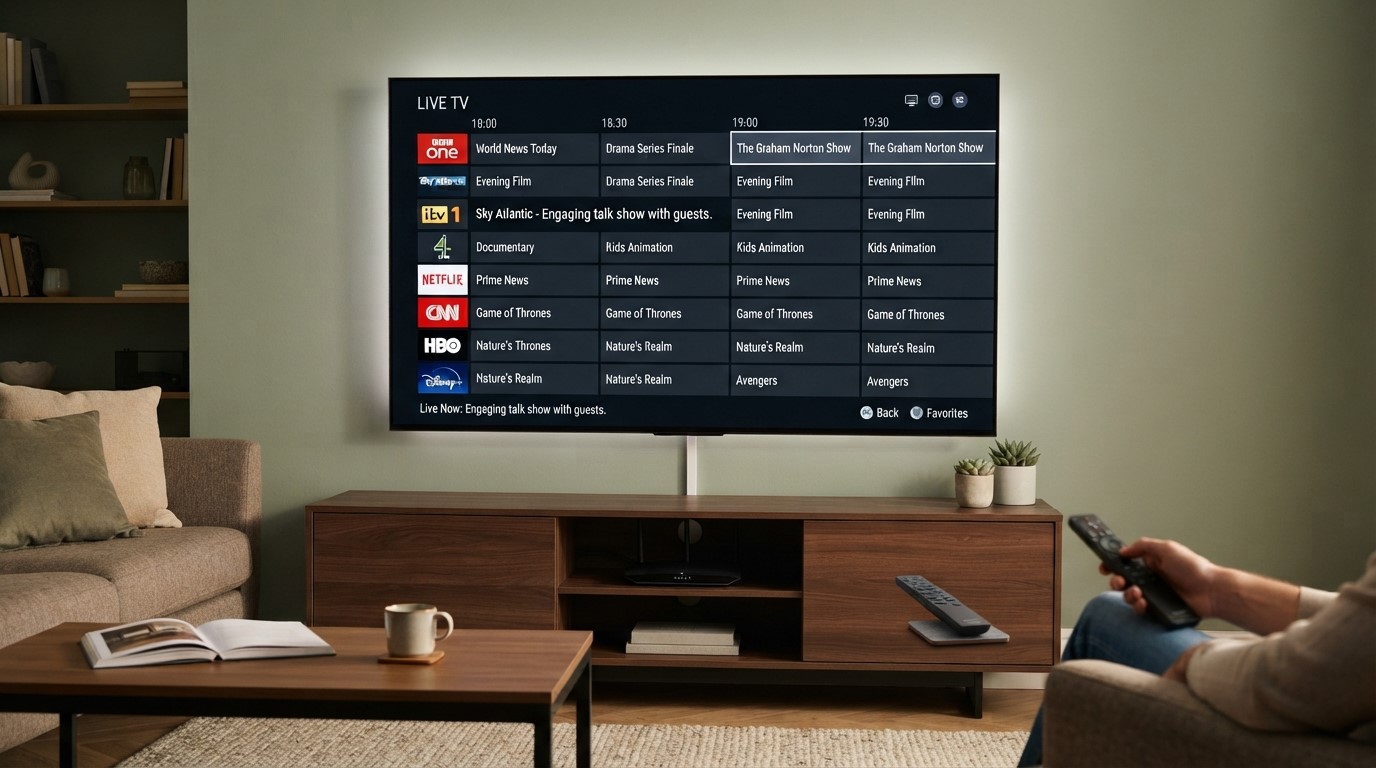
If your IPTV channels are working but you see “No Information”, blank programme listings, incorrect schedules, or missing TV guide data, the problem is often related to your IPTV EPG.
EPG stands for Electronic Programme Guide. It is the digital TV guide that shows what is currently playing, what is coming next, programme times, titles, descriptions, and sometimes additional information such as genres or episode details.
A properly configured EPG can make an IPTV setup much easier to use because you can browse channels and programmes in a familiar TV-guide format instead of opening channels one by one.
In this complete guide, you’ll learn how to set up IPTV EPG, how EPG works with M3U and Xtream Codes, how to add an XMLTV EPG URL, how to configure EPG in TiviMate, how to fix missing or incorrect programme information, and what to do when your IPTV EPG stops updating.
What Is IPTV EPG?
IPTV EPG (Electronic Programme Guide) is the programme schedule displayed inside an IPTV player.
Instead of seeing only a list of channels, an EPG allows you to see information such as:
- What is currently playing
- What programme is coming next
- Programme start and end times
- Programme titles
- Programme descriptions
- Upcoming schedules
- Channel information
- Past programmes on supported services
- Searchable programme listings on supported IPTV players
The concept is similar to the TV Guide available through traditional cable, satellite, and digital television services.
The important difference is that IPTV players normally obtain programme-guide information from an online EPG source rather than receiving it directly as part of the traditional television broadcast.
For example, TiviMate IPTV Player supports M3U, Xtream Codes and Stalker Portal playlists and includes an EPG grid for browsing programme schedules.
How Does IPTV EPG Work?
An IPTV setup normally involves several different pieces of information.
The playlist tells the IPTV player which channels are available and where their streams are located. The EPG data provides the schedule information associated with those channels.
A simplified process looks like this:
IPTV provider → Playlist + EPG data → IPTV player → TV Guide
The EPG information is commonly delivered using the XMLTV format.
Your IPTV player downloads the EPG data, matches the programme information with the relevant channels, and then displays everything in a TV-guide interface.
What Is XMLTV?
XMLTV is a commonly used format for electronic programme-guide data.
An XMLTV file can contain information such as:
- Channel IDs
- Channel names
- Programme titles
- Programme start times
- Programme end times
- Programme descriptions
- Episode information
- Programme categories
An IPTV player reads this information and converts it into the visual TV guide you see on your screen.
This is why you may receive two separate URLs from an IPTV provider:
- M3U playlist URL — provides channel/stream information.
- XMLTV/EPG URL — provides programme-guide information.
Some IPTV services using Xtream Codes can provide EPG information automatically, so you may not need to enter a separate XMLTV URL manually.
Why Is EPG Important for IPTV?
You can watch IPTV without an EPG, but the viewing experience can be much less convenient.
Without EPG information, your player may simply show channel names without telling you what is currently playing.
With a working EPG, you can quickly browse the schedule and decide what you want to watch.
See What Is Playing Now
A working EPG normally shows the current programme for each channel.
This is useful when you want to quickly find live news, entertainment, documentaries, sports, or other programmes.
See What’s Coming Next
Instead of opening every channel individually, you can browse the upcoming schedule from the guide.
Browse the TV Schedule
Many IPTV players provide a grid-style guide that resembles the TV Guide interface found on traditional television services.
Search for Programmes
Some IPTV players allow you to search programme information across available channels.
Use Catch-Up on Supported Channels
Some IPTV players and services support catch-up or timeshift functionality. When available, you may be able to select an earlier programme from the EPG and watch it later.
However, catch-up availability depends on the IPTV service, channel, player, and available programme data. An EPG by itself does not automatically provide catch-up functionality.
What Do You Need to Set Up IPTV EPG?
Before configuring your EPG, make sure you have the following:
1. An IPTV Playlist or Account
You need an authorised IPTV service or playlist that provides the channels you are permitted to access.
Your provider may give you:
- M3U playlist
- Xtream Codes login
- Stalker Portal details
- EPG/XMLTV URL
2. A Compatible IPTV Player
You also need an IPTV player that supports EPG data.
Examples include:
- TiviMate
- IPTV Smarters/related IPTV player apps
- Kodi with compatible IPTV/PVR configuration
- Other IPTV players supporting XMLTV or provider-supplied EPG data
Features and menu names can vary between applications.
3. An EPG Source
If your provider does not automatically supply EPG information, you may need an XMLTV EPG URL.
Ask your IPTV provider for the correct EPG URL rather than randomly adding an unrelated source.
4. A Correct Time Zone
Your device and IPTV application should use the appropriate time zone.
Incorrect time-zone settings can make an otherwise functional EPG appear several hours early or late.
How to Set Up IPTV EPG Using Xtream Codes
Using Xtream Codes is often simpler than manually configuring an EPG because the IPTV service can provide playlist and guide information through the account connection.
The exact process varies between IPTV players.
In TiviMate, for example, the application supports Xtream Codes and EPG functionality.
Step 1: Open Your IPTV Player
Open your IPTV application on your Android TV, Google TV, Android TV box, Fire TV-compatible setup, or other supported device.
Step 2: Add Your Xtream Codes Playlist
Select the option for adding a playlist and choose the Xtream Codes/API method if available.
You will normally need information such as:
- Server URL
- Username
- Password
These credentials should come directly from your authorised IPTV provider.
Step 3: Allow the Playlist to Load
Once the login details are accepted, the application should download your channel information.
Depending on the player and provider, EPG information may also become available automatically.
Step 4: Open the TV Guide
Open the application’s EPG, TV Guide, or Guide section.
Check whether programme names and schedules are appearing.
Step 5: Refresh the EPG if Necessary
If the guide is empty, look for an option such as:
Settings → EPG → Update/Refresh EPG
The exact menu structure may be different depending on the version of the IPTV player.
How to Set Up IPTV EPG Using an M3U Playlist
M3U playlists and EPG data can be separate.
If you are using an M3U playlist and the guide is empty, your provider may have given you a separate XMLTV EPG URL.
Step 1: Get the EPG URL
Ask your IPTV provider for the correct EPG/XMLTV URL associated with your playlist.
Do not assume that any EPG URL will work with your channels.
Step 2: Open Your IPTV Player
Open your preferred IPTV player and go to the playlist or EPG settings.
Step 3: Find EPG Settings
Look for an option such as:
- EPG
- TV Guide
- EPG Source
- XMLTV
- Programme Guide
The exact terminology varies between apps.
Step 4: Add the XMLTV URL
Select Add EPG Source or the equivalent option and enter the XMLTV URL provided by your IPTV service.
Step 5: Save the Source
Save the EPG source and return to the EPG settings.
Step 6: Refresh the EPG
Select Update EPG, Refresh EPG, or a similar option.
Allow the application enough time to download and process the guide.
Large EPG databases may take longer to process, especially on lower-powered devices.
How to Set Up EPG in TiviMate
TiviMate is a popular IPTV player designed primarily for large-screen devices and supports EPG functionality alongside M3U, Xtream Codes, and other playlist formats.
If you’re using TiviMate, the basic EPG workflow is:
Add playlist → Configure EPG → Refresh EPG → Open TV Guide
Method 1: EPG Through Xtream Codes
If your IPTV provider supplies EPG information through its Xtream Codes setup:
- Open TiviMate.
- Add your IPTV playlist.
- Select the Xtream Codes/API option.
- Enter your server URL.
- Enter your username.
- Enter your password.
- Allow the playlist to load.
- Open the TV Guide.
- Refresh EPG if the guide does not appear immediately.
The exact menu labels can change between app versions, so use the current labels displayed in your installed version.
Method 2: Add an XMLTV EPG Source
If you’re using an M3U playlist with a separate EPG URL:
- Open TiviMate.
- Go to the playlist settings.
- Locate the EPG section.
- Select the option to add an EPG source.
- Enter the XMLTV URL supplied by your provider.
- Save the source.
- Run an EPG update.
- Open the TV Guide and check the results.
TiviMate’s current Google Play listing confirms that its player supports a TV Guide/EPG grid as well as M3U and Xtream Codes playlist formats.
How to Match EPG Data With IPTV Channels
One of the most important parts of IPTV EPG configuration is channel matching.
Your playlist and EPG source need to identify the same channels correctly.
For example, a playlist might contain a channel with a specific EPG identifier, while the XMLTV source contains programme information associated with that same identifier.
If the identifiers don’t match, the IPTV player may show:
“No Information”
even though the EPG source itself is working.
Why Does Channel Matching Matter?
Imagine your playlist contains:
Example Channel
but your EPG source uses a different identifier for that channel.
The player may not know that the two entries refer to the same channel.
As a result:
- Channel works
- Video plays normally
- EPG source works
- But programme information is missing
This is a channel-mapping problem rather than necessarily an internet or IPTV-stream problem.
How to Fix Channel Mapping
If only some channels are missing EPG information:
- Check whether the channel has an EPG ID.
- Check whether the EPG source contains that channel.
- Look for a channel-mapping option in your IPTV player.
- Manually map the channel if your player supports it.
- Refresh the EPG after making changes.
If you cannot determine the correct mapping, contact your IPTV provider and ask them for the correct EPG source or channel mapping information.
How to Fix IPTV EPG Not Showing
A blank EPG is one of the most common IPTV setup problems.
If your channels play normally but the guide says “No Information”, work through the following checks.
1. Refresh the EPG
Start with the simplest solution.
Open your IPTV player’s EPG settings and select:
Update EPG or Refresh EPG.
Wait for the update to complete before checking the guide again.
2. Check Your EPG URL
If you manually entered an XMLTV URL, check it carefully.
Common mistakes include:
- Missing characters
- Extra spaces
- Incorrect URL
- Expired URL
- Typographical errors
- Using an EPG URL that does not correspond to your playlist
Ask your provider for the latest EPG URL if necessary.
3. Check Your Internet Connection
The IPTV stream may work while EPG downloads fail because the EPG source is unavailable or the connection is unstable.
Try opening another website or streaming service to confirm that your internet connection is working normally.
If you are also experiencing IPTV buffering, you can follow our detailed guide on how to fix IPTV buffering for additional troubleshooting steps.
4. Check the Time Zone
If the EPG is showing programmes at the wrong times, check the time zone on your streaming device.
A wrong time zone can cause programme schedules to appear shifted.
5. Check Channel Mapping
If some channels have EPG information while others show “No Information”, channel mapping is a likely area to investigate.
6. Refresh the Playlist
If your provider has recently changed channel names, IDs, or playlist information, refreshing the playlist may resolve the issue.
7. Restart the IPTV Player
Completely close the IPTV application and open it again.
For persistent problems, restarting your streaming device can also help.
8. Clear the App Cache
On Android-based devices, clearing the IPTV player’s cache may help when stored data has become outdated or corrupted.
Avoid clearing application data unless you are comfortable setting up your IPTV playlist again.
IPTV EPG Shows the Wrong Time — How to Fix It
Another common problem is an EPG that works but displays programmes at the wrong time.
For example, a programme scheduled for 8:00 PM may appear at 7:00 PM or 9:00 PM.
Check Your Device Time Zone
Go to your device’s date and time settings.
Make sure:
- Automatic date and time are enabled where appropriate.
- The correct time zone is selected.
- The device clock is accurate.
Check IPTV Player Time Settings
Some IPTV players provide additional EPG time-offset settings.
If your device time is correct but the EPG remains shifted, check the player’s EPG or time-offset settings.
Do Not Randomly Change the Offset
Before changing the offset, confirm that the problem is actually a time-zone issue.
Changing the offset unnecessarily can create another scheduling problem.
Why Are Some IPTV Channels Missing EPG?
You may find that 90% of your channels have programme information while a few channels show “No Information.”
This does not necessarily mean that your entire EPG is broken.
Possible reasons include:
- The channel is not included in the EPG database.
- The channel ID does not match.
- The provider recently added the channel.
- The EPG source has incomplete coverage.
- The channel name or identifier changed.
- The provider’s EPG data is outdated.
If only a small number of channels are affected, investigate those specific channels rather than completely rebuilding your IPTV setup.
Why Does IPTV EPG Stop Updating?
An EPG can work correctly one day and then become outdated later.
Several things can cause this.
EPG URL Changed
Your IPTV provider may change its EPG source URL.
If the old URL stops working, your existing guide may eventually become outdated.
Provider EPG Server Problem
The EPG server itself may temporarily be unavailable.
In this situation, your IPTV channels can sometimes continue working while the guide stops updating.
Expired or Incorrect Source
A manually entered EPG URL may no longer be valid.
App Cache
Your IPTV player may be displaying previously downloaded EPG information.
Refreshing the EPG or restarting the application may help.
Channel Changes
If your provider changes its channel structure, some channel IDs may no longer match the EPG database.
How Often Should IPTV EPG Be Updated?
The correct refresh frequency depends on the IPTV provider and EPG source.
For most users, automatic updates are preferable if the IPTV player supports them.
You generally do not need to manually refresh the EPG every time you open your IPTV application.
If the guide becomes outdated, however, a manual refresh can be useful.
For example:
Settings → EPG → Update/Refresh
The exact menu will depend on the IPTV player.
How to Improve IPTV EPG Performance
A large EPG database can contain information for thousands of channels.
If your device has limited resources, loading a very large guide may take longer.
Here are several ways to improve the experience.
Remove Unused Playlists
If your IPTV player contains multiple playlists that you no longer use, removing unnecessary ones can make the interface easier to manage.
Hide Unwanted Channels
If your IPTV player supports channel groups or favourites, organise your channels so that frequently watched channels are easier to access.
Keep Your IPTV App Updated
Using a current version of your IPTV player can provide bug fixes and compatibility improvements.
Use a Reliable IPTV Device
Older or low-powered devices may take longer to process very large playlists and EPG databases.
Keep Your Playlist and EPG Source Consistent
The best results usually come when your playlist and EPG data are designed to work together.
EPG vs IPTV Playlist — What’s the Difference?
A common beginner mistake is thinking that the playlist and EPG are the same thing.
They are not.
| IPTV Component | Main Purpose |
|---|---|
| M3U Playlist | Provides channel/stream information |
| Xtream Codes | Provides account-based playlist information and related data |
| XMLTV EPG | Provides programme schedule information |
| IPTV Player | Displays and plays the available content |
| EPG Interface | Displays programme schedules |
Think of it this way:
Playlist = What channels are available
EPG = What is playing on those channels
IPTV Player = The application you use to access and organise them
This distinction makes troubleshooting much easier.
Can You Use IPTV Without EPG?
Yes.
An EPG is not normally required for the basic playback of an IPTV stream.
You can have a working IPTV playlist while the EPG is completely empty.
However, without programme-guide information, it can be harder to determine what is currently playing or what is scheduled next.
For users who regularly browse live TV channels, a properly configured EPG can make the overall experience considerably more convenient.
Can EPG Work on Smart TVs, Android TV and Fire TV?
EPG support depends on the IPTV player and device.
Many IPTV applications support programme-guide functionality on platforms such as:
- Android TV
- Google TV
- Android TV boxes
- Fire TV-compatible devices
- Smart TVs with supported IPTV applications
- Other compatible streaming platforms
The setup process can differ between devices.
For a general IPTV setup walkthrough, you can follow our IPTV installation guide.
IPTV EPG and Live Sports
An EPG can be particularly useful for live sports because it allows you to browse scheduled programming without opening every channel individually.
For example, if your authorised IPTV service carries a particular sports channel, the EPG may display the programme currently airing and the next scheduled event.
However, an EPG does not create sports broadcasting rights.
Whether a particular football, basketball, NFL, NBA, cricket, or other sports event is legally available depends on the broadcaster, service, location, and applicable rights.
The IPTV player and EPG are simply tools for displaying information supplied by the relevant source.
Is IPTV EPG Legal?
EPG technology itself is simply a method of displaying television programme information.
The important issue is the content and streaming rights associated with the IPTV service you use.
Using an IPTV player or EPG does not automatically make every channel or stream authorised.
Always use IPTV services and programme sources that you are legally entitled to access.
If you’re considering an IPTV subscription, you can learn more about the setup and available options through our IPTV subscription page.
How to Choose a Good IPTV EPG Source
If your provider supplies an EPG, start with that source because it is normally designed to correspond with its playlist.
Before looking for an alternative source, check:
Channel Coverage
Does the EPG include the channels you actually watch?
Channel Matching
Does the source correctly match your playlist’s channel identifiers?
Schedule Accuracy
Are programme start and end times accurate?
Update Frequency
Does the guide remain current?
Stability
Does the source consistently load without frequent errors?
A technically large EPG database is not necessarily useful if it does not match your actual channel list.
IPTV EPG Troubleshooting Checklist
If your EPG isn’t working, use this quick checklist:
| Problem | Possible Cause | What to Check |
|---|---|---|
| EPG completely blank | No EPG source | Add or verify the EPG/XMLTV source |
| “No Information” | Channel mismatch | Check channel mapping |
| Wrong programme times | Time-zone issue | Check device and app time settings |
| EPG is outdated | Source not updating | Refresh EPG and verify the URL |
| Some channels missing | Incomplete EPG coverage | Check the specific channel |
| EPG loads slowly | Large database/device limitations | Wait for processing and reduce unnecessary data |
| EPG stopped suddenly | Provider/source change | Ask provider for updated EPG information |
| Channels work but EPG doesn’t | EPG source issue | Check XMLTV source separately |
| EPG works but times are wrong | Time offset | Check time-zone/offset settings |
| Guide disappears after playlist update | Mapping changed | Recheck playlist and EPG mapping |
How to Troubleshoot IPTV Problems More Effectively
One of the biggest mistakes when troubleshooting IPTV is changing several settings at once.
Instead, identify which component is actually failing.
For example:
Channels don’t play → investigate playlist, stream, network, device, or provider.
Channels play but EPG is blank → investigate EPG source and channel mapping.
EPG works but times are wrong → investigate time-zone or offset settings.
Only a few channels lack EPG → investigate channel coverage or mapping.
EPG was working and suddenly stopped → investigate the EPG URL, provider changes, or server availability.
If you have broader IPTV problems, see our guide on common IPTV problems and how to fix them.
Frequently Asked Questions About IPTV EPG
What does EPG mean in IPTV?
EPG stands for Electronic Programme Guide. It displays programme schedules, including current and upcoming shows, inside an IPTV application.
What is an IPTV EPG URL?
An IPTV EPG URL is usually a web address pointing to programme-guide data, commonly provided in XMLTV format. Your IPTV player downloads this information and uses it to build the TV Guide.
Do I need an EPG to watch IPTV?
No. An IPTV playlist can work without an EPG. However, without an EPG, you may not see programme schedules or information about what is currently playing.
How do I add an EPG to an M3U playlist?
If your provider gives you a separate XMLTV URL, open your IPTV player’s EPG settings, select the option to add an EPG source, enter the URL, save it, and refresh the guide.
Does Xtream Codes include EPG?
Xtream Codes-based IPTV setups can provide EPG information alongside playlist data, depending on how the IPTV provider has configured its service. If the guide does not appear, check the playlist and EPG settings in your IPTV player.
Why does my IPTV EPG say “No Information”?
The most common possibilities include a missing EPG source, incorrect EPG URL, channel-ID mismatch, incomplete EPG coverage, outdated data, or a time/configuration issue.
Why is my IPTV EPG showing the wrong time?
Check your device’s time zone first. If the device time is correct, check whether your IPTV player has an EPG time-offset setting.
Why do only some IPTV channels have EPG?
Your EPG source may not contain every channel, or the channel identifiers in your playlist may not match the identifiers in the EPG source.
How do I refresh IPTV EPG?
Open your IPTV player’s EPG settings and look for an option such as Refresh EPG, Update EPG, or Update TV Guide. The exact option depends on the application.
Can I use an external EPG source?
Some IPTV players allow external XMLTV sources. However, you should use a source that is compatible with your playlist and that you are authorised to use.
Does TiviMate support EPG?
Yes. TiviMate’s current Google Play listing includes a TV Guide/EPG feature and support for M3U, Xtream Codes and Stalker Portal playlist formats.
Does EPG provide IPTV channels?
No. EPG data provides programme-guide information. It does not itself provide television channels or streaming rights.
Final Thoughts
Setting up an IPTV EPG is usually straightforward once you understand the difference between your playlist and programme-guide data.
If your IPTV service provides an Xtream Codes login with EPG support, the guide may populate automatically after the playlist is added. If you’re using an M3U playlist, you may need to enter a separate XMLTV EPG URL.
The most important things to check are:
- Use the correct EPG source.
- Make sure the EPG belongs with your playlist.
- Refresh the guide after adding the source.
- Check your device’s time zone.
- Investigate channel mapping when only some channels are missing.
- Keep your IPTV application updated.
- Ask your provider for a new EPG URL if the existing source stops working.
Once your EPG is correctly configured, browsing IPTV becomes much easier because you can see the current and upcoming programme schedule from one convenient TV Guide.
If you’re still setting up your IPTV system, start with the complete IPTV installation guide, or explore the IPTV subscription options available from Sky Glass IPTV Store.