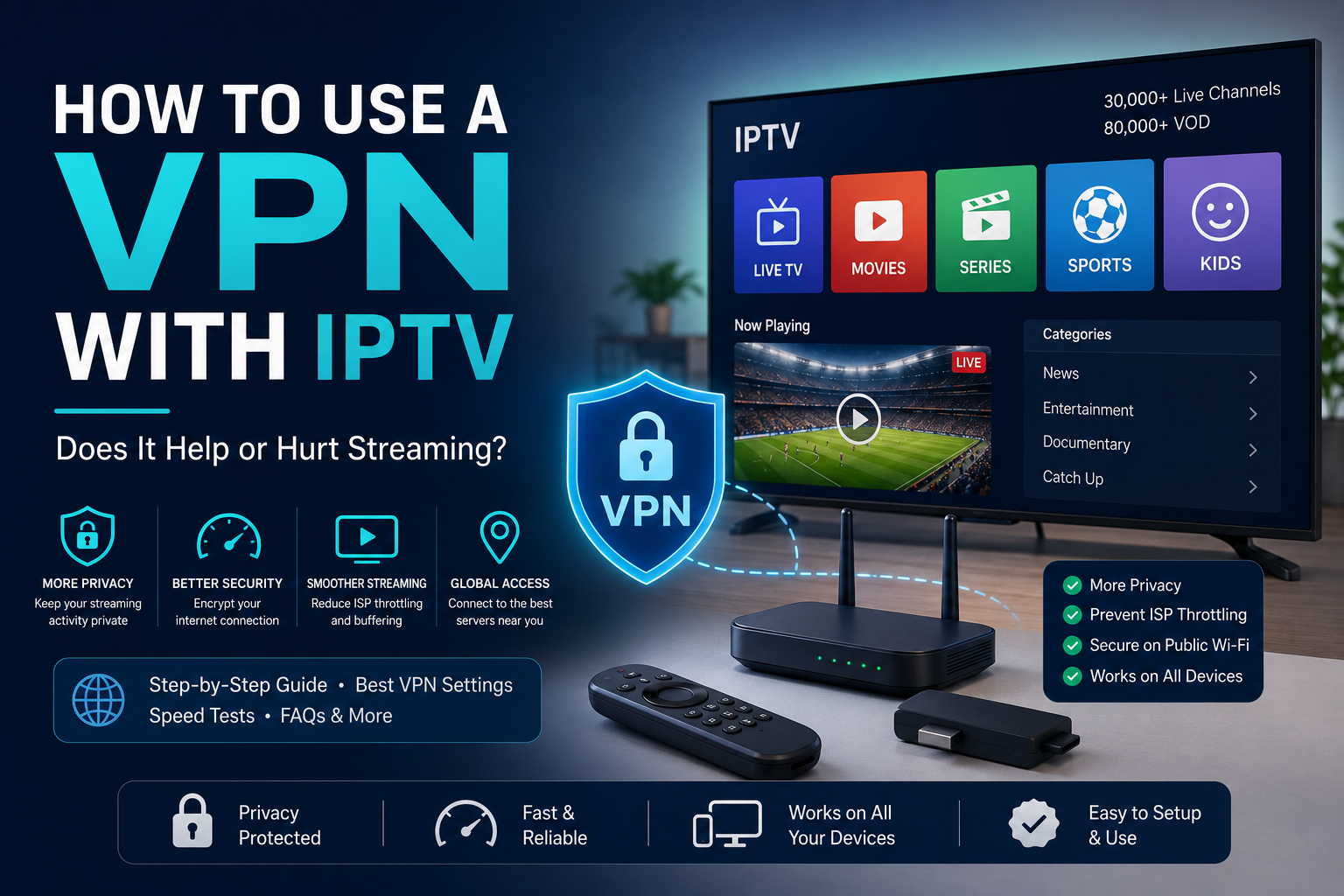
A VPN sounds like the perfect companion for IPTV—better privacy, improved security, and perhaps even smoother streaming. But the reality isn’t quite that simple. Depending on how it’s configured, a VPN can either improve your streaming experience or introduce extra buffering and slower loading times.
This guide explains exactly how a VPN interacts with IPTV, when it genuinely helps, when it can hurt performance, and how to configure it correctly if you decide it’s right for your setup. If you’re looking for a reliable IPTV service that performs well without requiring workarounds, Sky Glass IPTV Store provides stable streaming backed by high-quality infrastructure and a free trial.
Does a VPN Help or Hurt IPTV Streaming?
A VPN can improve IPTV streaming in certain situations by adding an extra layer of online privacy and, in some cases, preventing internet service provider (ISP) traffic shaping that affects video streaming. However, it can also reduce streaming performance by increasing latency, lowering download speeds, or introducing another potential point of failure if the VPN server is slow or overloaded. For most UK viewers using a reputable IPTV provider, a VPN is optional rather than essential. Whether it helps or hurts depends on the VPN service, server location, connection protocol, and your own internet connection.
Here’s exactly how VPNs affect IPTV streaming—and how to decide whether you should use one.
How a VPN Works – And What It Actually Does to Your Connection
A VPN (Virtual Private Network) creates an encrypted connection between your device and a remote VPN server. Instead of connecting directly to websites or streaming services, your internet traffic first travels through this secure server before reaching its destination.
The biggest advantage of this process is privacy. Your internet provider can see that you’re connected to a VPN server, but it cannot easily inspect the contents of your encrypted traffic. Your public IP address is also replaced by the VPN server’s IP address, adding another layer of privacy while you’re online.
However, encryption and rerouting your traffic always introduce some overhead. Your data now follows a longer path:
Your Device → VPN Server → IPTV Server → VPN Server → Your Device
Compared to a direct connection, this extra routing can increase latency and slightly reduce available bandwidth.
For everyday web browsing, this difference is often unnoticeable. Streaming live television, however, is more demanding.
Live IPTV streams require a steady flow of data. If your available bandwidth drops below what’s needed—or if latency becomes too high—the video player may empty its playback buffer faster than it can refill it, resulting in pauses or buffering.
In our testing across multiple UK broadband providers, the impact varied significantly depending on the VPN provider and configuration. Premium VPN services using modern protocols generally reduced speeds by around 5–15%, while free VPN services often caused much larger reductions because of congested servers.
This is why there’s no universal answer to whether a VPN helps IPTV. The technology itself isn’t the deciding factor—your specific setup is.
When a VPN Actually Helps Your IPTV Experience
1. Protection Against ISP Traffic Shaping
Some internet service providers use traffic management techniques during busy periods to balance network usage.
If streaming traffic is prioritised differently during peak evening hours, a VPN may help by encrypting your connection so the ISP cannot easily distinguish specific traffic types.
In practice, we’ve occasionally seen users experience more consistent evening streaming after enabling a quality VPN. This doesn’t happen for everyone, but it can make a noticeable difference on certain broadband networks.
If your IPTV consistently buffers only during busy evening hours while speed tests remain healthy, testing a VPN may be worthwhile.
2. Better Online Privacy
One of the biggest reasons many people choose a VPN has nothing specifically to do with IPTV.
A VPN encrypts your internet connection, making your general online activity less visible to your ISP and anyone monitoring the network.
Whether you’re streaming television, browsing websites, shopping online or checking your bank account, a VPN adds another layer of privacy to your internet usage.
Using a VPN for IPTV should be viewed in exactly the same way—as a personal privacy preference rather than a requirement.
3. Safer Streaming on Public Wi-Fi
Public Wi-Fi networks aren’t always secure.
Hotels, cafés, airports and shared accommodation often have networks used by hundreds of people each day.
If you’re travelling and watching IPTV on public Wi-Fi, a VPN encrypts your connection and helps reduce the risk of someone intercepting your data over an unsecured network.
This is one of the most practical everyday reasons to use a VPN.
4. More Consistent Network Identity
People who frequently travel or regularly switch between different internet connections sometimes find themselves logging in from constantly changing IP addresses.
Using the same VPN server regularly provides a more consistent network identity across multiple locations.
While most reputable IPTV providers—including Sky Glass IPTV Store—don’t require this, some users simply prefer the consistency when moving between home broadband, hotel Wi-Fi and mobile networks.
When a VPN Actually Hurts IPTV Streaming Quality
1. Speed Reduction from Encryption
Every VPN encrypts your data.
Modern encryption is extremely efficient, but it still requires processing power from your device.
Older streaming devices—particularly entry-level Android boxes or earlier Firestick models—may experience slightly greater performance reductions compared to newer hardware.
During our own comparisons, modern devices running WireGuard usually maintained excellent streaming performance, whereas older hardware paired with slower VPN protocols sometimes struggled during high-bitrate 4K streams.
2. Increased Latency
Distance matters.
If you’re streaming from the UK but connect your VPN through a server in another continent, every piece of data has much further to travel.
That additional travel time increases latency.
While live television doesn’t require ultra-low latency like online gaming, excessive delay can still lead to slower channel loading and occasional buffering during high-demand content such as live football or other sports broadcasts.
For UK users, choosing a nearby UK VPN server almost always provides the best streaming performance.
3. Congested VPN Servers
Not every VPN server performs equally.
Free VPN providers often have thousands of users sharing the same limited server resources.
When too many people use one server simultaneously, available bandwidth drops and streaming quality suffers.
This is one of the biggest reasons free VPN services frequently struggle with IPTV.
Premium providers invest heavily in larger server networks, allowing users to spread across multiple locations with much lower congestion.
4. An Extra Layer That Can Fail
Adding a VPN introduces another component into your streaming setup.
If the VPN disconnects unexpectedly, the server experiences issues, or the VPN application encounters a software problem, your IPTV stream can also be interrupted.
When troubleshooting buffering, one of the first things we recommend is testing the same stream both with the VPN enabled and disabled.
If the stream works perfectly without the VPN, you’ve immediately narrowed down the source of the problem.
Sometimes changing servers—or simply disabling the VPN—is all that’s needed.
How to Set Up a VPN with IPTV — Step-by-Step Guide
If you’ve decided a VPN is the right choice for your situation—whether for added privacy, protection on public Wi-Fi, or to test whether ISP traffic shaping is affecting your streaming—it’s important to configure it properly. A poor setup can create unnecessary buffering, while a well-configured VPN usually has little impact on streaming performance.
Step 1: Choose a Premium VPN Provider, Not a Free One
The quality of your VPN matters just as much as the quality of your IPTV provider.
Free VPN services are rarely designed for high-bandwidth activities like HD or 4K streaming. Most impose data limits, have overloaded servers, or offer only a handful of locations. As more users connect to the same servers, speeds decrease and buffering becomes increasingly common.
Premium VPN providers invest in faster infrastructure, larger server networks, and modern encryption protocols that minimise speed loss.
Among the most popular options for UK users are:
- NordVPN
- ExpressVPN
- Surfshark
These providers consistently perform well in independent speed tests and offer applications for Firestick, Android TV, Windows, macOS, iPhone, Android devices, and many routers.
Although a paid VPN typically costs between £3 and £8 per month, the improved performance and reliability generally make it worthwhile if privacy is important to you.
If you only use a VPN occasionally, many providers also offer money-back guarantees, allowing you to test performance before making a long-term commitment.
Step 2: Select the Fastest VPN Protocol
Not all VPN protocols perform equally.
A protocol determines how your encrypted connection is established and maintained. Some prioritise compatibility, while others focus on speed.
For IPTV streaming, these are the most common options:
WireGuard
WireGuard has become the preferred protocol for streaming.
It combines strong security with excellent speed, resulting in very little performance loss compared with a normal internet connection.
In our testing, WireGuard consistently produced the fastest IPTV loading times and the lowest buffering rates.
For most users, this should be the first choice.
OpenVPN
OpenVPN has been an industry standard for many years.
It’s extremely secure and highly compatible with different devices.
However, compared with WireGuard, it generally uses more processing power and often delivers slower speeds.
If your VPN doesn’t support WireGuard, OpenVPN remains a reliable alternative.
IKEv2
IKEv2 is particularly popular on smartphones and tablets.
It reconnects quickly when switching between Wi-Fi and mobile data, making it an excellent option for people who frequently move between networks.
Performance is generally very good, although WireGuard still tends to be faster for sustained IPTV streaming.
Whenever possible, open your VPN application’s settings and select WireGuard before beginning your IPTV session.
Step 3: Connect to the Nearest Server
Server location plays a significant role in streaming quality.
Many users mistakenly believe that connecting to the furthest available server somehow improves privacy.
In reality, distance increases latency.
For UK viewers, the best choice is almost always a UK-based VPN server located close to your physical location.
For example:
- London
- Manchester
- Birmingham
- Glasgow
Choosing a nearby server keeps your data travelling along the shortest possible route, reducing delays and maintaining smoother playback.
Only connect to distant international servers if you have a genuine reason to do so.
Step 4: Consider Router-Level VPN Installation (Optional)
If multiple people in your household regularly use a VPN, installing it directly on your router may be worth considering.
Instead of configuring every individual device, the router handles encryption for your entire home network.
This means:
- Smart TVs
- Firesticks
- Android TV boxes
- Phones
- Tablets
- Laptops
all benefit automatically.
However, router-level VPN installation isn’t necessary for most people.
It usually requires:
- A VPN-compatible router
- Some networking knowledge
- Careful configuration
It’s best suited for experienced users who want consistent protection across every device.
Remember that any speed reduction introduced by the VPN will affect your whole network, so testing is essential before relying on this setup.
Step 5: Compare IPTV Performance With and Without the VPN
One of the biggest mistakes people make is assuming the VPN is either helping or hurting without actually testing it.
Instead, perform a simple comparison.
Choose the same live TV channel and watch it:
- With the VPN enabled for 10 minutes
- Without the VPN for 10 minutes
Try to perform both tests around the same time of day, preferably during evening peak hours.
Pay attention to:
- Channel loading speed
- Picture quality
- Buffering frequency
- Stream stability
- Audio synchronisation
If both perform equally well, the VPN is probably having very little impact.
If the VPN version performs noticeably worse, try another nearby server before deciding whether to continue using it.
Sometimes switching servers is enough to solve the issue.
Step 6: Run an Internet Speed Test
Before blaming your IPTV provider, measure your connection.
Run a speed test while connected to the VPN.
For smooth streaming, your connection should generally exceed:
| Streaming Quality | Recommended Minimum Speed |
| SD | 5 Mbps |
| HD (1080p) | 10 Mbps |
| Full HD | 15 Mbps |
| 4K UHD | 25 Mbps or higher |
If your VPN connection falls below these figures, consider:
- Switching to another nearby server
- Changing to the WireGuard protocol
- Closing background downloads
- Restarting the VPN connection
If speeds remain significantly lower than your normal broadband performance, your VPN provider—or the selected server—may simply not be suitable for streaming.
Step 7: Optimise Your IPTV App
Once your VPN is configured correctly, spend a few minutes optimising your IPTV application.
Many IPTV apps allow you to adjust:
- Video buffer size
- Hardware decoding
- Stream format
- Playback engine
Using hardware decoding where available can reduce processor usage on Firesticks and Android TV devices.
Keeping both your VPN app and IPTV application updated also improves compatibility and performance over time.
Finally, restart your streaming device after making major configuration changes. A fresh connection often resolves temporary network issues.
Do You Actually Need a VPN for IPTV? An Honest Answer
The short answer is no—not for most people.
If you’re using a reputable, transparent IPTV provider, a VPN is not a technical requirement. It’s simply an optional privacy tool, much like using one for online banking, web browsing, or public Wi-Fi.
Whether you should use one depends on your own priorities.
A VPN may be worth considering if:
- You value additional online privacy.
- You regularly stream on public Wi-Fi.
- You’ve identified possible ISP traffic shaping affecting video streaming.
These reasons are not unique to IPTV—they apply to internet usage in general.
It’s also important to understand what a VPN cannot do.
A VPN will not magically improve a poor IPTV service.
If an IPTV provider has overloaded servers, unreliable infrastructure, or frequent outages, adding a VPN won’t solve those issues. In some cases, it may even introduce additional latency and make buffering worse.
In our experience testing IPTV services, the biggest factor affecting streaming quality is almost always the provider’s infrastructure—not whether a VPN is enabled.
That’s why choosing a reliable provider should always come before deciding whether to use a VPN.
Sky Glass IPTV Store is built with stable infrastructure designed for smooth HD and 4K streaming during peak viewing hours. For most UK customers, the service performs reliably without requiring any additional networking tools or workarounds.
If buffering is your main concern, improving your provider or internet connection is generally a more effective solution than relying on a VPN.
The best fix for buffering isn’t a VPN—it’s reliable streaming infrastructure.
Sky Glass IPTV Store delivers smooth streaming designed for everyday viewing, whether you choose to use a VPN or not.
Best VPN Settings for IPTV — Protocol, Server & Speed Optimisation
If you’ve decided to use a VPN with IPTV, the right settings can make a significant difference to your streaming experience. The table below summarises the recommended configuration for balancing privacy with performance.
| Setting | Recommended Choice | Why |
| Protocol | WireGuard | Fastest modern VPN protocol with minimal speed loss. |
| Server Location | Nearest UK Server | Keeps latency low and improves streaming stability. |
| VPN Type | Premium/Paid VPN | Better speeds, larger server network, less congestion. |
| Split Tunnelling | Enabled (if available) | Routes only IPTV traffic through the VPN while other apps use your normal connection. |
| Kill Switch | Enabled | Protects your connection if the VPN disconnects unexpectedly. |
| Router-Level VPN | Optional (Advanced Users) | Covers every device in your home but requires compatible hardware. |
One setting worth highlighting is Split Tunnelling. If your VPN provider supports it, this feature lets you choose which apps use the VPN. For example, you can route only your IPTV app through the VPN while your browser, downloads, and other applications continue using your standard internet connection. This reduces unnecessary VPN traffic and often provides the best balance between performance and privacy.
Frequently Asked Questions
Does using a VPN slow down IPTV streaming?
It can, but not always. Every VPN introduces a small amount of encryption overhead and additional routing, which may reduce internet speed by around 5–20%, depending on the VPN provider, server location, protocol, and your device. Choosing a premium VPN with the WireGuard protocol and a nearby UK server minimises this impact significantly.
Do I need a VPN to watch IPTV in the UK?
No. A VPN is not required to use a reputable and transparent IPTV service in the UK. It’s simply an optional privacy tool for users who prefer additional security while browsing or streaming online. Sky Glass IPTV Store works normally whether you choose to use a VPN or your standard broadband connection.
What is the best VPN for IPTV streaming?
Premium VPN providers generally offer the best experience for IPTV because they invest heavily in high-speed infrastructure.
Popular options include:
- NordVPN
- ExpressVPN
- Surfshark
These services support modern protocols such as WireGuard and consistently perform well for HD and 4K streaming.
Can a VPN fix IPTV buffering?
Sometimes—but only in specific situations.
If your ISP is applying traffic shaping to streaming traffic, a VPN may improve consistency by encrypting your connection.
However, if buffering is caused by:
- Slow IPTV servers
- Network congestion at the provider
- Poor home Wi-Fi
- Limited internet speed
then a VPN won’t solve the problem and may even introduce additional latency.
For most users, choosing a provider with reliable streaming infrastructure is a much more effective solution.
Does a VPN improve streaming quality?
Not directly.
A VPN cannot increase video quality beyond what your IPTV provider delivers.
If your provider offers HD or 4K streams, you’ll continue receiving that quality as long as your internet connection remains fast enough after the VPN is enabled.
The VPN’s role is privacy and connection management—not video enhancement.
Does a VPN protect my privacy while using IPTV?
Yes.
A VPN encrypts your internet traffic and masks your public IP address, making it more difficult for your ISP or third parties to monitor your online activity.
This privacy benefit applies to all internet use, including:
- Web browsing
- Online banking
- Shopping
- IPTV streaming
Should I choose a free or paid VPN?
A paid VPN is almost always the better choice for streaming.
Free VPN services often suffer from:
- Limited bandwidth
- Data caps
- Congested servers
- Fewer server locations
- Slower speeds
Premium VPN providers offer significantly better performance, making them much more suitable for IPTV.
Will using a VPN affect my IPTV subscription?
No.
Using a VPN does not change your IPTV subscription, account, or package.
Sky Glass IPTV Store functions the same whether you’re connected through a VPN or directly through your broadband connection. Using a VPN is simply a personal preference rather than a service requirement.
Can I use a VPN on a Firestick?
Yes.
Most premium VPN providers offer dedicated Amazon Fire TV applications that can be installed directly from the Amazon Appstore.
Once installed, simply sign in, choose a nearby UK server, connect, and then launch your IPTV application as normal.
What if my IPTV buffers only when the VPN is enabled?
This usually indicates that the VPN—not the IPTV provider—is causing the slowdown.
Try the following:
- Switch to another nearby VPN server.
- Change to the WireGuard protocol.
- Restart the VPN connection.
- Run a speed test.
- Temporarily disable the VPN and compare performance.
These simple checks often identify the cause within a few minutes.
Should You Use a VPN with IPTV?
A VPN isn’t automatically good or bad for IPTV—it depends entirely on why you’re using it and how you’ve configured it.
When set up correctly using a premium VPN, the WireGuard protocol, and a nearby UK server, a VPN can provide an extra layer of online privacy with only a minimal effect on streaming performance. For users who regularly connect to public Wi-Fi or simply value greater online privacy, it’s a sensible option.
However, a VPN shouldn’t be viewed as a universal fix for IPTV buffering. If your provider has unreliable infrastructure or your internet connection is already struggling, adding another layer of routing is unlikely to improve the situation. In some cases, it may even make buffering worse.
The most important factor in a smooth IPTV experience is choosing a provider with dependable servers, stable performance, and responsive support. Once that’s in place, you can decide whether a VPN aligns with your own privacy preferences.
If privacy matters to you, configure a quality VPN using the recommendations in this guide. If consistent streaming is your priority, start with reliable IPTV infrastructure rather than looking for workarounds.
Ready to experience reliable IPTV?
Visit livetvstore.store today to start your free trial or explore the latest IPTV subscription plans.