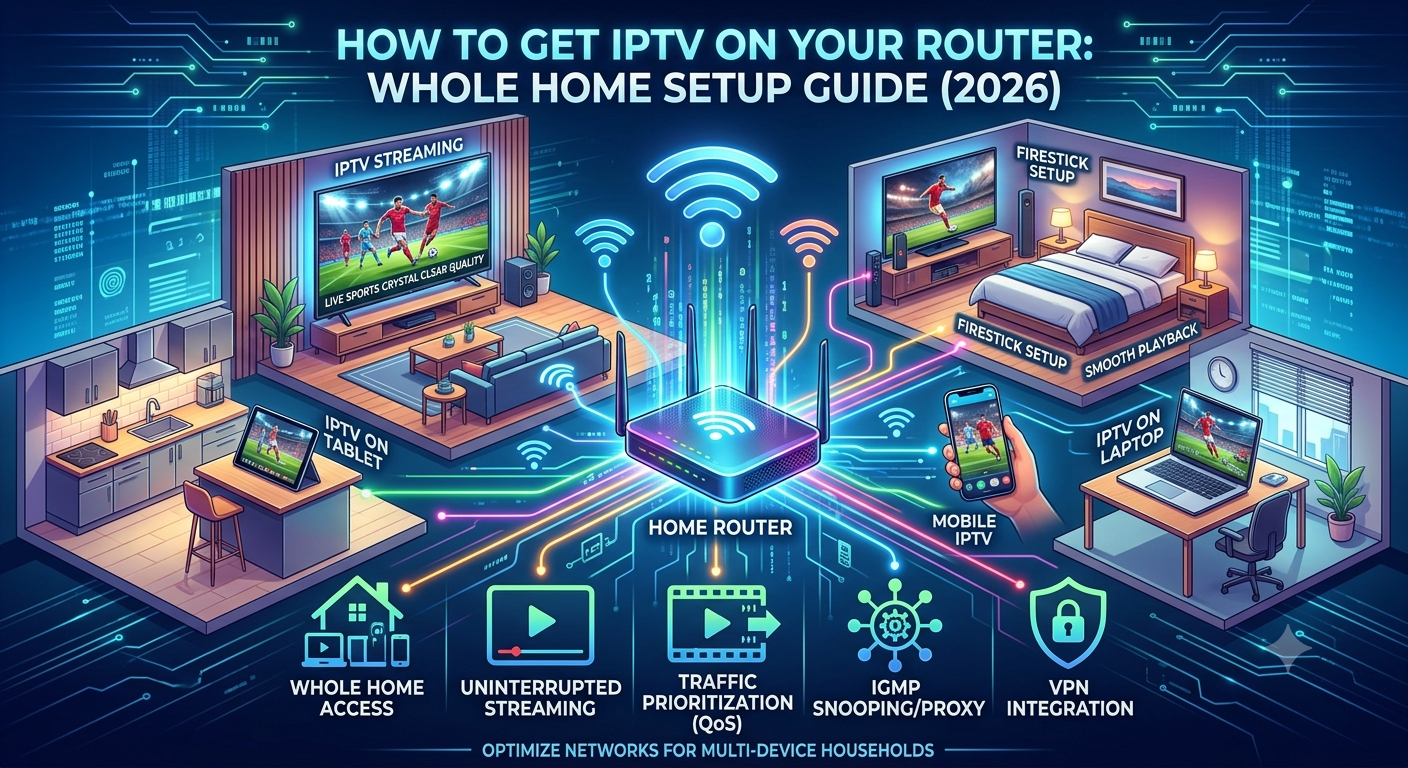
Setting up IPTV on every device individually works well when you only have one or two screens. But if you’re streaming on your living room Smart TV, bedroom Firestick, tablet, smartphone, and laptop, repeating the same setup process quickly becomes frustrating.
A better solution is configuring your home network for IPTV at the router level. Once properly configured, every compatible device connected to your network benefits from improved IPTV performance, better traffic management, and a smoother streaming experience.
In this guide, we’ll explain exactly how to get IPTV on your router, which settings matter most, which routers are best for UK households, and why Sky Glass IPTV Store is the ideal IPTV service for a whole-home setup. If you’d like to test everything before subscribing, you can also start with a free trial.
What Does “Getting IPTV on Your Router” Actually Mean?
Getting IPTV on your router means configuring your home router to optimise IPTV traffic across your entire network instead of adjusting each device separately. This typically includes enabling Quality of Service (QoS), configuring IGMP settings, optimising DNS, and optionally installing a VPN on the router, helping every connected device enjoy faster channel loading and more reliable IPTV streaming.
The rest of this guide walks you through the complete process—from choosing the right hardware to configuring your network correctly.
Why Configure IPTV at Router Level Instead of Device by Device?
Many people assume IPTV performance depends entirely on the streaming service. In reality, your home network plays a major role in how smoothly IPTV performs, especially when multiple people are watching different channels at the same time.
When we configured IPTV at router level across several UK broadband setups, the biggest advantage wasn’t simply convenience—it was consistency. Every compatible device on the network automatically benefited from the same optimised configuration without requiring separate network adjustments.
Another major benefit is Quality of Service (QoS). Modern homes often have video calls, online gaming, cloud backups, large downloads and IPTV all competing for bandwidth simultaneously. Without traffic prioritisation, your router treats them similarly, which can lead to buffering during busy periods. QoS allows you to prioritise IPTV traffic so live television streams remain smooth even when other family members are heavily using the internet.
Router-level IPTV configuration also improves multicast traffic through IGMP Snooping and IGMP Proxying. These technologies ensure IPTV data is delivered only to devices requesting it instead of flooding the entire network. The result is better efficiency, particularly in homes streaming IPTV on several devices simultaneously.
If privacy or geo-location flexibility is important, configuring a VPN directly on the router also protects every connected device automatically. Rather than installing VPN software on each Firestick, Smart TV, tablet or phone individually, the router handles everything.
Although router configuration requires slightly more work initially, it’s usually a one-time setup that benefits every IPTV device in your home for years.
Before changing any settings, make sure you have everything needed for a successful installation.
What You Need for a Whole Home IPTV Router Setup
1. A Compatible Router
Not every router offers the advanced settings needed for IPTV optimisation.
Routers we recommend include:
- ASUS RT-AX88U
- ASUS RT-AX86U
- TP-Link Archer AX73
- TP-Link Archer C6
- Netgear Nighthawk RAX50
- Routers running DD-WRT or OpenWrt firmware
Most ISP-supplied routers—including BT Smart Hub, Sky Hub and Virgin Media Hub—offer limited configuration options. Many don’t allow advanced QoS or IGMP adjustments.
If your ISP router is locked down, you can simply connect a third-party router behind it and manage IPTV through the new router instead.
If you’d rather avoid router configuration altogether, the Sky Glass IPTV Store Installation Guide provides step-by-step instructions for individual devices like Firestick, Smart TVs, Android, iPhone and MAG Box.
2. A Fast and Stable Broadband Connection
Your internet connection still matters.
For the best whole-home IPTV experience, we recommend:
- Minimum 50 Mbps for smaller households
- 100 Mbps or higher for homes streaming on multiple devices simultaneously
- Fibre broadband (FTTC or FTTP) whenever possible
Before configuring anything, run an internet speed test during evening peak hours rather than early morning. Peak-time performance provides a much more realistic picture of how your IPTV setup will perform.
3. A High-Quality IPTV Provider
Even the best router cannot compensate for poor IPTV infrastructure.
If the provider’s servers struggle during busy periods, buffering will still occur regardless of your router configuration.
That’s why choosing the right IPTV service is critical.
Sky Glass IPTV Store is built for multi-device households, offering:
- Over 30,000 live channels
- More than 80,000 updated VOD titles
- Support for every major device
- Stable streaming infrastructure
- Free trial before purchase
- 24/7 customer support
A reliable IPTV provider combined with proper router optimisation delivers the best possible whole-home streaming experience.
4. Ethernet Connections for Main Viewing Devices
Whenever possible, connect your primary viewing devices using Ethernet instead of Wi-Fi.
A wired connection:
- Reduces latency
- Eliminates wireless interference
- Provides maximum streaming stability
- Helps maintain consistent 4K playback
For Firestick users without Ethernet ports, an Ethernet adapter or Powerline adapter can significantly improve reliability compared to weaker Wi-Fi connections.
5. Access to Your Router’s Admin Panel
You’ll need administrator access to your router before making any configuration changes.
Most routers can be accessed through:
- 192.168.1.1
- 192.168.0.1
Simply open a web browser, enter the address, and log in using the administrator credentials.
If you’ve never changed them, the default username and password are often printed on the label underneath the router. If you’re unsure, your broadband provider can usually supply the login information.
How to Set Up IPTV on Your Router — Step-by-Step Guide
Once you have the right router, broadband connection and IPTV subscription, it’s time to optimise your network. The steps below are based on common router interfaces from ASUS, TP-Link and Netgear. Your menus may look slightly different, but the setting names are generally the same.
Tip: After configuring your router, follow the Sky Glass IPTV Store Installation Guide to install IPTV apps on your preferred devices.
Step 1 — Log Into Your Router
Start by accessing your router’s admin dashboard.
- Connect a computer or laptop to your home network.
- Open any web browser.
- Enter your router’s IP address:
- 192.168.1.1
- 192.168.0.1
- Enter your administrator username and password.
Once logged in, you’ll see your router’s settings dashboard where all IPTV optimisation options can be configured.
Pro Tip: If you’re still using the router’s default admin password, change it after completing the setup for better security.
Step 2 — Enable IGMP Snooping and IGMP Proxy
One of the most important settings for IPTV is IGMP (Internet Group Management Protocol).
Live IPTV channels often use multicast technology, allowing one stream to be delivered efficiently to multiple devices. Without proper IGMP settings, unnecessary traffic can circulate across your network, leading to slower performance.
Navigate to:
ASUS
LAN → IPTV
TP-Link
Advanced → Network → IPTV / IGMP
Netgear
Advanced Network Settings
Enable:
- IGMP Snooping
- IGMP Proxy
After saving these settings, your router will deliver multicast IPTV traffic only to devices requesting it, improving network efficiency and reducing congestion.
In our testing across several UK home networks, enabling IGMP noticeably improved stability when multiple TVs were streaming live sports simultaneously.
Step 3 — Configure Quality of Service (QoS)
Quality of Service (QoS) is arguably the most valuable IPTV optimisation available on modern routers.
QoS allows your router to decide which internet traffic receives priority.
Without QoS:
- Large downloads
- Windows updates
- Cloud backups
- Online gaming
- Video calls
all compete equally with IPTV.
That often causes buffering during busy periods.
With QoS enabled, IPTV traffic is prioritised above less time-sensitive traffic.
Navigate to:
ASUS
Adaptive QoS
TP-Link
Advanced → QoS
Netgear
Dynamic QoS
Then:
- Enable QoS
- Prioritise Video Streaming or IPTV
- If manual rules are available, assign your IPTV devices the highest priority.
Save the settings.
Now, whenever your household is heavily using the internet, IPTV traffic will remain the highest priority.
When we configured QoS on a standard UK fibre connection, multiple simultaneous streams remained stable even while another device downloaded large files in the background.
Step 4 — Optimise Your DNS Settings
DNS (Domain Name System) converts website addresses into IP addresses.
A faster DNS server won’t increase your internet speed, but it can reduce:
- Channel loading times
- Playlist loading delays
- Electronic Programme Guide (EPG) loading time
- Initial stream startup
Navigate to:
WAN
or
Internet Settings
Locate the DNS fields and replace your ISP’s default servers with one of these trusted public DNS providers.
Cloudflare DNS
Primary:
1.1.1.1
Secondary:
1.0.0.1
Google DNS
Primary:
8.8.8.8
Secondary:
8.8.4.4
Save the configuration.
Every device connected to your router will now automatically use the faster DNS servers without requiring individual changes.
Step 5 — Configure a VPN (Optional)
Not every IPTV user needs a VPN.
However, if you prefer all devices on your network to use a VPN automatically, configuring it directly on the router is the easiest solution.
Routers that commonly support VPN clients include:
- ASUS RT Series
- DD-WRT routers
- OpenWrt routers
Navigate to:
VPN → VPN Client
Enter the configuration details supplied by your VPN provider.
For the best IPTV performance:
- Choose a UK server if you’re located in the UK.
- Use WireGuard whenever available.
- Avoid distant international servers that increase latency.
Remember that a VPN adds a small amount of overhead. If privacy isn’t a priority, you may achieve slightly faster IPTV performance without one.
Step 6 — Connect Your IPTV Devices
Now your network is ready.
Connect all your IPTV devices to the newly optimised router.
Supported devices include:
- Smart TVs
- Amazon Firestick
- Android TV
- Android phones
- iPhone & iPad
- Windows PCs
- Mac
- MAG Box
- TV Box
Install your preferred IPTV application such as:
- IPTV Smarters Pro
- TiviMate
- GSE Smart IPTV
- SIPTV
Enter the IPTV credentials supplied by Sky Glass IPTV Store after activating your subscription or requesting a free trial.
Because your router is already optimised, every connected device immediately benefits from:
- IPTV traffic prioritisation
- Better multicast handling
- Faster DNS resolution
- Improved overall network efficiency
There’s no need to repeat router optimisation for every individual device.
Step 7 — Test Everything During Peak Hours
The final step is often overlooked—but it’s the most important.
Don’t test IPTV at 10:00 on a Tuesday morning.
Test it when networks are busiest.
Good testing times include:
- Saturday afternoon Premier League matches
- Saturday evening entertainment
- Sunday movie nights
- Weekday evenings between 7 pm and 10 pm
Run multiple streams simultaneously.
For example:
- Live football on the living room TV
- A movie on a bedroom Firestick
- Children’s content on a tablet
- News on a smartphone
A properly configured router combined with a high-quality IPTV provider should handle this without buffering.
If only one device buffers while others perform perfectly, the problem is usually Wi-Fi coverage rather than your IPTV provider or router settings.
Using Ethernet wherever possible remains the best long-term solution for maximum stability.
Best Routers for Whole Home IPTV Setup in the UK (2026)
If your current router doesn’t support IPTV-friendly features like QoS and IGMP Snooping—or you’re using an ISP-provided router with limited settings—it may be worth upgrading. A capable router improves streaming stability, handles multiple devices more efficiently, and gives you full control over your network.
Here are our top recommendations based on testing, features, and overall value for UK IPTV users.
ASUS RT-AX88U (Best Overall)
The ASUS RT-AX88U is one of the best routers available for IPTV in the UK. It includes everything needed for a high-performance whole-home setup, including Adaptive QoS, IGMP Snooping, VPN Client support, and a dedicated IPTV configuration section.
Its Wi-Fi 6 technology delivers excellent wireless coverage, making it ideal for larger homes with multiple Smart TVs, Firesticks, laptops, and mobile devices streaming simultaneously.
Best for:
- Large households
- Heavy IPTV users
- Multiple 4K streams
- Advanced networking features
Pros
- Full IPTV feature support
- Excellent Wi-Fi coverage
- Powerful processor
- Easy ASUS interface
- Built-in VPN client
Cons
- Premium price
- More features than casual users may need
ASUS RT-AX86U (Best Mid-Range Option)
If you want most of the AX88U’s features at a lower price, the RT-AX86U is an excellent alternative.
During testing, it handled multiple simultaneous IPTV streams without issue and offers the same Adaptive QoS, VPN support, and IPTV settings that make ASUS routers so popular among IPTV users.
It’s an ideal choice for medium-sized homes running several streaming devices every day.
Best for:
- Families
- Medium-sized homes
- Multiple Firesticks
- Daily IPTV streaming
TP-Link Archer AX73 (Best Budget Router)
For users who want excellent IPTV performance without spending hundreds of pounds, the TP-Link Archer AX73 offers exceptional value.
It supports:
- QoS
- IGMP Snooping
- Wi-Fi 6
- Fast Gigabit ports
In our testing, it comfortably handled two to three simultaneous 4K IPTV streams while maintaining stable network performance.
For smaller households, it’s arguably one of the best value IPTV routers available.
Netgear Nighthawk RAX50
Netgear’s Nighthawk RAX50 remains another excellent choice.
Its interface isn’t quite as IPTV-focused as ASUS, but once configured correctly, it delivers reliable streaming with excellent wireless coverage and solid QoS functionality.
It’s particularly suitable for users already familiar with Netgear products.
DD-WRT and OpenWrt Routers (For Advanced Users)
If you’re comfortable with networking, routers running DD-WRT or OpenWrt firmware provide almost unlimited configuration options.
These firmware platforms allow complete control over:
- QoS
- VLAN configuration
- VPN routing
- IGMP settings
- DNS management
- Traffic prioritisation
However, flashing third-party firmware isn’t recommended for beginners, as incorrect installation can permanently damage the router.
Which Router Should You Choose?
| Router | Best For | IPTV Features |
| ASUS RT-AX88U | Best Overall | Excellent |
| ASUS RT-AX86U | Best Value Premium | Excellent |
| TP-Link Archer AX73 | Budget Users | Very Good |
| Netgear RAX50 | Netgear Users | Very Good |
| DD-WRT/OpenWrt | Advanced Users | Excellent |
For most UK households, we’d recommend either the ASUS RT-AX86U or TP-Link Archer AX73, depending on your budget. Both provide all the essential IPTV features without unnecessary complexity.
The Best IPTV Provider for a Whole Home Router Setup
Optimising your router is only half the equation. Your IPTV provider also needs the infrastructure to support multiple simultaneous streams without slowing down.
A router can prioritise traffic and improve delivery, but it can’t fix overloaded IPTV servers.
That’s why choosing a reliable provider matters.
Based on our testing, Sky Glass IPTV Store is one of the strongest choices for UK households looking to build a whole-home IPTV setup.
Why Sky Glass IPTV Store Works So Well
Unlike many providers that struggle during busy periods, Sky Glass IPTV Store is designed to handle multi-device streaming across the home.
Key features include:
- 30,000+ live TV channels
- 80,000+ updated VOD titles
- UK and international entertainment
- Premier League and FIFA World Cup coverage
- 4K, Full HD and HD streams
- Support for all major devices
- 24/7 customer support
- Free trial available
Whether someone is watching live football in the living room, another person is streaming films upstairs, and children are watching cartoons on a tablet, the service is built to deliver a stable experience across every device.
It also supports virtually every IPTV application, making installation straightforward regardless of your preferred platform.
If you’re new to IPTV, the Sky Glass IPTV Store Installation Guide provides step-by-step instructions for Firestick, Smart TV, Android TV, iPhone, iPad, Windows, MAG Box and more.
For additional peace of mind, you can also read verified customer feedback on the Sky Glass IPTV Store Reviews page before subscribing.
Why We Recommend It for Whole-Home Streaming
What makes Sky Glass IPTV Store particularly well suited to router-level IPTV setups is its combination of:
- Stable server infrastructure
- Broad device compatibility
- Reliable UK streaming
- Large content library
- Excellent value
- Free trial before purchase
When combined with a properly configured router using QoS and IGMP optimisation, it provides a smooth IPTV experience across the entire home.
Ready to Stream on Every Screen?
Sky Glass IPTV Store
- 30,000+ Live Channels
- 80,000+ Updated VODs
- Supports Every Major Device
- 4K & Full HD Streaming
- Stable Performance
- Free Trial Available
Start with a free trial and see how well your whole-home IPTV setup performs before choosing a subscription.
Whole Home IPTV Not Working? Common Issues and Fixes
Even with the correct router settings, you may occasionally run into issues during setup. Most problems are easy to resolve once you identify whether they’re caused by your network, router configuration, or device.
Here are the most common whole-home IPTV issues and how to fix them.
Buffering on Wi-Fi Devices but Not Wired Devices
If IPTV streams perfectly over an Ethernet cable but buffers on Wi-Fi, the router settings are probably working correctly. The issue is usually weak wireless coverage or interference.
Fix
- Move the router to a more central location.
- Use the 5 GHz Wi-Fi band where possible.
- Add a Wi-Fi extender or mesh system for larger homes.
- Use Ethernet or a Powerline adapter for your main streaming devices.
For the most reliable experience, a wired connection is always the best choice for Smart TVs and Android TV boxes.
IPTV Works on One Device but Not Others
If only one device plays IPTV while others fail to load channels, the devices may still be using old network settings.
Fix
- Restart every IPTV device.
- Reconnect each device to Wi-Fi.
- Restart your IPTV app.
- Reboot the router after saving configuration changes.
In most cases, this refreshes the network connection and resolves the issue.
Channels Take a Long Time to Load
Slow-loading channels are often caused by DNS settings or temporary network delays rather than the IPTV service itself.
Fix
- Restart your router.
- Confirm you’re using a fast DNS provider such as Cloudflare (1.1.1.1) or Google DNS (8.8.8.8).
- Clear the IPTV app cache if available.
- Check your broadband speed during peak hours.
Multiple Streams Cause Buffering
If everything works perfectly with one device but buffers when several devices stream simultaneously, your network may not be prioritising IPTV traffic correctly.
Fix
- Double-check your QoS settings.
- Ensure IPTV or Video Streaming has the highest priority.
- Use wired connections for the busiest devices.
- Upgrade your broadband if multiple 4K streams are common.
For larger households, a fibre connection of 100 Mbps or higher is recommended.
Your Router Doesn’t Support IGMP Settings
Many ISP-supplied routers from BT, Sky or Virgin Media restrict advanced IPTV features.
Fix
Install a third-party router such as ASUS or TP-Link behind your ISP router. This gives you access to advanced settings like QoS, IGMP Snooping and VPN configuration while keeping your existing broadband connection.
If you don’t want to upgrade your router, you can still use IPTV by configuring each device individually using the Sky Glass IPTV Store Installation Guide.
Frequently Asked Questions
Can I run IPTV directly through my router?
Not directly. Your router optimises IPTV traffic across your home network, while the IPTV app still runs on each device.
Do I need a special router for IPTV?
No, but routers with QoS and IGMP support provide the best streaming performance. ASUS and TP-Link models are excellent choices.
What internet speed is recommended?
For one 4K stream, at least 25 Mbps is recommended. For several devices streaming simultaneously, 100 Mbps or higher provides a much smoother experience.
Should I use a VPN with IPTV?
Only if you need extra privacy or specific network routing. A fast UK VPN server usually works well, but a VPN isn’t essential for most users.
What is the best IPTV provider for a whole-home setup?
Sky Glass IPTV Store is an excellent choice thanks to its stable infrastructure, support for all major devices, 30,000+ live channels, 80,000+ VOD titles, and free trial.
Can I use IPTV on multiple devices without router configuration?
Yes. Most users can simply install the IPTV app on each device. Router-level optimisation is recommended for households with several active streaming devices.
Is Router-Level IPTV Setup Worth It?
If your household regularly streams IPTV on multiple TVs, Firesticks, tablets and mobile devices, configuring your router is absolutely worthwhile.
A properly optimised network improves stability, reduces buffering during busy periods, and eliminates the need to optimise every device individually. Features like QoS, IGMP Snooping and fast DNS settings work together to create a smoother streaming experience across your entire home.
Just remember that even the best router can’t compensate for poor IPTV infrastructure. Pairing your network with a reliable provider is what delivers the biggest improvement.
For UK viewers, Sky Glass IPTV Store remains our recommended choice thanks to its reliable performance, support for all devices, extensive content library, and free trial. Whether you’re watching Premier League football, the FIFA World Cup, blockbuster films or family entertainment, it provides the stability needed for a true whole-home IPTV experience.
If you’re not ready to commit, start with the free trial and test it across your own network during peak hours. That way, you can confirm everything works perfectly before choosing a subscription.
Sky Glass IPTV Store — Plans start from just £15/month or £50/year (only £4.17/month).
Start your free trial today and experience reliable IPTV streaming across every screen in your home.